Instructions for use
CLIMACELL EVO_np_en_1401_mmm_V1.01 25
- The settings described in this chapter suppose that the
device is equipped with communication module, see
6.15.
8.3.10.1.1 ETHERNET SETTING
The communication interface of the device allows its
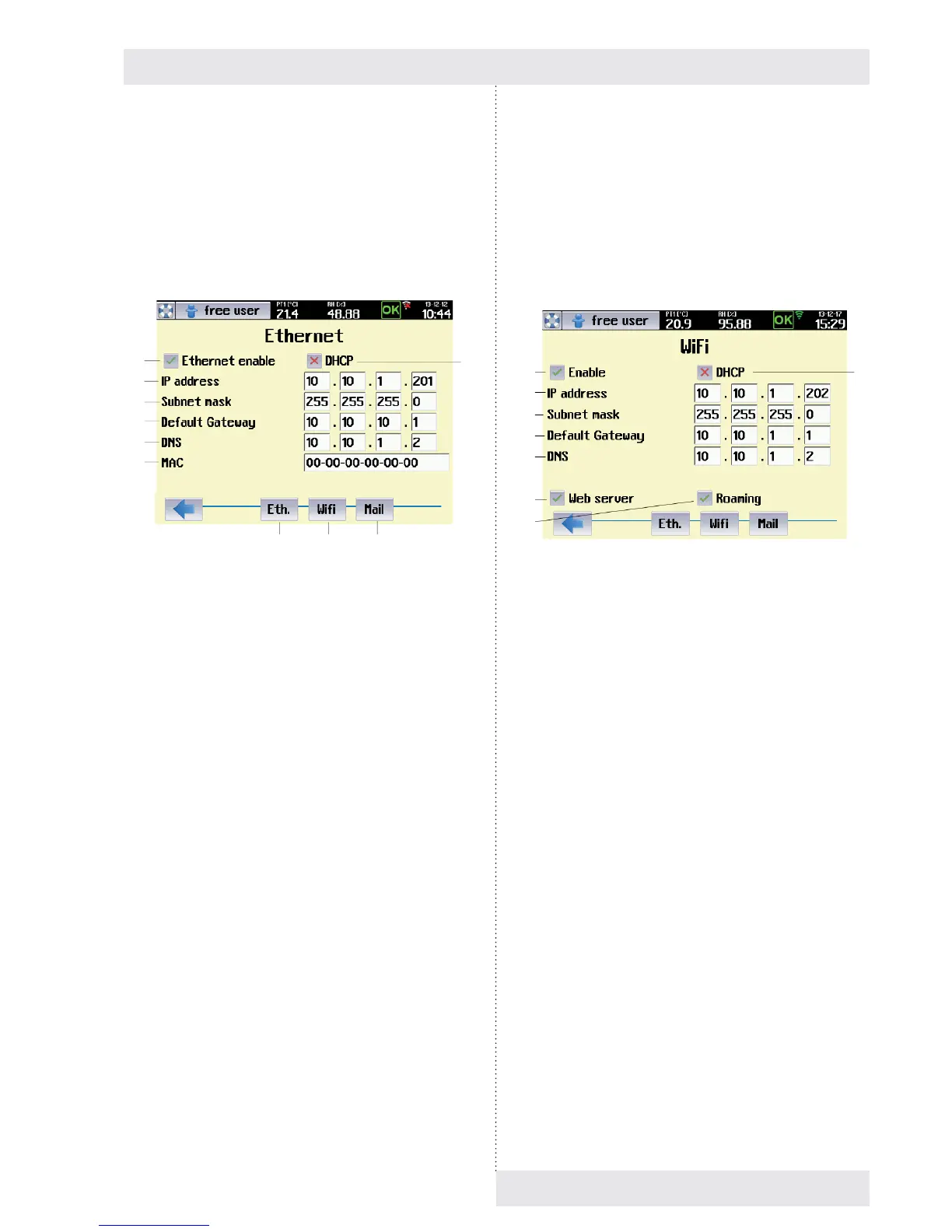
inclusion to LAN. An example of setting is shown in Fig. 41.
Fig. 41
(1) Ethernet activation.
(2) DHCP
- The user has two possibilities to get the IP
address of the device within LAN:
o IP address is assigned by the network
administrator (see below).
o the DHCP option is ticked – then, the
IP address is assigned to the device
automatically through the DHCP server.
(3) IP address of the device.
- Assigned by the LAN administrator.
(4) Sub-net mask.
- The sub-net mask is provided by the LAN
administrator.
(5) Initial gate.
- IP address of the router.
- Get information from the LAN administrator.
(6) DNS
- Address of Local DNS (Domain Name System).
- Get information from the LAN administrator.
(7) MAC
- A unique address of each network device.
- It is factory adjusted but it can be changed if
necessary.
- If there is set the MAC address 00-00-00-00-00-
00, the device uses the MAC address pre-set
from the factory. The address is stated in system
information, see 8.6.
- If the user wants to use aome other address but
the initial one, he may re-type it in this fi eld.
- After editing, you must switch the device on and
off using the push button ON/OFF!
(8) Ethernet setting.
(9) Wifi setting.
(10) E-mail setting.
(11) Web site setting.
8.3.10.1.2 WIFI SETTING
Fig. 42
(1) Wifi activation
(2) Automatic assignment of the IP address by the DHCP
server.
- See 8.3.10.1.1.
(3) IP address of the device.
- IP address of the device within WLAN.
- Assigned by the WLAN administrator
(4) Sub-net mask.
- Get information from the WLAN administrator.
(5) Initial gate.
(6) DNS.
- Address of Local DNS (Domain Name System).
- Get information from the WLAN administrator.
(7) Web server activation.
- On the communication module it is possible to
activate web server, allowing the user to monitor
the status of the device, see 8.3.7.3.
(8) Roaming.
- The device automatically connects to the access
point with the strongest signal.
(1)
(3)
(4)
(5)
(6)
(7)
(2)
(8) (9) (10)
(2)
(1)
(3)
(4)
(5)
(7)
(8)


 To Next Page