Connect an Android® device using Miracast®
To use Miracast® attendees will need:
• A supported device running Android 4.4 or above
• Miracast® enabled in MTC-5000 settings.
• The Access Point disabled in MTC-5000 settings
*Steps to connect via Miracast® vary dependent on device, please check with the respective phone manual
for instructions on how to share the device screen.
Managing participants
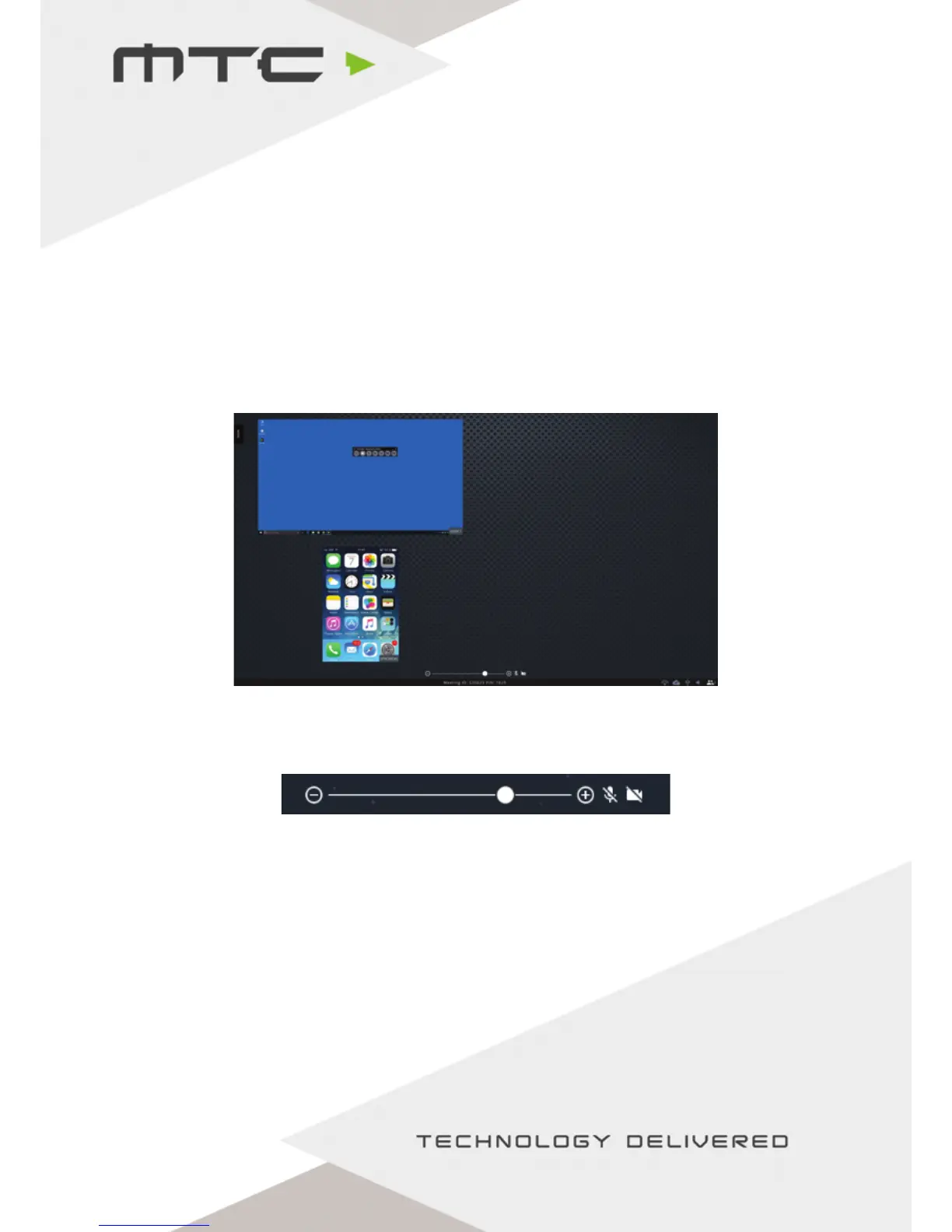
Attendees will appear in the participants view when connected, as seen above. Up to a maximum of 12
attendees can be connected at once.
This view can be altered by using the slider at the bottom of the screen. This can change between
having 1 device on screen up to 6 screens. If there is a mic, webcam or visualizer attached
to the MTC-5000 unit, these can be toggled on or off using the icons to the right of the slider.
Adding and removing attendees
Attendees can join at any time during a session - if joining after a session has started, the Meeting ID
and Meeting PIN will be visible in the bottom of the MTC-5000 display. Tapping/clicking on this
will open the MTC-5000 Meeting ID screen with the Meeting ID in a larger format.
If the maximum amount of attendees are already connected, attendees can easily be removed by
dragging an attendee’s display to the trash bin. If an attendee wants to disconnect they can select to
‘Leave MTC-5000’ in the app, or disconnect from Airplay® or Miracast®.
www.mtc-technologies.com info@mtc-technologies.com
14


 To Next Page