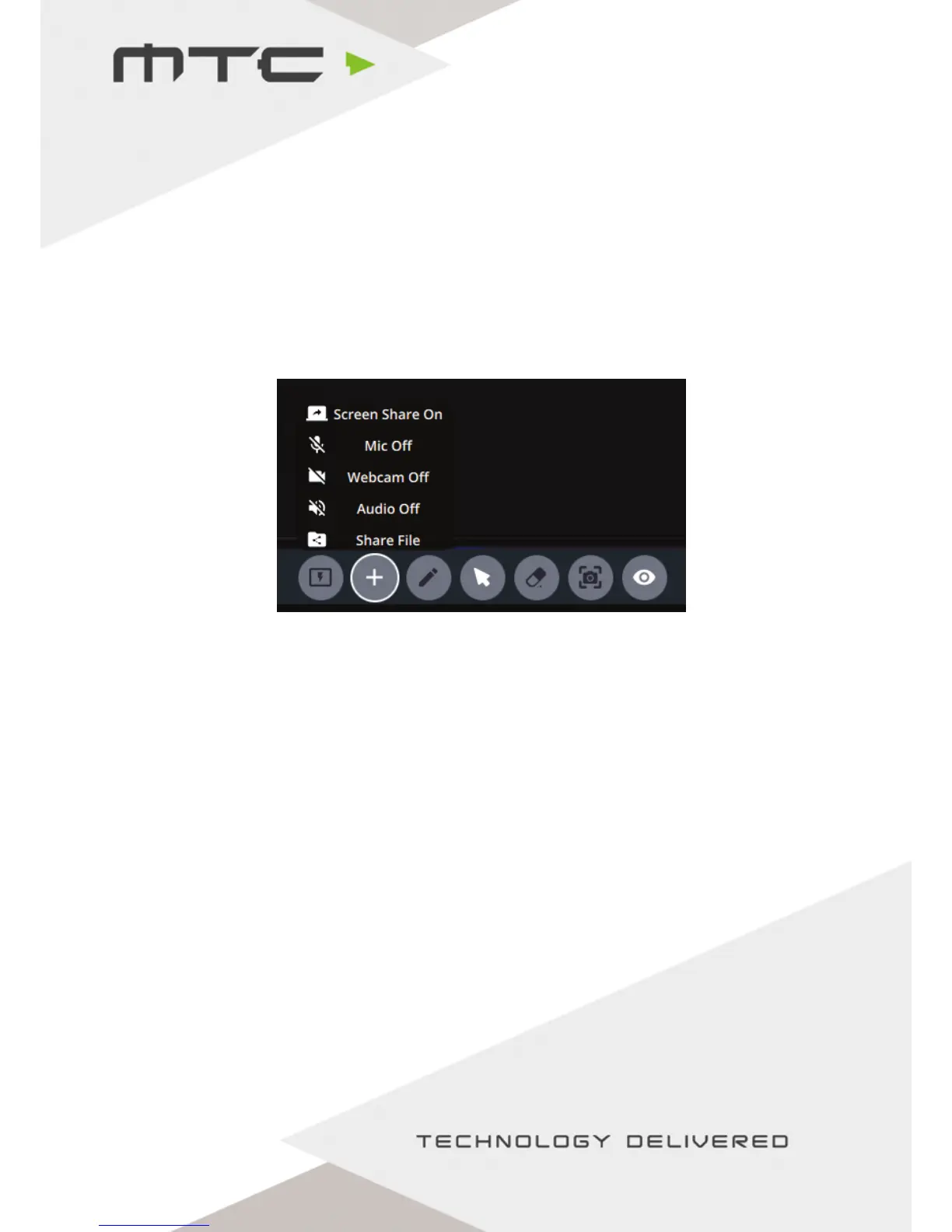
Active display menu options
A device can be made the Active Display by clicking the ‘Make Active Display’ icon in the menu bar. This will
make that attendee’s device full screen on the main display, this will also share the content to anyone
viewing the active display on the Windows® Application or Web Client.
Viewing the active display
The current Active Display can be viewed by selecting the ‘View Active Display’ icon. The screen will change
with extra options, as below.
An attendee can deselect themselves as the Active Display (stopping others from viewing the screen) by
pressing the red Active Display button. Pressing the ‘+’ will expand with additional options, giving quick
access to pause screen, turn on/off outgoing audio, start/stop sharing webcam or to share a file.
Annotations can be made using the Annotation tool. These will be visible on the main display and to all
other attendees viewing the Active Display.
Pause screen sharing
The attendee can press the ‘pause screen sharing’ button at any time, allowing them to use other
applications without them being shared to the main display or other attendees. Click again to resume
sharing.
Share audio and video
Audio inputs and outputs can be controlled from within the MTC-5000 Windows Application, allowing
MTC 5000 to be used for two way voice or set to send system audio from the client PC (e.g. from a video).
Share a file
This allows sending of a file from this attendee to all attendees who have joined the meeting using either
the Windows application or web client. Please note there is a file size limit of 20MB.
www.mtc-technologies.com info@mtc-technologies.com
17


 To Next Page