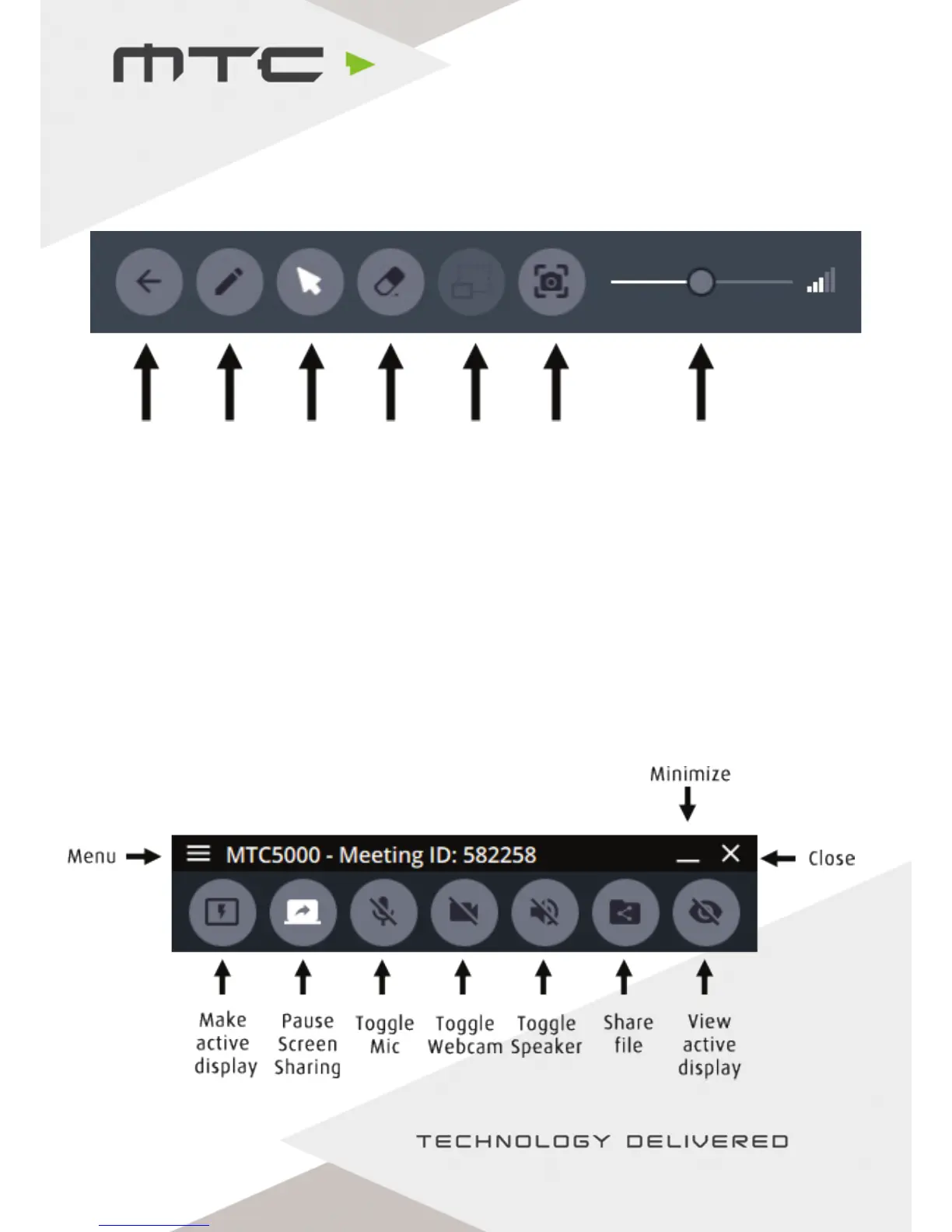
Active display menu options
When a display is the active screen on MTC5000, then swipe up from the bottom to get the active display
options menu.
Back – Select this option to return to the participants view of all connected devices.
Annotation Pen – Used to annotate over the current display. Click or tap to cycle through colours.
Cursor control – Take mouse control of the Active Display.
Erase annotations – Delete all annotations from the current screen.
Toggle webcam – Show or hide the webcam of the connected attendee.
Share screenshot – Capture a snapshot of the current screen and send it to connected attendees.
(Windows Application/Web client only)
Volume control – Control the volume of any audio output connected to the MTC-5000 unit.
Windows Application
Back Annotation
pen
Cursor
control
Erase
annotation
Toggle
webcam
Share
screenshot
Volume
control
www.mtc-technologies.com info@mtc-technologies.com
16


 To Next Page