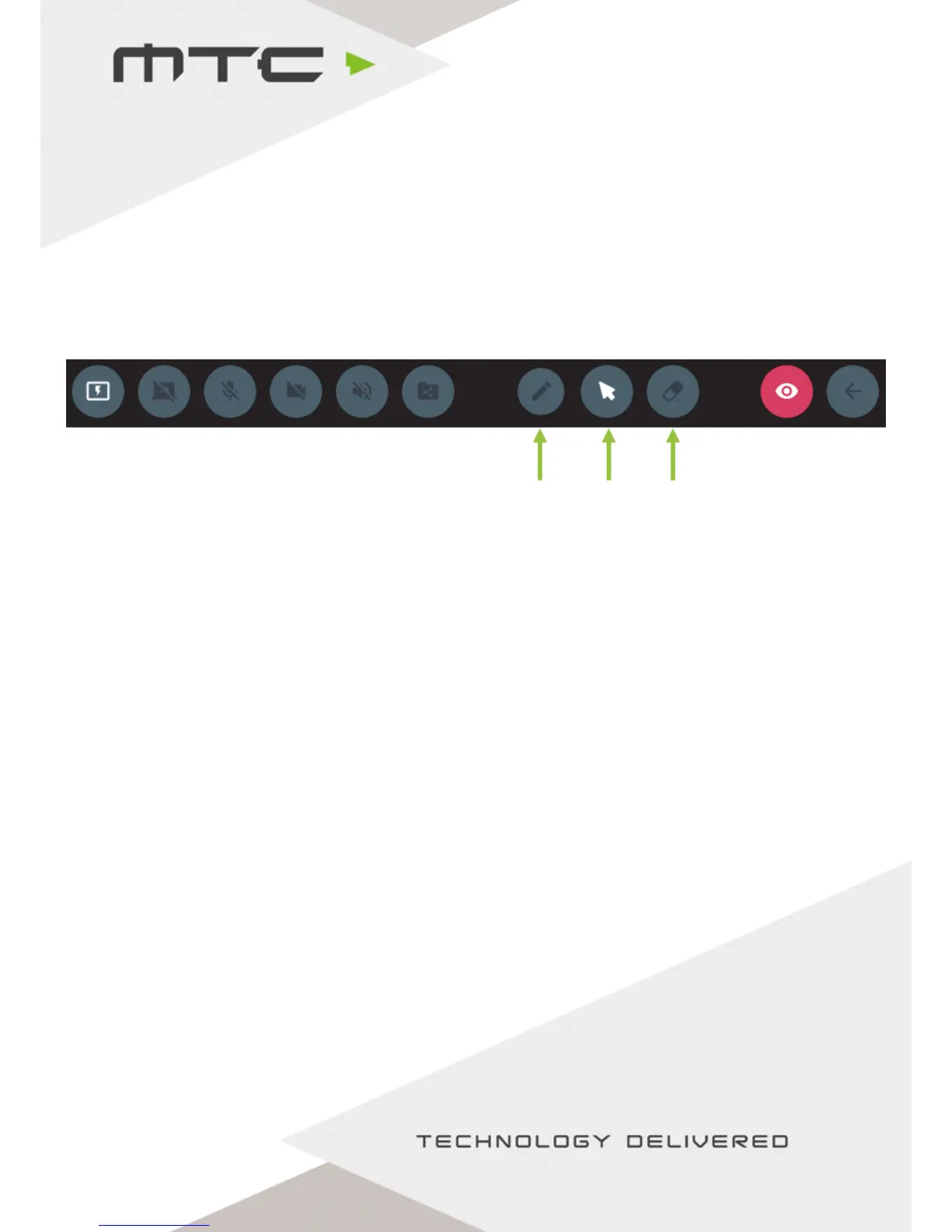
View the Active Display
T
he Active Display can be viewed by selecting the ‘View Active Display’ icon in the toolbar. This will allow
the participants connected via the Web Client to view the current Active Display within Chrome.
When Active Display is selected additional options appear allowing the user to annotate, select and erase
annotations from the content. Annotations will be visible on the main display and to all other attendees
viewing the Active Display.
An attendee can deselect themselves as the Active Display (stopping others from viewing the screen) by
clicking the red Active Display button on the toolbar.
Pause screen sharing
The attendee can press the ‘pause screen sharing’ button at any time, allowing them to use other
applications without them being shared to the main display or other attendees. Click again to resume
sharing.
Share mic/webcam
After joining the meeting, the participant can share the PC’s microphone and webcam by enabling the
corresponding button on the Web Client toolbar. For best results, if there are multiple in-room attendees
do not activate more than one participant’s microphone per room, or enable a microphone connected
directly to the MTC5000 unit.
Share a file
This allows sending of a file from one attendee to all attendees who have joined the meeting using either
the Windows application or web client. Please note there is a file size limit of 20MB.
Cursor
Control
Annotation
Pen
Erase
annotation
www.mtc-technologies.com info@mtc-technologies.com
19


 To Next Page