Seven: Programming for Use with Z-Wave Devices 67
Providing a brighter solution.™
Press the button on the Z-Wave device for resetting the device (refer to the manufacturer’s 3.
instructions). The screen displays WORKING followed by SUCCESSFUL. The device is now
removed from the network.
Press the 4. <ENTER> button if you wish to return to the Main screen.
Setting Up Z-Wave Associations with Capable Devices
An “Association” is a feature supported by certain Z-Wave devices where Z-Wave device other
than the PE953 controller can be used to control other Z-Wave devices in the network (e.g., a
Z-Wave
switch that controls other Z-Wave
devices).
Within a PE653/953 network, setting up an association with one of these Z-Wave
devices makes
it possible to control Circuit 1 (the filter pump) of the PE653 in an ON/OFF basis along with
lighting or other features being controlled by another Z-Wave device, independent of the Hand-
Held Controller.
NOTE: Before you can create an Association, the capable Z-Wave
device must first be
included in the network.
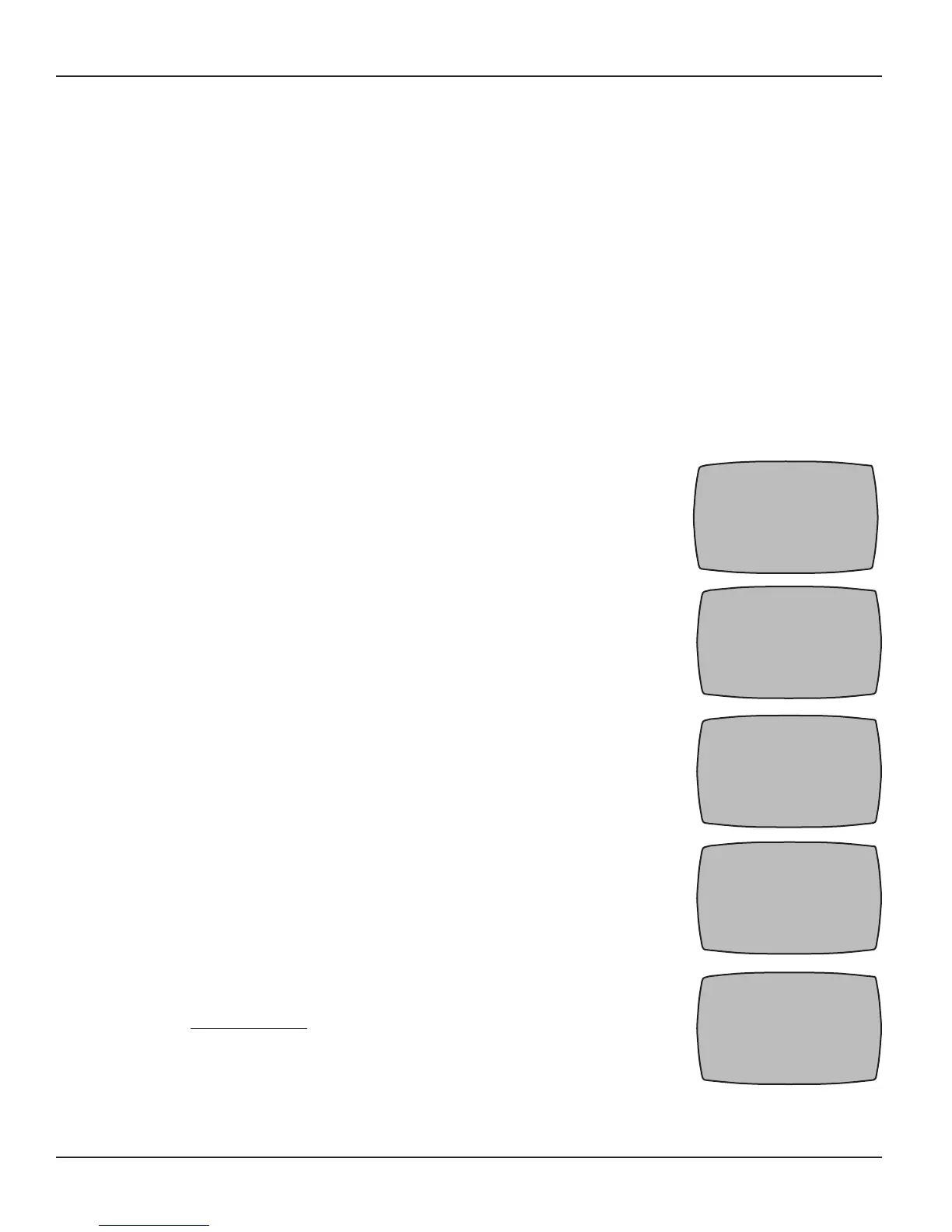
If necessary, press and release any button on the Hand-Held 1.
Controller to wake it from sleep. If the screen is not displaying
LEARN MODE, press and hold the <P/S> and <ENTER> buttons at
the same time to put the device into programming mode. You are in
programming mode when the LEARN MODE screen is displayed, as
shown at the right.
Press the 2. DOWN button once to display the CNTRL OPTION
screen, as shown:
Press button 3. <5> to select SETUP ASSOCIATIONS. The screen
displays two choices, as shown:
Press button 4. <1> to select ADD DEVICE. The screen adds the
words: PRESS BUTTON ON THE DEVICE CONTROLLING THE
ASSOCIATION as shown. This is the association-capable Z-Wave
device you want to use to control the other devices you plan to add
to the association.
Press the button on the device (the same button used for including 5.
the device into a network. Refer to the manufacturer’s instructions.)
that will control the association. The screen displays: PRESS THE
BUTTON ON THE DEVICE TO ADD TO THE ASSOCIATION.
LEARN MODE 00-00P
1 RESET CONTROLLER
2 RESET DEVICE
3 INCLUDE DEVICE
4 ADD TO SCENE
5 REMOVE FROM SCENE
UP-PREVIOUS DWN-MORE
CNTRL OPTION 00-00P
1 PRIMARY SCREEN SEL
2 CONTROLLER COPY
3 CONTROLLER SHIFT
4 UPGRADE FIRMWARE
5 SETUP ASSOCIATIONS
UP-PREVIOUS DWN-MORE
ASSOCIATION 00-00P
1 ADD DEVICE
2 REMOVE DEVICE
UP-PREVIOUS DWN-MORE
ASSOCIATION 00-00P
1 ADD DEVICE
PRESS BUTTON ON
DEVICE CONTROLLING
THE ASSOCIATION
ASSOCIATION 00-00P
1 ADD DEVICE
SET DEVICE LEVEL
THEN PRESS 1 TO ADD
DEVICE TO ASSOCIATION



 To Next Page