© 2015 myPhone. All rights reserved myPhone COMPACT EN
29
7. Communication
Making calls
To make a call:
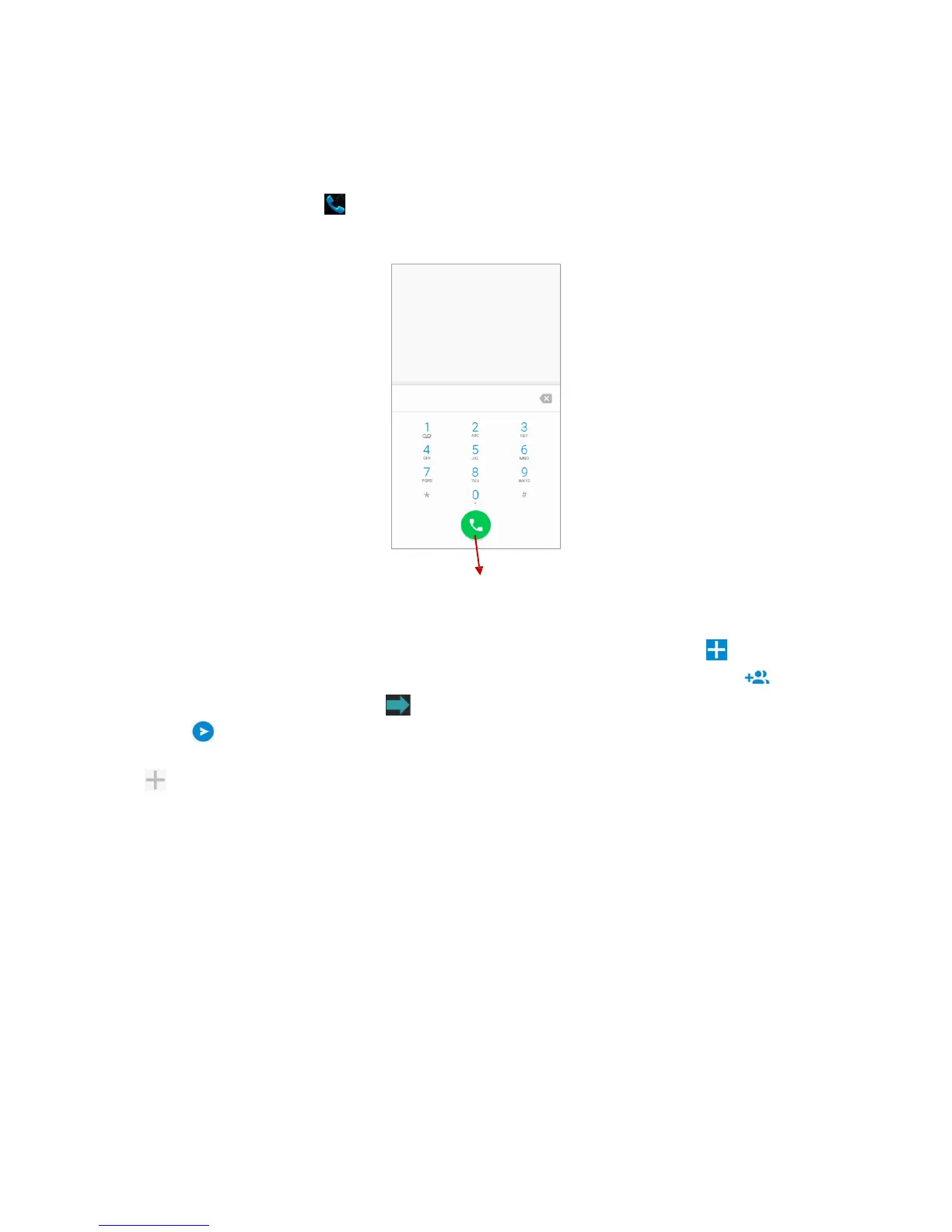
Touch the "Phone" icon on the main screen or in Android system App Menu.
Enter the phone number to dial.
Press the "receiver" with SIM card name at the bottom of the screen to place the call.
Touch to make the call.
Creating messages
Run the [SMS/MMS] app on the main screen or in the App Menu. Touch , enter the
phone number or the contact name (you can also see the contact list by touching ) and
select your contact. Then touch on the screen keyboard and enter the message text.
Touch to send the message.
Before you send the text message you can change it to the multimedia message by touching
symbol at the left side of the screen and add one of the media files (picture, video,
audio).
Sending messages
Use the [SMS/MMS] app on the main screen or in the App Menu to manage messages.
Incoming and outgoing messages for the same contact will be stored as one conversation,
which enables easy viewing the message history with particular contact.
To send an SMS, insert the SIM card to the device, select [App Menu] [Settings]
[SIM cards] [Select main card] and check the main card to be used to send SMS messages
(if you change the SIM card, you need to repeat the steps above).


 To Next Page