© 2015 myPhone. All rights reserved myPhone COMPACT EN
21
3. Entering the text
Entering the text – virtual keyboard
The text is input using an alphanumeric virtual keyboard. If you chose Polish language in the
menu and want to enter Polish characters, long hold a key, ex.:
To enter "ą" character, press longer (approximately 2 seconds) the "a" key and then choose
"ą" from the list that follows.
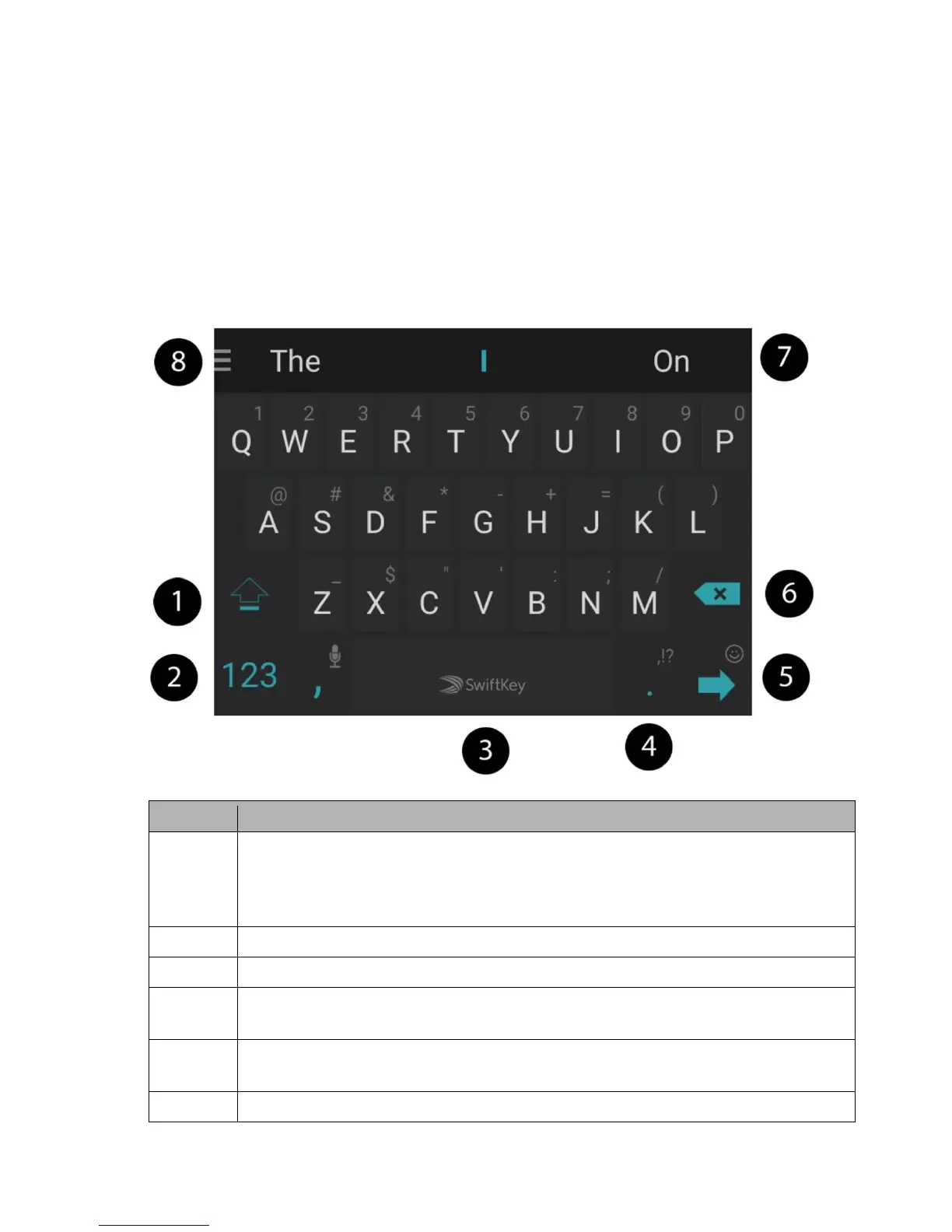
The virtual keyboard is depicted in the figure below (Note: the keyboard appearance may be
slightly different depending on the app that uses it):
Shift / Caps Lock – single click causes the change in key meaning – the letters change
capitalization and in case of double function keys the upper character is selected;
double click (signaled by blue underline) causes that all characters are written with
capital letters.
Opening the digit and symbol panel.
Dot – single click inserts a dot into the text, longer holding calls the submenu with
most popular special characters.
Ready (Enter) – the key is used to go to the next row. Longer press finishes typing or
opens the emoticon menu – depending on the selected option.
Backspace – used to delete a character before the cursor.


 To Next Page