© 2015 myPhone. All rights reserved myPhone COMPACT EN
35
10. Internet
Wi-Fi
The option used to connect with Wi-Fi network
1.
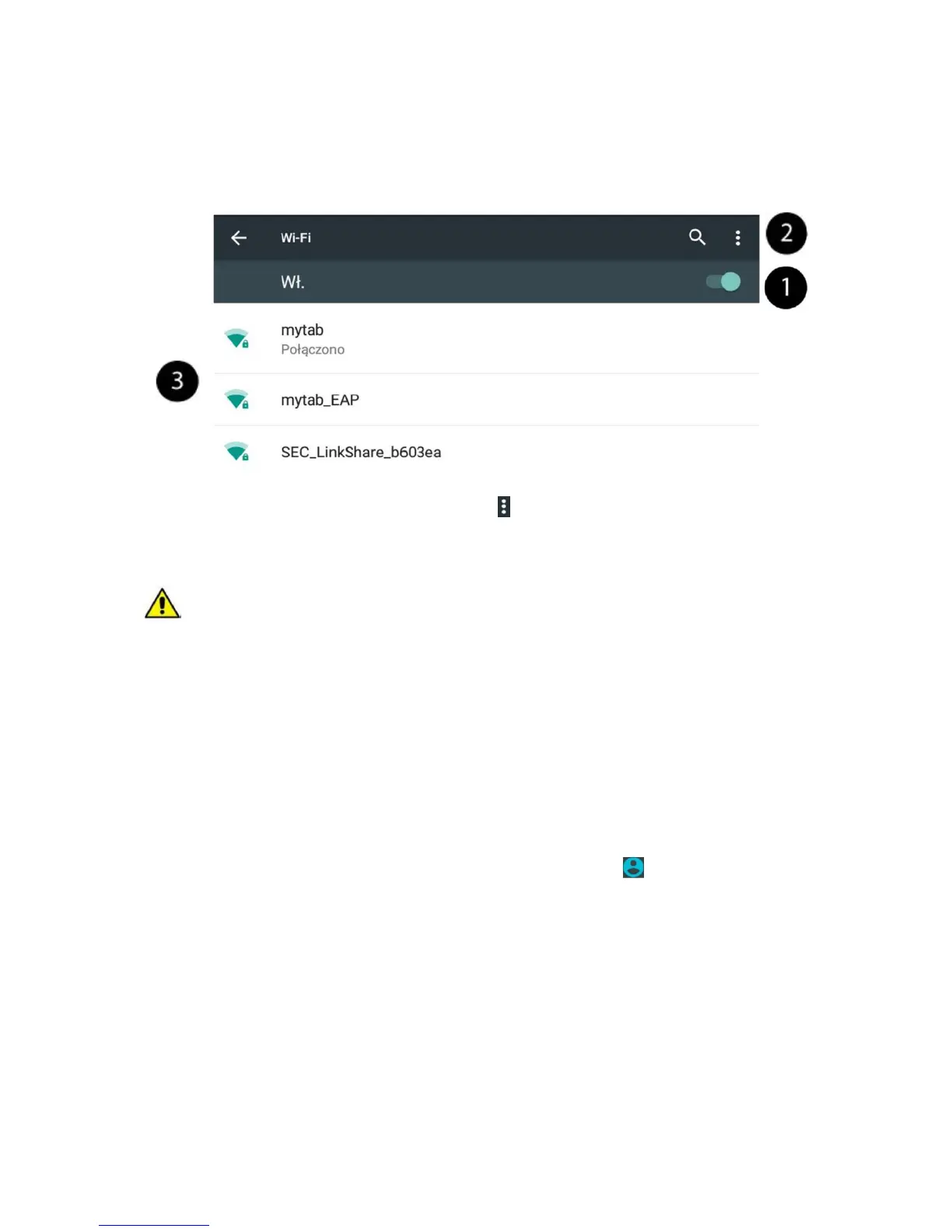
Select: [App Menu] [Settings] [Wi-Fi] and slide right (on).
2.
If you want to add a new WiFi network, press and select [Add network] or [Refresh].
3.
In this field is displayed a list of available WiFi networks, current connection status, an
icon representing WiFi signal strength and information if the network is password protected
- a padlock symbol.
If the WiFi network jest password protected, you need to enter the password during
connection. The password is entered using the virtual alphanumerical keyboard.
Connecting with 3G network
With myPhone COMPACT you can use the mobile Internet offered by your cellular network
operator. To use the Internet, you need a SIM card that supports connections with 3G
network and to be in range of this network. If you are not sure if the card supports 3G
networks and if you are in range – contact your operator.
To use the mobile Internet, insert the SIM card to the device, select [App Menu]
[Settings] [SIM cards] [Mobile data transfer] and check the main card to be used to
connect with the Internet (if you change the SIM card, you need to repeat the steps above).
Move the slider to the right. Expand the notification bar and touch and "Date".


 To Next Page