Getting Started 2-11
ML440 End User Guide - Revision 1
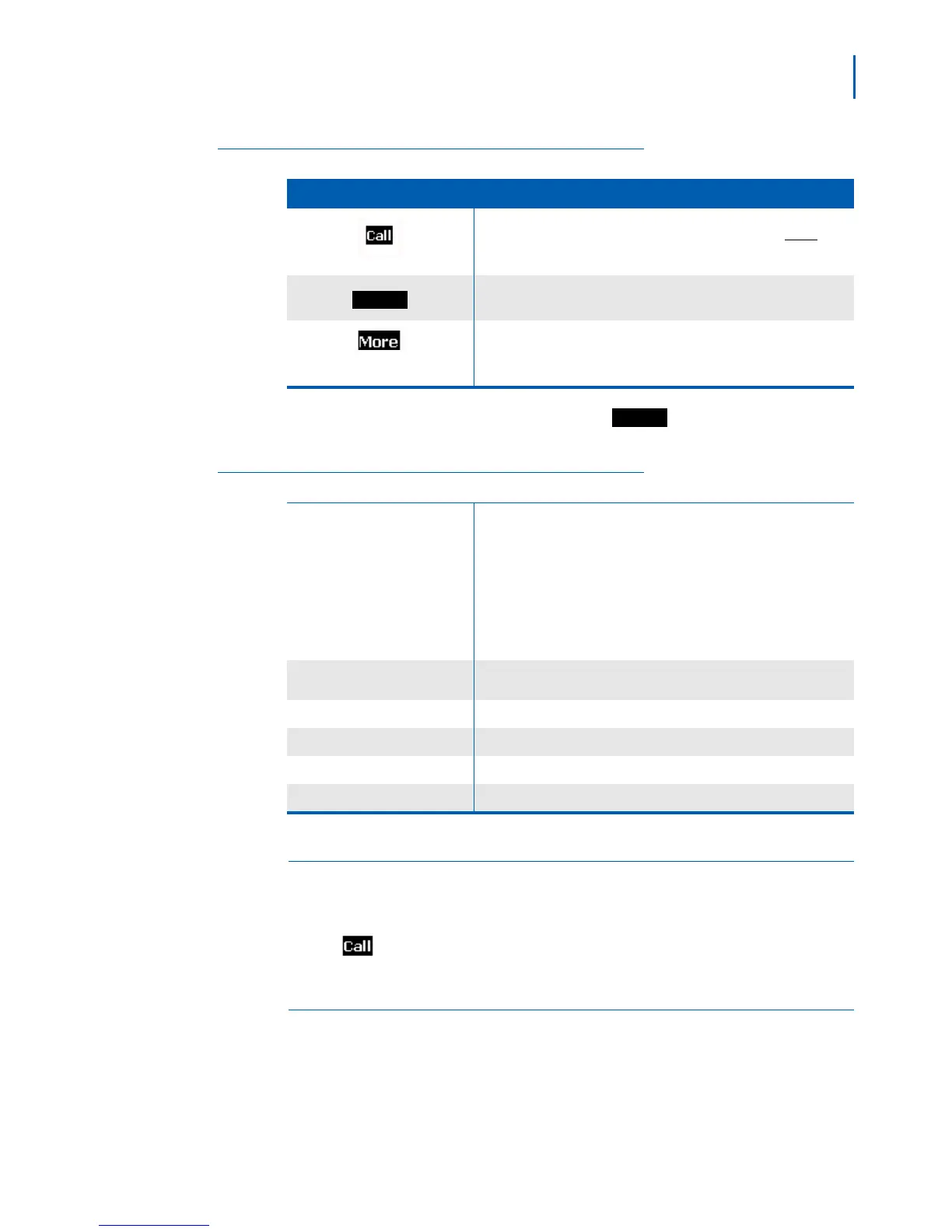
Table 2-6 Contacts and Soft Keys
Soft Key Operation
Dial the phone number showing on the display. (Press Right to
scroll through each phone number saved for this contact.)
Edit the selected contact’s information.
See more options for the contact list.
To see options for the contact list, press
. These options are
described in Tab l e 2- 7 .
Table 2-7 Contact List More Options
Add contact
Add a contact to the list. You can enter the following information:
•Name
• Up to four phone numbers (Work, Mobile, Home, and Other); you
must enter at least one phone number
.
• Ringtone
If the contact list is empty, this is the only available option.
Edit before call
Edit the selected contact’s phone number before you dial it. This will
not edit the number in the contact’s list.
Edit contact
Edit the selected contact’s information.
Delete contact Delete the selected contact.
Delete all contacts
Erase the entire contact list.
Speed dial Assign the selected contact to a speed dial number.
Central Directory Screen (Global Contacts)
The main Central Directory screen shows the list of contacts stored
globally on the system. When you highlight a contact in the directory,
press
to dial that contact.
Calls Screen
The main Calls screen shows the last 50 calls (whether incoming or
outgoing) on this handset. When you highlight a call on the list, you can
use one of the soft keys listed in Table 2- 8 .


 To Next Page