Getting Started 2-13
ML440 End User Guide - Revision 1
Table 2-11 Settings Screen Operation
Time & Date
Select the format you prefer for time and date display:
• Time format: Select 24 hour or AM/PM
• Date format: Select one of six standard data formats
Language
Select the handset's display language. As you highlight each
language, the display changes to that language. When you see the
language you want to use, press
Select.
LED signal
Configure what color the STATUS LED turns when you miss a call,
have a new voice message, or need to recharge the b
attery. See
“LED States and Their Meaning” on page 2-8"
for more information.
Security
• Automatic keylock: Lock the keypad when the handset remains
idle for a designated period of time.
• Change PIN: Change the 4-digit PIN used for registration and
deregistration.
Handset name
Change the name the handset displays on the standby screen.
Reset settings
Reset all the options on this handset to factory default values (see
“Resetting Handsets” on page 4-4").
Status
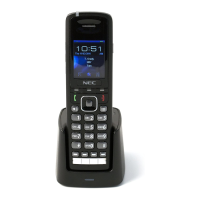
The status screen displays the following information (you will have
to scroll down to see all the fields):
•
The hardware version and software version of the base this
handset is regist
ered to.
• The hardware version and the software version of this handset.
• The current band DECT radio band the handset is operating in.
Auto answer
Choose how you want the handset to answer incoming calls:
• Normal (default): you must press
Talk to answer calls.
• Any key: you can press any key to answer calls.
• Automatic: the handset answers all calls after 5 seconds.
Silent charg
ing
Choose how the handset responds to incoming calls while it is
chargi
ng:
• Off: The handse
t rings normally and displays the incoming call
screen.
• Disconnect: The handset does
not respond to incoming calls at all.
• Silent: The handset
does not ring, but it does display the incoming
call screen.
The audio screen is where the volume and ringer tone are set. Table 2 -
12 describes the
functions and how to use them.


 To Next Page