Change the Switch Password
The default password to access the local browser interface of the switch is password.
We recommend that you change this password to a more secure password. The ideal
password contains no dictionary words from any language and contains uppercase and
lowercase letters, numbers, and symbols. It can be up to 20 characters.
To change the switch password:
1.
Open a web browser from a computer that is connected to the same network as the
switch or to the switch directly through an Ethernet cable.
2. Enter the IP address that is assigned to the switch.
The login page displays.
3. Enter the switch password.
The default password is password. The password is case-sensitive.
The HOME page displays.
4.
From the menu at the top of the page, select SETTINGS.
The PRESET MODES page displays.
5.
From the menu on the left, select CHANGE PASSWORD.
The CHANGE PASSWORD page displays.
6.
In the Current Password field, type the current password for the switch.
7.
Type the new password in the New Password field and in the Retype New Password
field.
8.
Click the APPLY button.
Your settings are saved. Keep the new password in a secure location so that you can
access the switch in the future.
Register the Switch
We recommend that you use the NETGEAR Insight mobile app to register the switch
(see Use the NETGEAR Insight App to Access the Switch on page 24).
User Manual26Install and Access the Switch in
Your Network
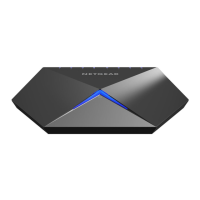
Nighthawk S8000 Gaming & Streaming Advanced 8-Port Gigabit Ethernet Switch (GS808E)




 To Next Page