Use 802.1P/DSCP Quality of Service
In the 802.1P/DSCP QoS mode, the switch uses the 802.1P or DSCP information in the
header of an incoming packet to prioritize the packet. With this type of QoS, you cannot
control the port prioritization on the switch because the device that sends the traffic
(that is, the packets) to the switch prioritizes the traffic. However, you can set the rate
limits for individual ports on the switch.
The switch accepts traffic on a port at the rate (the speed of the data transfer) that you
set for incoming traffic on that port. The switch transmits traffic from a port at the rate
that you set for outgoing traffic on that port. You can select each rate limit as a predefined
data transfer threshold from 512 Kbps to 512 Mbps.
Note: If the QoS mode on the switch is Port-based, we recommend that you first save
your current QoS settings as a custom preset mode before you change the QoS mode
to the 802.1P/DSCP QoS mode. For more information, see Save Your Quality of Service
Settings as a Custom Preset Mode on page 32.
To use 802.1P/DSCP QoS mode and set the rate limits for ports:
1.
Open a web browser from a computer that is connected to the same network as the
switch or to the switch directly through an Ethernet cable.
2. Enter the IP address that is assigned to the switch.
The login page displays.
3. Enter the switch password.
The default password is password. The password is case-sensitive.
The HOME page displays.
4.
From the menu at the top of the page, select SWITCHING.
The Quality of Service (QoS) page displays.
5.
If the selection from the QoS Mode menu is Port-based, do the following to change
the selection to 802.1P/DSCP:
a.
From the QoS Mode menu, select 802.1P/DSCP.
A pop-up warning window opens.
b.
Click the CONTINUE button.
The pop-up window closes.
Note: For information about broadcast filtering, see Manage Broadcast Filtering
and Set Port Storm Control Rate Limits on page 38.
User Manual37Optimize the Switch
Performance
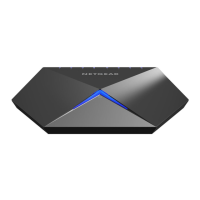
Nighthawk S8000 Gaming & Streaming Advanced 8-Port Gigabit Ethernet Switch (GS808E)




 To Next Page