EasyManua.ls Logo

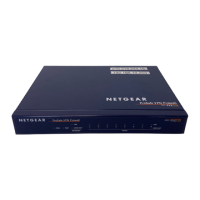
NETGEAR FVS318G - ProSafe Gigabit VPN Firewall Data Sheet Router - User Manual

NETGEAR FVS318G - ProSafe Gigabit VPN Firewall Data Sheet Router
180 pages
Print Icon
To Next Page IconTo Next Page
Loading...
202-10521-01
v1.1
November, 2009
NETGEAR, Inc.
350 East Plumeria Drive
San Jose, CA 95134
ProSafe Gigabit 8 Port
VPN Firewall FVS318G
Reference Manual

Table of Contents

Other manuals for NETGEAR FVS318G - ProSafe Gigabit VPN Firewall Data Sheet Router

Questions and Answers

  • E
    Earl AllisonJul 31, 2025
    Why is my PC unable to load any web pages from the Internet using NETGEAR FVS318G - ProSafe Gigabit VPN Firewall Data Sheet Router?
    • V
      Vanessa ColeJul 31, 2025
      If your PC can't load web pages while connected to your NETGEAR Network Router, it might not recognize any DNS server addresses. Another possible cause is that your PC does not have the NETGEAR Network Router configured as its TCP/IP gateway.
  • M
    morganpalmerAug 5, 2025
    What to do if the power LED is not on on my NETGEAR FVS318G - ProSafe Gigabit VPN Firewall Data Sheet Router?
    • M
      michaelroseAug 5, 2025
      If the power LED on your NETGEAR Network Router isn't lit, first ensure the power cord is securely connected to both the router and a functioning power outlet. Also, verify you're using the 12 V DC power adapter supplied by NETGEAR for this product. If the problem continues, it could indicate a hardware issue, and you should contact technical support.
  • D
    dwalterAug 9, 2025
    What to do if NETGEAR FVS318G - ProSafe Gigabit VPN Firewall Data Sheet Router Network Router does not save changes made in the Web Configuration Interface?
    • V
      Veronica CookAug 9, 2025
      If your NETGEAR Network Router isn't saving changes made in the Web Configuration Interface, make sure to click the APPLY button before navigating to another menu or tab. Also, try clicking the Refresh or Reload button in your web browser, as it might be caching the old configuration.
  • R
    Ronald GreenAug 15, 2025
    Why are the LAN or WAN port LEDs not on on my NETGEAR FVS318G - ProSafe Gigabit VPN Firewall Data Sheet Router Network Router?
    • T
      Timothy JohnsonAug 15, 2025
      If the LAN or WAN port LEDs on your NETGEAR Network Router aren't lit, ensure the Ethernet cable connections are secure at both the router and the connected hub or workstation. Also, confirm that the connected hub or workstation is powered on. Verify that you're using the correct Ethernet cable, ideally the one supplied with your cable or DSL modem.
  • A
    Alexander LambAug 20, 2025
    What to do if LEDs never turn off on my NETGEAR Network Router?
    • W
      Wyatt HernandezAug 20, 2025
      If the LEDs on your NETGEAR Network Router never turn off, it could indicate a fault within the firewall. Try cycling the power to see if the router recovers. You can also clear the router’s configuration to factory defaults, which will set the IP address to 192.168.1.1. If the issue persists, it might be a hardware problem, and you should contact technical support.
  • W
    williamperezOct 25, 2025
    What to do if my NETGEAR FVS318G - ProSafe Gigabit VPN Firewall Data Sheet Router is unable to access the Internet?
    • K
      kimberly75Oct 25, 2025
      If your NETGEAR Network Router can't access the Internet, ensure it requests an IP address from your ISP. Try these steps: 1. Turn off the power to your cable or DSL modem. 2. Turn off the power to your NETGEAR Network Router. 3. Wait five minutes, then reapply power to the modem. 4. Once the modem's LEDs show it has reacquired sync with the ISP, reapply power to your NETGEAR Network Router. Also, check with your ISP to see if they require PPP over Ethernet (PPPoE) or another login type, and verify your login name and password are correct. You might also need to assign the PC Host Name of your ISP account as the Account Name in the Basic Settings menu. Alternatively, inform your ISP that you have a new network device and ask them to use the NETGEAR Network Router's MAC address, or co...

Summary

Chapter 1 Introduction

Key Features of the VPN Firewall Router

Overview of the firewall's core capabilities and benefits for network security.

Package Contents

Lists all the items included in the product package.

Front Panel Features

Details the indicators and ports on the front of the VPN firewall device.

Rear Panel Features

Describes the ports and buttons located on the rear of the VPN firewall.

Default IP Address, Login Name, and Password Location

Specifies where to find the default credentials for accessing the firewall.

Qualified Web Browsers

Lists the web browsers required for configuring the VPN firewall.

Chapter 2 Connecting the FVS318 G to the Internet

Understanding the Connection Steps

Outlines the sequential steps for establishing an initial Internet connection for the firewall.

Logging into the VPN Firewall Router

Provides instructions on how to access and log into the firewall's management interface.

Navigating the Menus

Explains the structure and organization of the firewall's web configuration menus.

Configuring the Internet Connections

Details the process of setting up the firewall's connection to the Internet Service Provider.

Automatically Detecting and Connecting

Describes how the firewall can automatically detect and configure ISP connection settings.

Manually Configuring the Internet Connection

Guides users through manually entering ISP connection parameters if auto-detection fails.

Configuring Dynamic DNS (Optional)

Explains how to set up Dynamic DNS for remote access using domain names.

Configuring the Advanced WAN Options (Optional)

Covers advanced settings for the Wide Area Network connection, like MTU and Port Speed.

Chapter 3 LAN Configuration

Choosing the Firewall DHCP Options

Configures the firewall's Dynamic Host Configuration Protocol server settings for the local network.

Configuring the LAN Setup Options

Sets up LAN IP services, including DHCP and multi-homing configurations.

Managing Groups and Hosts (LAN Groups)

Organizes and manages network devices and their IP addresses within the LAN.

Configuring DHCP Address Reservation

Assigns specific IP addresses to devices based on their MAC addresses.

Chapter 4 Firewall Protection and Content Filtering

About Firewall Protection and Content Filtering

Introduces the firewall's security features for protecting the network and filtering content.

Using Rules to Block or Allow Specific Kinds of Traffic

Explains how to create firewall rules to control inbound and outbound network traffic.

Inbound Rules Examples

Provides practical examples of configuring inbound rules for various server setups.

Outbound Rules Example

Demonstrates how to configure outbound rules to manage specific applications or services.

Adding Customized Services

Details how to define new services for use in firewall rule creation.

Blocking Internet Sites (Content Filtering)

Configures website blocking and filtering of web components like Java and ActiveX.

Chapter 5 Virtual Private Networking Using IPsec

Using the VPN Wizard for Client and Gateway Configurations

Guides users through setting up VPN tunnels using the wizard for various scenarios.

Creating Gateway to Gateway VPN Tunnels with the Wizard

Step-by-step instructions for establishing VPN tunnels between two gateways.

Creating a Client to Gateway VPN Tunnel

Configures VPN tunnels for remote clients connecting to the VPN gateway.

Testing the Connections and Viewing Status Information

Verifies VPN connection status and provides troubleshooting information.

Managing VPN Policies

Covers the creation, editing, and management of VPN and IKE policies.

Configuring Extended Authentication (XAUTH)

Enhances security by enabling user-specific authentication for VPN clients.

Chapter 6 Managing Users, Authentication, and Certificates

Managing Users

Manages administrator and guest accounts for accessing the VPN firewall.

Changing the Administrator Login

Procedures for modifying the administrator username and password for enhanced security.

Changing the Guest Login

Instructions for changing the guest account's login name and password.

Managing Certificates

Explains the use of digital certificates for VPN and secure web access authentication.

Chapter 7 Router and Network Management

Performance Management

Tools and features for optimizing network traffic and managing performance.

Features That Reduce Traffic

Identifies features like service blocking and MAC filtering to decrease WAN-side loading.

Changing Passwords and Administrator Settings

Modifies administrator and user account settings, including passwords and idle timeouts.

Enabling Remote Management Access

Allows administrators to configure and manage the firewall remotely over the internet.

Using the Command Line Interface

Accesses and uses the firewall's command-line interface for management tasks.

Configuration File Management

Manages firewall configuration files for backup, restore, and upgrade purposes.

Chapter 8 Troubleshooting

Basic Functions

Checks the basic operational status of the firewall and its LEDs after power-on.

Power LED Not On

Troubleshooting steps for when the firewall's power LED does not illuminate.

LAN or WAN Port LEDs Not On

Diagnoses issues when LAN or WAN port LEDs are not lit, indicating connection problems.

Troubleshooting the Web Configuration Interface

Guides users on resolving issues when the firewall's web interface is inaccessible.

Troubleshooting the ISP Connection

Addresses problems related to the firewall's inability to establish an Internet connection.

Troubleshooting a TCP;IP Network Using a Ping Utility

Utilizes the ping utility to diagnose network connectivity issues on TCP/IP networks.

Restoring the Default Configuration and Password

Resets the firewall to its factory default settings, including password and IP address.

Appendix A Technical Specifications and Factory Default Settings

Technical Specifications and Factory Default Settings

Provides detailed hardware specifications and default configuration parameters.

Appendix B Related Documents

Related Documents

Lists reference documents for further understanding of networking technologies.

Appendix C Two Factor Authentication

Why do I need Two-Factor Authentication?

Explains the importance and benefits of using two-factor authentication for enhanced security.

What are the benefits of Two-Factor Authentication?

Details the security advantages gained by implementing two-factor authentication.

NETGEAR Two-Factor Authentication Solutions

Introduces NETGEAR's solutions for implementing two-factor authentication.

NETGEAR FVS318G - ProSafe Gigabit VPN Firewall Data Sheet Router Specifications

General IconGeneral
ModelFVS318G
CategoryNetwork Router
VPN Tunnels25
VPN Throughput25 Mbps
VPN ProtocolsIPSec, PPTP, L2TP
Humidity90% maximum relative humidity, non-condensing
WAN Ports1
LAN Ports8
Weight1.4 kg (3.1 lb)
Firewall SecuritySPI, DoS
Flash Memory8 MB
Operating Temperature0° to 40°C
Storage Temperature-20° to 70°C

Related product manuals