- ENGLISH -
- 63 -
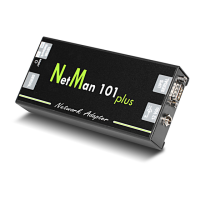
INSTALLATION OF NETMAN 101 PLUS
1. Remove the protection strip of the backup battery.
2. Connect the “UPS SERIAL” port of the device to the serial port of the UPS using the cable
supplied with the UPS.
3. Connect the device to the network by means of connector RJ-45 (see “Specifications for
the cabling of the network cable”)
4. Connect the power supply unit to the device.
the power supply unit must be connected to a plug protected by a UPS
INSTALLATION OF NETMAN 102 PLUS
1. Remove the protection strip of the backup battery.
2. Remove the cover of the UPS expansion slot by removing the two retaining screws.
3. Insert NetMan 102 plus in the slot.
4. Connect the device to the network by means of connector RJ-45 (see “Specifications for
the cabling of the network cable”)
5. Secure Netman in the slot using the two screws removed previously.
CONFIGURATION
NetMan plus can be configured via serial line or via telnet.
NetMan plus needs approx. 30 seconds to become operational from when it is
powered up; before this time the device may not respond to commands that are sent
to it
Configuration via RS-232 serial line
To configure NetMan plus via RS-232 serial line, it is necessary to:
• Connect, with the null-modem cable provided, the “SERIAL” port of the device to the serial
port of a PC with terminal emulation software
• execute the terminal emulation software with the following settings: 9600 baud, no parity, 8
databits, 1 stop bit, no flow control
• press the “ESC” key of the PC
• when the message “Hit any key to login.” is displayed, press any key
• at the login prompt, enter “root”
• at the password prompt, enter the current password (default configuration: “password”)
During password’s typing, no character is shown
Once login has been effected, the screen of the main configuration menu is displayed. From this
screen it is possible to access the various menus to change NetMan plus settings (see paragraph
“Main configuration menu” and following paragraphs).


 To Next Page