17
Connect the display and run the driver program.
Click the handwriting driver icon on the right bottom of the screen. The following
figure is displayed.
Double click the
, follow the instructions and complete the
installation of the touch LED display software.
The computer will need to be restarted to activate the software after the
installation is completed. Save all the files on the computer and restart.
Step 1:
Step 1:
Step 2:
Insert the correct USB cable into the USB ports of the computer and the
interactive display.
Insert the official IdeaMax software installation disk into the computer.
Step 2:
Step 3:
Step 4:
Software Uninstall
Software Calibration
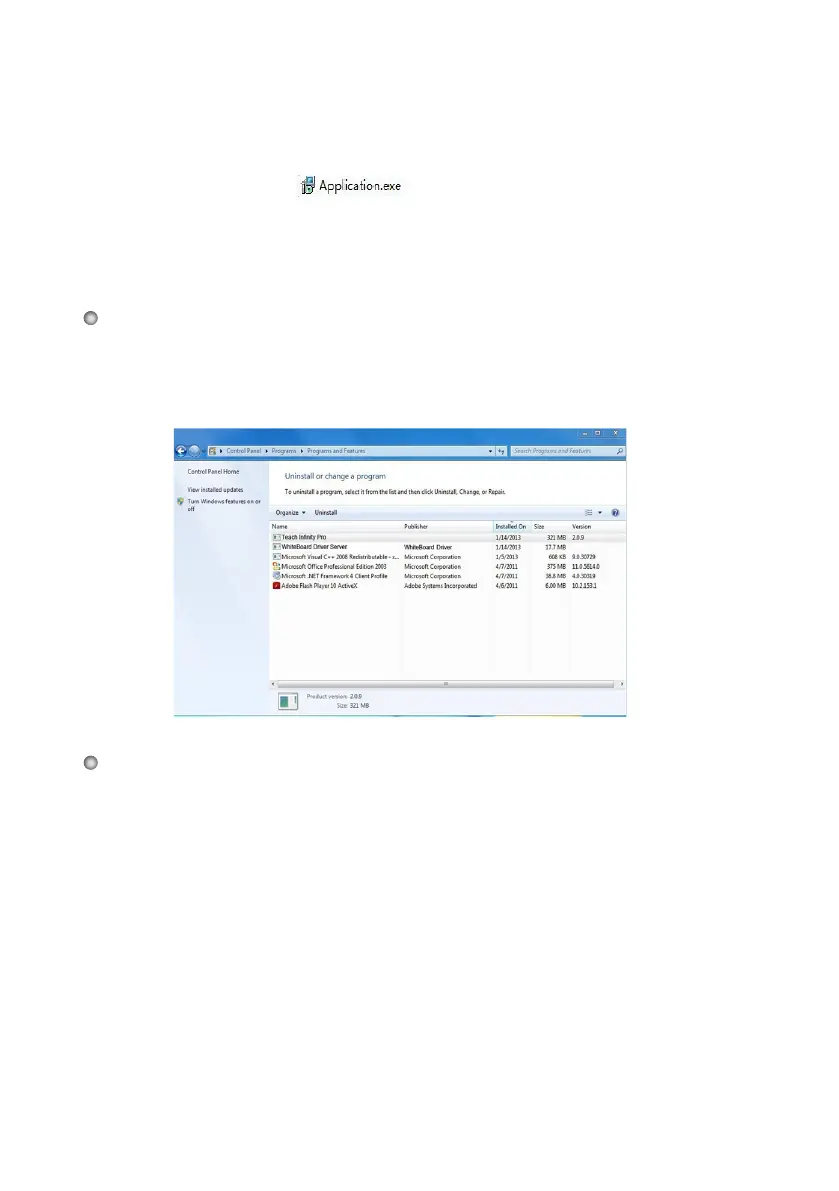
If you want to uninstall the IdeaMax from your computer, select Control Panel >
Add or Remove Programs > IdeaMax > Uninstall to uninstall the program, as
shown in the following figure:
To work normally, the actions and annotations of the projected image on the display
should coincide with the actual touch motions. The following situations will
normally require a calibration:
● The first time you use touch on the display.
● Re-installing the touch driv
ers.
● Connecting to another PC.
The display uses a nine-point calibration method. The calibration process is as
follows:





 To Next Page