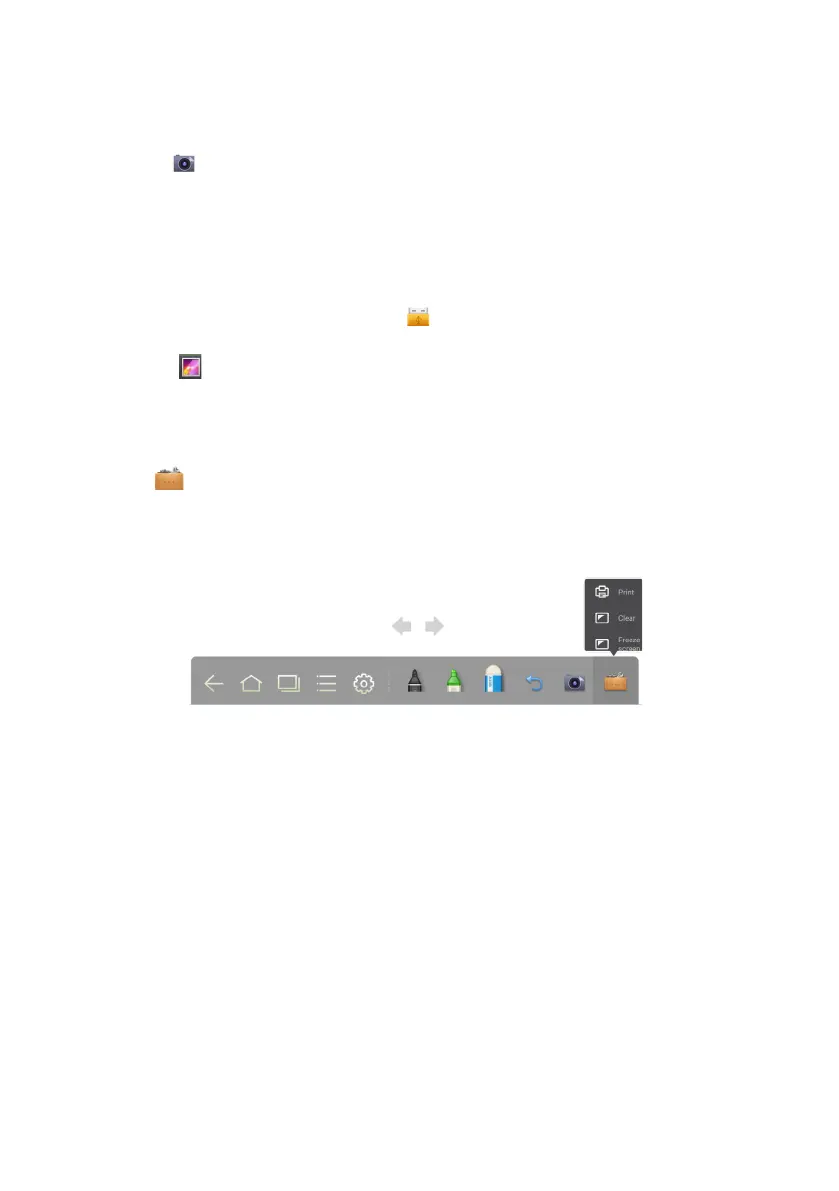
Print, Clear and Freeze Screen
Click to see the Print, Clear and Freeze Screen options. Click Print to print
current content on the whiteboard. Click Clear to clear all current content on the
whiteboard. Click Freeze screen to capture the current screen and then zoom in,
zoom out, and annotate on the frozen screen.
26
●
Click to capture current content on the whiteboard and save it as an image file in
the Screenshots directory. (The toolbar is not captured in the image.)
● Press CAPTURE on the remote control to save current content on the whiteboard as
an image in the Pictures > Screenshot directory in the file manager.
Y
ou c
an ope
n
t
he directory in two ways:
●
Go back to the home page and click
on the toolbar to enter the file manager. In
the system file, find and click the Screenshots folder to check.
●
Click
in Applications to enter the image browsing interface. In the
system file, find and click the Screenshots folder.
Screen Capture
The following two methods can be used to capture a screenshot:





 To Next Page