22
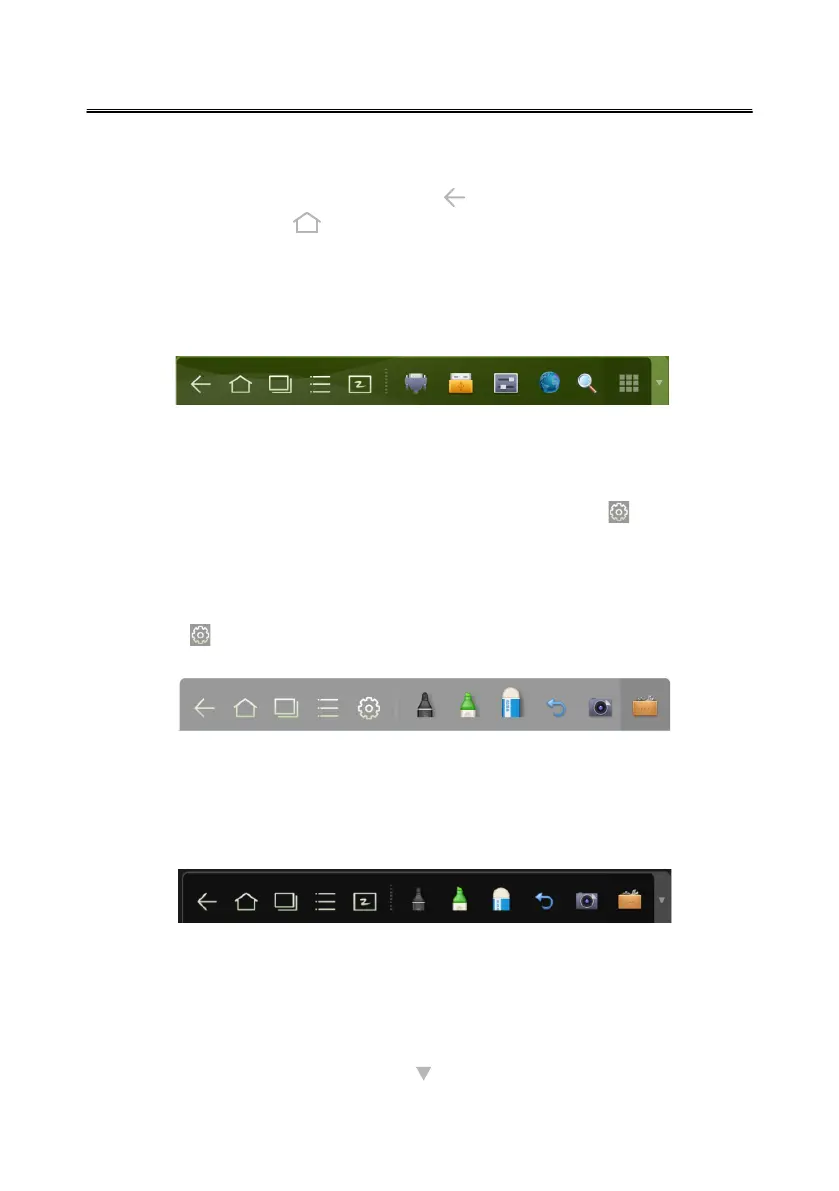
The toolbar has three modes: Home Page, Task Manager, and Whiteboard.
Under any of the three modes, you can click
on the toolbar to go back to the
previous page and click
to exit from other programs or go back to the home page
from other signal sources.
●
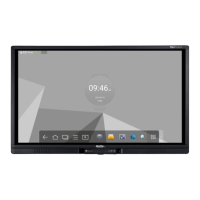
● On the home page, the toolbar is on the bottom of the screen and shows icons for the
task manager, signal source, whiteboard, input signal, file manager, system settings,
browser, and search. You can click an icon to open the corresponding program.
● In modes other than the whiteboard, the toolbar is in Annotation mode. You can
select a pen, pen weight, and color to write and add remarks on the screen
(including image, PPT and PDF). Click on the right to hide the toolbar. Scroll up
from the bottom of the screen with your finger to display the toolba
r.
After the whiteboard program is started, the toolbar enters the whiteboard mode,
in which you can choose a pen, pen weight, and color to write on the whiteboard.
Toolbar Introduction
- If you want to use the whiteboard function in Android, click on the displayed
menu, where the New Page, Overview, Delete All, and Settings functions will be
listed.
- If you want to use whiteboard function while using a signal source, please click
the icon to enter the menu setting interface.





 To Next Page