EasyManua.ls Logo

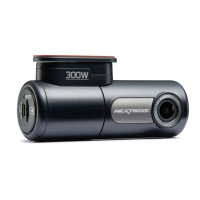
NextBase NBDVR300W - User Manual

NextBase NBDVR300W
46 pages
Print Icon
To Next Page IconTo Next Page
Loading...
Instruction Manual

Questions and Answers

  • J
    johnbarrSep 8, 2025
    What to do if I have forgotten my password for the Wi-Fi connection of NextBase Dash Cameras?
    • T
      Travis BarnesSep 9, 2025
      If you've forgotten your Wi-Fi password for your NextBase Dash Cam, and it's been changed from the default, you'll need to install new firmware on the Dash Cam. This will reset the password (and all other settings) back to their defaults. Visit www.nextbase.co.uk for the product firmware and instructions on how to perform the update.
  • S
    Shirley WrightSep 12, 2025
    Why is the image juddering on my NextBase Dash Cameras?
    • L
      Lori JohnsonSep 12, 2025
      A juddering image on your Nextbase Dash Cam playback is usually because your PC isn't compatible with HD or Ultra HD playback. We recommend using a PC with an i5 processor or equivalent to play the files and metadata effectively.
  • J
    Jason BowersSep 13, 2025
    Why is there no mass storage option on my NextBase Dash Cameras?
    • D
      devin77Sep 13, 2025
      If you're not seeing a mass storage option with your NextBase Dash Cam, try using different USB ports and another mini USB cable, if you can. Ensure the cable is plugged into the USB port on the Dash Cam itself, not the mount.
  • K
    Kimberly EstesSep 14, 2025
    How to fix NextBase Dash Cameras mass storage function?
    • C
      Christine LynchSep 15, 2025
      If the Mass Storage function isn't working on your NextBase Dash Cam, try restarting your PC to ensure the necessary driver loads correctly. Disconnect and then reconnect the Dash Cam. Contact NEXTBASE for the required driver.
  • S
    Sandra GonzalezSep 16, 2025
    What to do if I have unresolved issues with NextBase Dash Cameras?
    • M
      martinalyssaSep 16, 2025
      If you're having unresolved issues with your NextBase Dash Cam, reset the Dash Cam to the Default Settings within the Setup Menu and try again.

Summary

Introduction to Dash Cam Usage

Safety Precautions and Cautions

General Warnings and Disposal

Covers warnings about water exposure, servicing, choking hazards, and WEEE disposal.

Product Usage Cautions

Specific advice on safe operation, cleaning, and responsible use of the dash cam.

Parts and Controls: Rear View Features

Power, Record, and Protect Buttons

Explains the power, record, and protect/format buttons located on the back of the dash cam.

Parts and Controls: Back View Features

Wi-Fi Button and Red LED Indicator

Describes the Wi-Fi activation button and the functions of the red LED indicator on the dash cam.

Parts and Controls: Side View Features

Reset Button, Ports, and SD Card Slot

Covers the reset button, DC-IN/USB socket, SD card slot, and built-in microphone.

In-Vehicle Installation: App Setup

Download and Install DriveGuard App

Instructions for downloading and installing the Nextbase DriveGuard app on a smartphone or tablet.

In-Vehicle Installation: Hardware Setup

Insert Micro SD Card

Step-by-step guide on inserting the microSD card into the dash cam correctly.

Connect Power Cable

Instructions on connecting the car power cable to the dash cam's DC-IN/USB socket.

In-Vehicle Installation: Power and Wi-Fi

Connect to Vehicle Power Supply

How to plug the cigarette lighter adapter into the vehicle's 12Vdc or 24Vdc power outlet.

Activate Wi-Fi Functionality

Guide on activating the dash cam's Wi-Fi function by pressing the Wi-Fi button.

In-Vehicle Installation: Mobile Connectivity

Connect Mobile Phone to Dash Cam

Steps to connect your smartphone to the dash cam via the DriveGuard app for live view.

Prepare Mount for Windscreen Attachment

Instructions on peeling the protective sheet and preparing to attach the mount to the windscreen.

In-Vehicle Installation: Positioning and Alignment

Check Dash Cam Position Using App

Using the app's live view to find the optimal position for the dash cam on the windscreen.

In-Vehicle Installation: Final Mounting Steps

Apply Mount Firmly to Windscreen

Pressing the mount against the windscreen to ensure secure adhesion of the 3M tape.

Adjust Lens Position as Required

How to gently rotate the lens for final adjustments to the field of view.

In-Vehicle Installation: Cable Routing and Power

In-Vehicle Installation: Safe Placement Guidelines

Windscreen Placement Rules

Key rules for safe dash cam placement, avoiding driver obstruction and airbag zones.

DriveGuard App Introduction

DriveGuard App: Connecting Your Device

DriveGuard App: Downloading Recordings (iOS)

DriveGuard App: Downloading Recordings (Android)

DriveGuard App: Editing Recordings

DriveGuard App: Sharing Recordings

DriveGuard App: Incident Reporting

Dash Cam Settings: Accessing Options

How to Format the Memory Card

PC Connection Modes

Troubleshooting Common Issues

Troubleshooting Playback and Connectivity

Troubleshooting App and Card Errors

NextBase NBDVR300W Specifications

General IconGeneral
Field of View140 degrees
Loop RecordingYes
G-SensorYes
Wi-FiYes
GPSNo
Parking ModeYes
BatteryBuilt-in rechargeable battery
Video Resolution1080p
StorageMicro SD card up to 128GB

Related product manuals