© 2005-2016 Nira Control AB 55
Hit M to set all cells to the same value as the cell in focus. This cell is
blue in the picture above. The color may be different depending on
the color scheme chosen for Windows
Fill cells in one direction. It’s possible to fill cells to the right, to the
left, upward or downward. Choose direction by right-clicking and
selecting “Fill >” from the menu that opens up, or hit Ctrl-R, Ctrl-L, Ctrl-
U or Ctrl-D respectively
More advanced fill patterns can be set up if you right-click and select
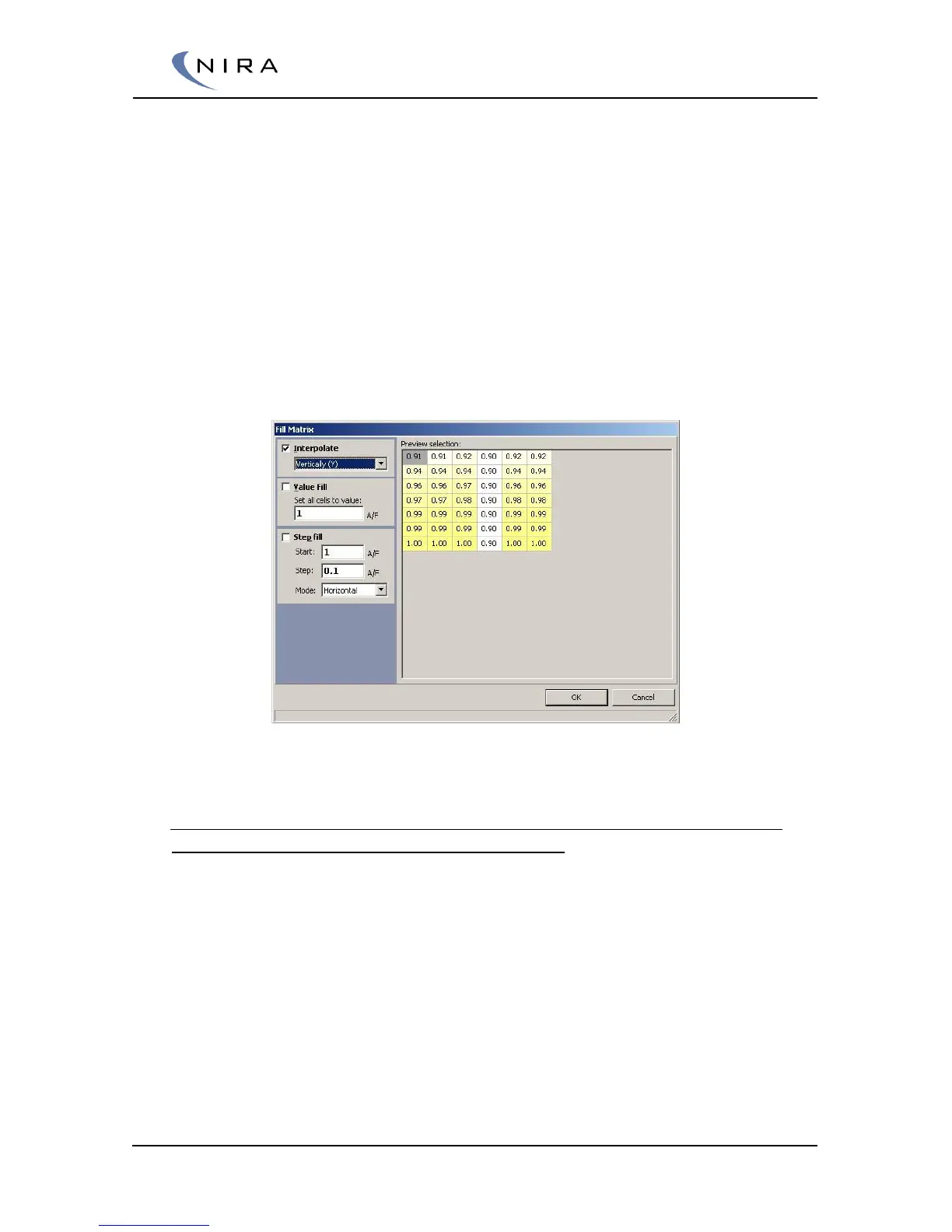
“Fill Series...” from the menu that opens up, or hit I on the keyboard.
A dialog box appears in which you can choose to interpolate
horizontally or vertically, to fill all cells with the same value or to fill the
cells with stepwise increasing values in different directions
Picture 4-14: The Fill Matrix dialog box offers more advanced cell manipulation options.
Modifying the Axis Values
The axis values can only be edited in offline mode. Changes applied in NIRA
rk during offline adjustment take effect when the data is loaded to NIRA i7x
by the user going online and choosing update NIRA i7x. Note that the axis
values have to increase monotonously. This means that each value on the x-
axis has to be greater than or equal to the previous value as you move to the
right. The same rule applies to the y-axis as you move downward.
For safety reasons, a table that doesn’t follow these rules can not be
uploaded to NIRA i7x and any online connection to NIRA i7x will be
disconnected.
If an axis value is changed, all values in the corresponding column (x-axis) or
row (y-axis) move to this new value. In other words, the mapping values move
to a new axis value.


 To Next Page