© 2005-2016 Nira Control AB 57
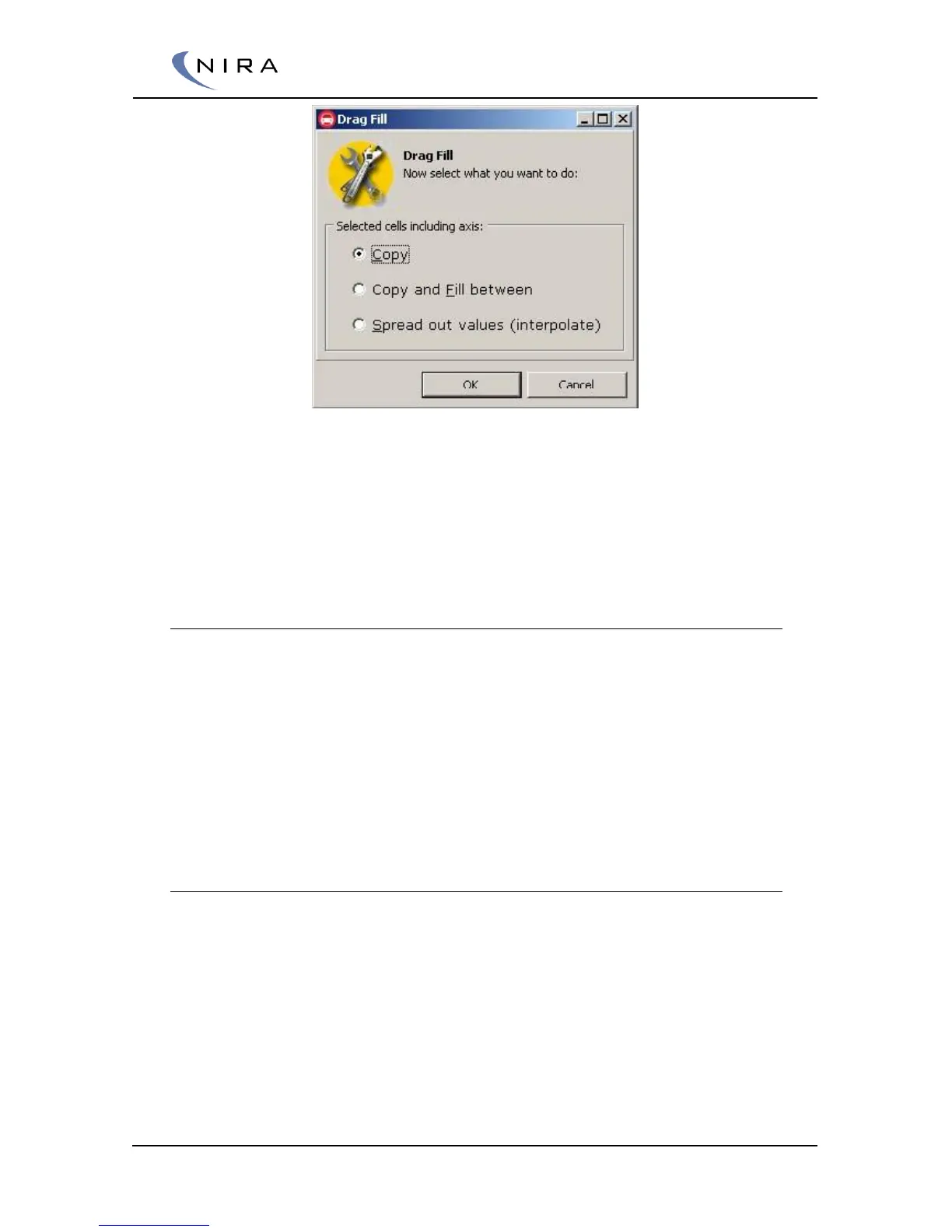
Picture 4-16: Drag Fill: Filling axis and table cells.
When choosing ”Copy”, make sure the result of the copy doesn’t create an
axis with axis values that aren’t all equal or increasing looking rightward (x-
axis) or downward (y-axis.) Should this happen anyway, NIRA i7x will go
offline and you need to fix the axis values before you can go online again.
Undo/Redo
It’s always possible to undo any changes you’ve made to a table. As long as
the table is open in a tab, NIRA rk remembers all changes and highlights any
changed cells with an orange frame.
You can also undo undo, as long as you haven’t made any new changes.
This is called redo and is only available if you’ve undone something at least
once.
The standard Windows Ctrl-Z och Ctrl-Shift-Z shortcuts also work, as well as U
for undo och J for redo.
Copy/Paste
It’s possible to copy and paste cells within a table or between tables. You
can also copy and paste from other programs, such as Microsoft Excel.
When pasting cells, you have to mark the cells into which you want to paste
data. This is different from software such as Excel and offers a level of
protection against accidental changes.
Axis cells can also be copied and pasted. Mark the cells with Shift-Left arrow
or Shift-Right arrow or Shift-click with the mouseIt’s not possible to drag and
drop with the mouse due to the Drag Fill function described above.


 To Next Page