6
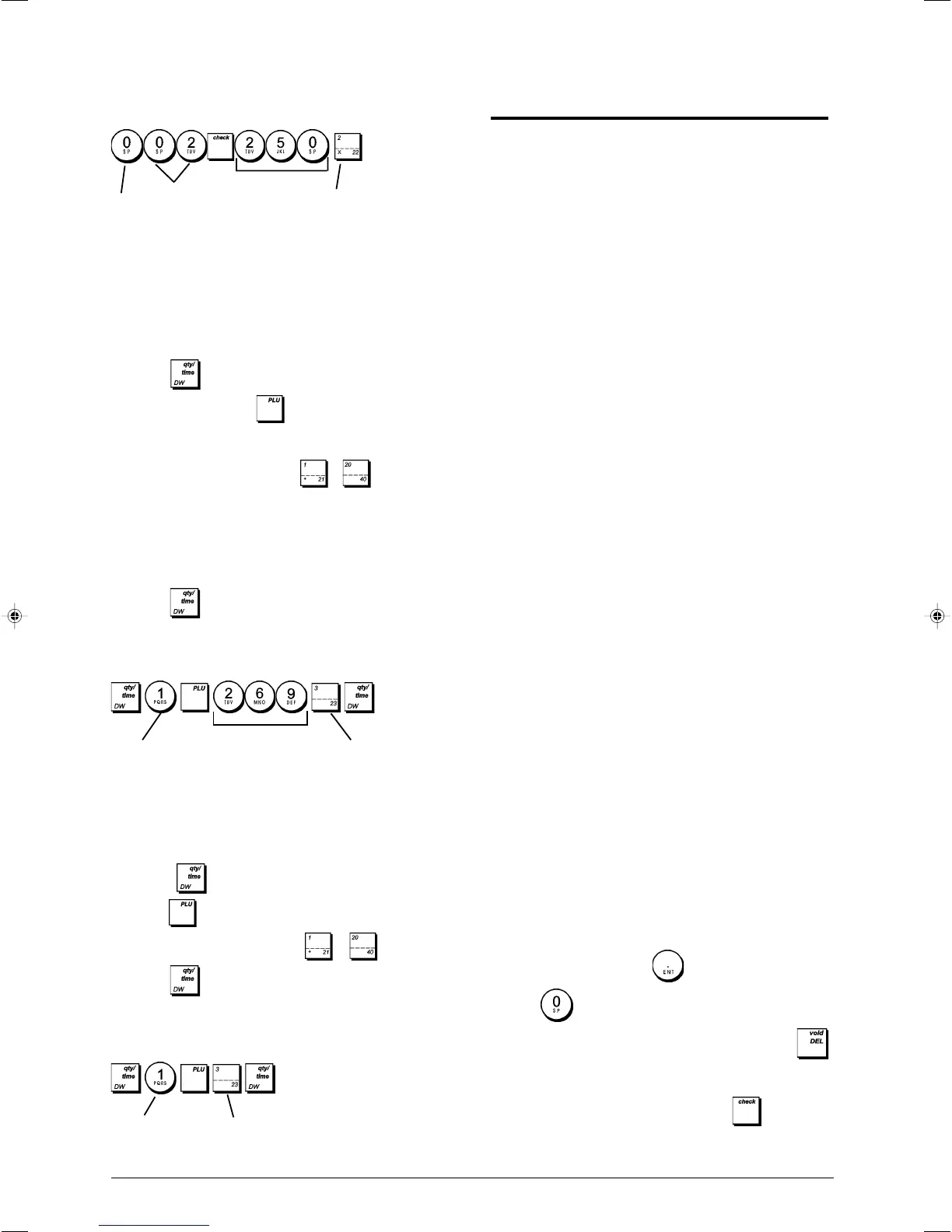
Example: Program a multiple positive item sale, VAT 2 and
a price of £2.50 to an item in Department 2.
Type/Press:
After you have programmed your departments, you can
print a report that indicates the programmed values. See
section "Department Programming Report" for details.
6. Program a Fixed Price Look-Up (PLU)
Creating a Fixed Price Look-Up
Up to 400 PLUs can be programmed.
1. Control key position: PRG.
2. Press
, type the [PLU number (between 1 and
400)] and then press
.
3. Type the [unit price] that you wish to assign to the PLU
(to two decimal places).
4. Press the related department
to key to assign
the PLU to a Department from 1 to 40. If tax is required
for a particular PLU item, be sure to link the PLU number
related to the item to a department that is programmed for
tax. To program a department for tax, refer to the section
Link a Multiple/Single Item Sale, Tax Status and Item
Price to a Department.
5. Press
.
Example: Create PLU 1 with a unit price of £2.69
assigned to Department 3.
Type/Press:
After you have programmed your PLU items, you can print a
report that indicates the programmed values. See section
"PLU Programming Report" for details.
Deleting a Fixed Price Look-Up
1. Control key position: PRG.
2. Press
, type the [PLU number] and then
press .
3. Press the related department to key.
4. Press
.
Example: Delete PLU 1 assigned to Department 3.
Type/Press:
PLU number
PLU price
Department
Cash Register Programming and
Features
Programs and transaction information for management reports
are stored in the memory of the cash register which is
protected by back-up batteries.
Before beginning to program the cash register or to
perform sales transactions, insert the batteries to save
this information if a power failure occurs or if you
unplug the cash register from the electrical outlet.
Making Changes to Cash Register
Programming
If you wish to make a change to your initial programming
(such as update the VAT rates, PLUs or exchange rates):
• Turn the control key to the PRG position.
• Re-run the program in question and confirm as explained
in the following sections.
• Turn the control key to another operating mode.
A new program entry will automatically overwrite a previous
entry for the same program.
Caption Programming using the
Alphanumeric Keypad and
Character Table
To program customer receipt headers and courtesy
messages, PLU product names, department names, clerk
names and foreign currency descriptors, you can use just
the alphanumeric part of the keypad to enter non-accented
capital letters, and the Character Table to enter small
letters, accented capital and small letters, special characters
and symbols. The following captions can be programmed:
• Up to 400 PLU item names of a maximum 12 characters
each
• Up to 40 department names of a maximum 12 characters
each
• Up to 8 clerk names of a maximum 12 characters each
• Receipt headers of up to 6 lines of a maximum 24 characters
each
• Receipt footers of up to 4 lines of a maximum 24 characters
each
• Up to 4 foreign currency identifiers of a maximum 10
characters each.
Using the Keypad
To use the alphanumeric keypad to enter capital caption
letters, locate the letter wanted and press its associated
alphanumeric key the number of times needed to display it
(the letter will be displayed on the far right-hand side of the
display).
• If the same alphanumeric key has to be used for successive
letters of a caption, press
between the two letters.
• Press
if you want to add spaces.
• Any incorrect letter can be canceled by pressing
that provides the typcal backspace function available in
the PC environment.
• Confirm your final caption by pressing
.
Multiple positive
item sales
Tax status
Unit price
Department
PLU number
Department




 To Next Page