12
Clerk Names
You can program a clerk name or identifier of up to 12
characters long using the alphanumeric keypad or the
Character Table. It will be printed automatically on all
receipts, journal records and management reports.
1. Control key position: PRG.
2. Switch the cash register to the Clerk name definition
mode by pressing
repeatedly until the message
"CL1" is displayed indicating the first Clerk number.
3. Select the Clerk number corresponding to the Clerk
whose name you wish to define by pressing
repeatedly until the number is displayed on the right
side of the operator display.
4. Using the alphanumeric keypad and Character Table,
enter the clerk name then press
. The name entered
will be automatically printed.
5. Press
to exit.
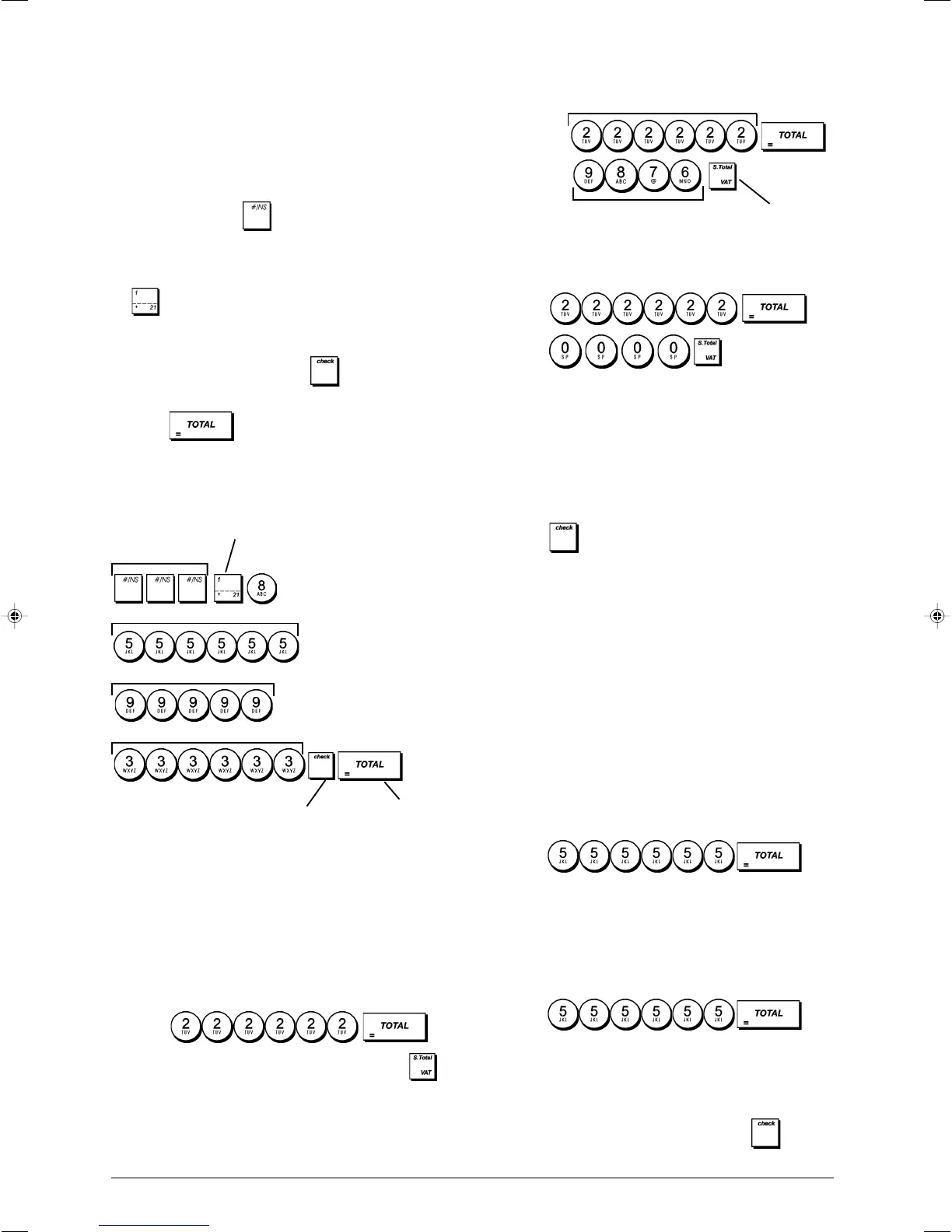
Example: Program Alex as the name for Clerk number 2
using the Character Table.
Type/Press:
Manager Password
You can define a manager password to prevent unauthorized
access to the machine's Z mode. Since the management
report taken in the Z mode resets transaction totals to zero,
a management password prevents the accidental resetting
of these totals by unauthorized personnel.
Defining a Z Mode Manager Password
1. Control key position: PRG.
2. Press
3. Type your 4-digit manager password and press .
NOTE: If you define a manager password of 0000, the
password-protected security feature will not work.
Example: Define manager password 9876 for the Z mode.
Type/Press:
Clearing the Z Mode Manager Password
1. Control key position: PRG.
2. Press
.
3. Press .
Using the Cash Register in a Password
Protected Mode
If a manager password was defined to protect unauthorized
access to the Z mode, proceed as follows to enter the specific
password so that you can print the Z management report:
1. Control key position: Z1/Z2.
2. Type the specific 4-digit password.
3. Press
.
Training Mode
Training mode allows you to use the cash register to perform
true sales transactions for learning purposes. All transactions
performed in this mode are not recorded in the management
financial reports, and sales receipts are not numbered
consecutively; a series of asterisks is printed instead of a
consecutive receipt number.
When the cash register is switched to training mode, all
training transactions are performed in the REG or JRNL
mode. You can also print a detailed training report to keep
track of the transactions performed in this mode. See
"Training Report" for details.
To switch the cash register to training mode:
1. Control key position: PRG.
2. Press
.
A line appears on the display to indicate that the cash
register is in Training mode.
3. Slide the control key to REG or JRNL to perform training
sales transactions.
To exit training mode:
1. Control key position: PRG.
2. Press .
To switch the cash register to the training mode when a
training mode password has been defined:
1. Control key position: REG or JRNL.
2. Type your [4-digit password] and press
.
Manager password defined
Confirm entered
Manager password
Switch to Z mode password definition
Confirm entered Clerk name
Exit
Switch to Clerk Name
definition mode
Clerk number selection
A
l
e
x




 To Next Page