11
6.2 Proper storage for “0 lb correction”
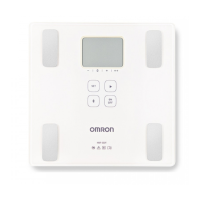
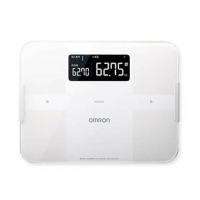
This monitor regularly recalibrates automatically when it is not in use.
• If your monitor is placed as shown below and the recalibration function does not work, implement the
“0 lb correction” before taking measurement. (Refer to
Section 6.3.)
The unit is leaning against the
wall or other objects
The unit is placed upside
down
The unit is placed on an
object
An object is placed on
the unit
The unit is leaning against the
wall or other objects
The unit is placed upside
down
The unit is placed on an
object
An object is placed on
the unit
The unit is leaning against the
wall or other objects
The unit is placed upside
down
The unit is placed on an
object
An object is placed on
the unit
The unit is leaning against the
wall or other objects
The unit is placed upside
down
The unit is placed on an
object
An object is placed on
the unit
Your monitor is leaning
against the wall or other
objects
Your monitor is placed
upside down
Your monitor is placed
on an object
An object is placed
on your monitor
6.3 How to implement the “0 lb correction”
1.
Place your monitor on a hard, level oor.
2.
Press the button to turn on the power.
3.
Select your user ID or “ ”.
Press the button and then press the buttontoconrm.
4.
When the “0.0 lb” is displayed, press the button (2 seconds or longer) to turn
off the power.
This completes the “0 lb correction”. Wait for 5 seconds, and then take a measurement.
Operating instructions
7. Taking a Measurement
When you step onto your monitor, it will be powered on to recognize your user ID automatically and
start the measurement.
Wrong user ID may be displayed in the following cases.
• Users of similar body type and body weight
are measured.
• Your body weight has changed since last
measurement.
A 137.2 lb
no 1
B 138.2 lb
21
16
30
・・・
30 days later
C 136.6 lb
C 147.6 lb
no 1 no 3
If inaccurate recognition continues, manually select your user ID to take a measurement. (Refer
to Section 9.)
• The measurement results of another user has been set-up.



 To Next Page