16
CAMERA FINDER
OPENEYE IP FINDER
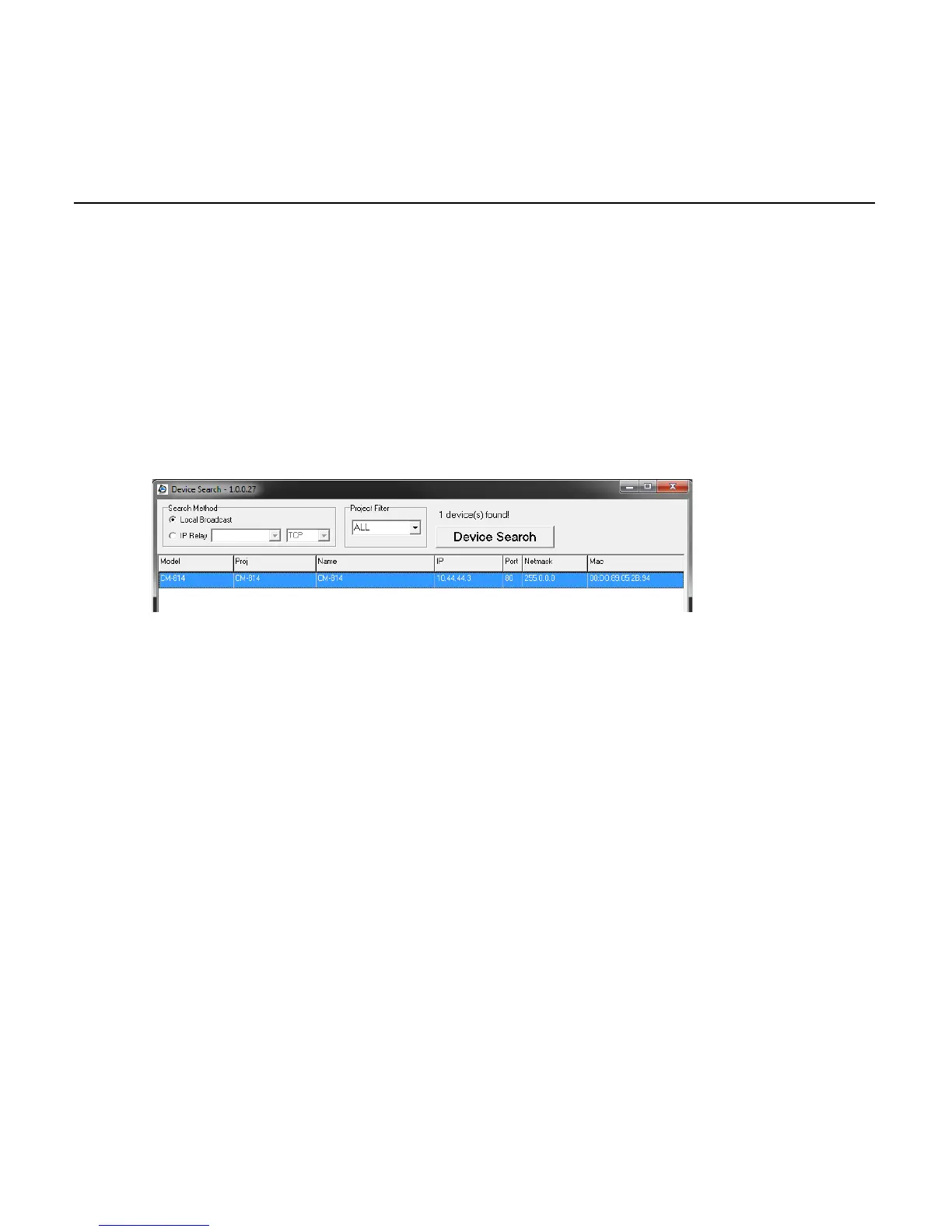
Use the included IP Finder software to easily find your network cameras for initial setup.
The OpenEye IP Finder software is included on the CD with all OpenEye IP devices.
Finding IP Cameras
1. Open the Software CD on the recorder.
2. Click Software on the software disc menu.
3. Click OpenEye IP Finder.
4. Click Device Search on the Device Search window.
5. If a Windows Security Alert window opens, click Unblock to allow the IP utility to
access your network.
6. Click Device Search again to find all connected IP devices.
Tip The default IP address of the VS201 is 192.168.0.250
7. Right-click the desired network device and select Browse.
8. Type the default username and password in the login window to access the video
server using your internet browser.
Note If you cannot conenct to the camera you may need to change the camera’s IP
address to match your network settings.
Default Username and Password
The username and password are case sensitive. It is strongly recommended that the
password be changed after the initial setup to prevent unauthorized access.
Username – Admin
Password – 1234



 To Next Page