42
Software Upgrade
Upgrading the Camera Viewer Software
Note Make sure the new firmware file is available before starting a software upgrade.
Do not change the file name, or the system will not be able to update to the new
firmware.
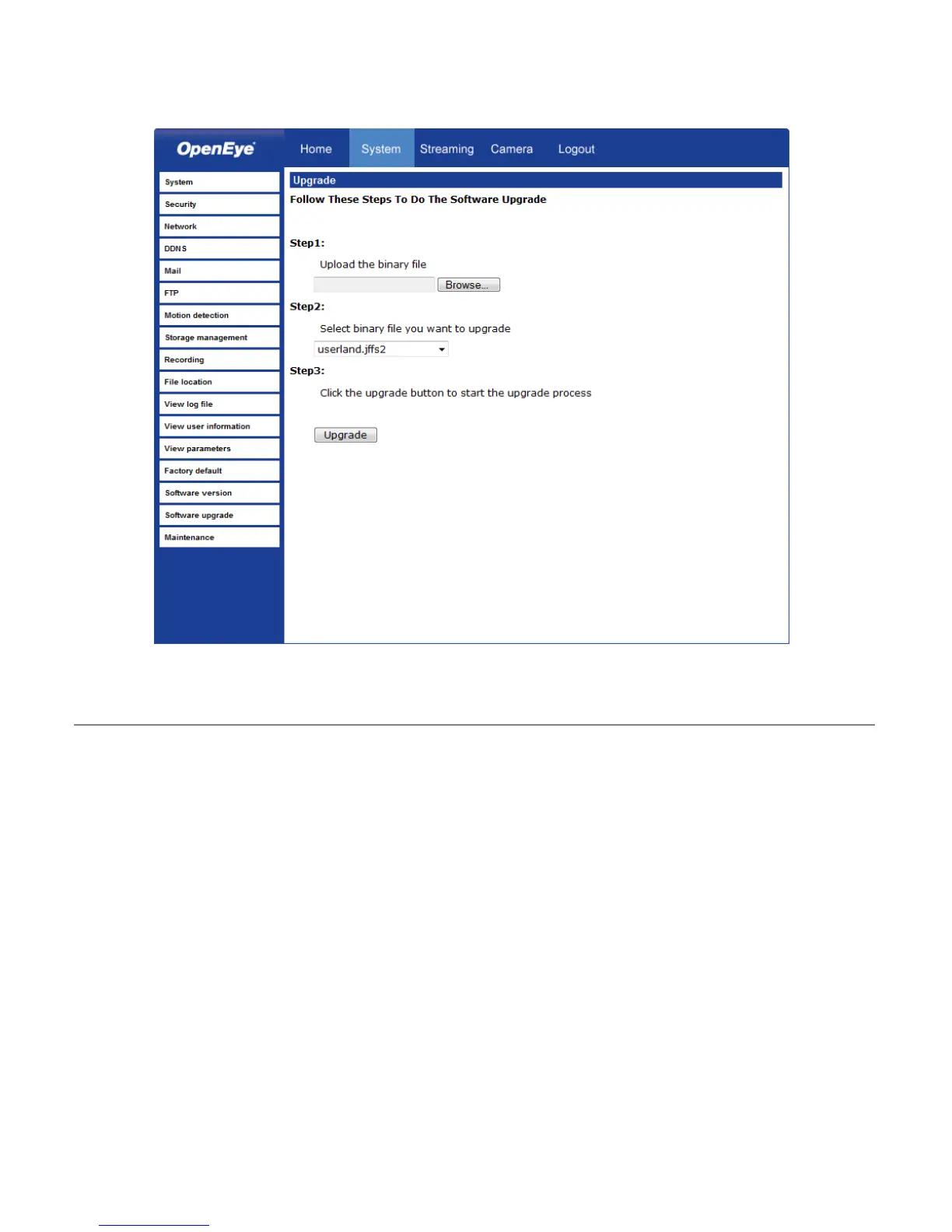
1. Click Browse and select the firmware file.
2. Select the file type from the list under Step 2.
3. Click Upgrade. The system will check the upgrade file, and then upload the file. The
upgrade status bar will display on the page.
When the upgrade process is complete the viewer will return to the Home page. After
updating it is important to make sure the camera viewer is updated:
4. Close the browser.
5. Go to the Windows Control Panel and double-click Add or Remove Programs.
Locate the Camera Viewer software on the Currently installed programs list, and
click Remove to uninstall the previous software version.
6. Open the internet browser again and login to the IP camera. The system will
automatically download the new version of the Camera Viewer software.



 To Next Page