82 © Hypercom EMEA Ltd. 2011 Appendices
Appendix F: Bluetooth pairing procedure
Step 1
Disconnect power lead from the access point (if already powered)
Ensure the terminal is connected to the Access Point with the provided
pairing cable between the green SERIAL ports. Ensure that telephone and
network cables are connected as required for the access point model.
Connect power lead to the access point.
Step 2
AP210 only: Press and release the “Pairing” button on the front panel of
the Access Point. The green LED on top of the AP210 will begin to flash to
indicate pairing mode has been enabled.
Step 3
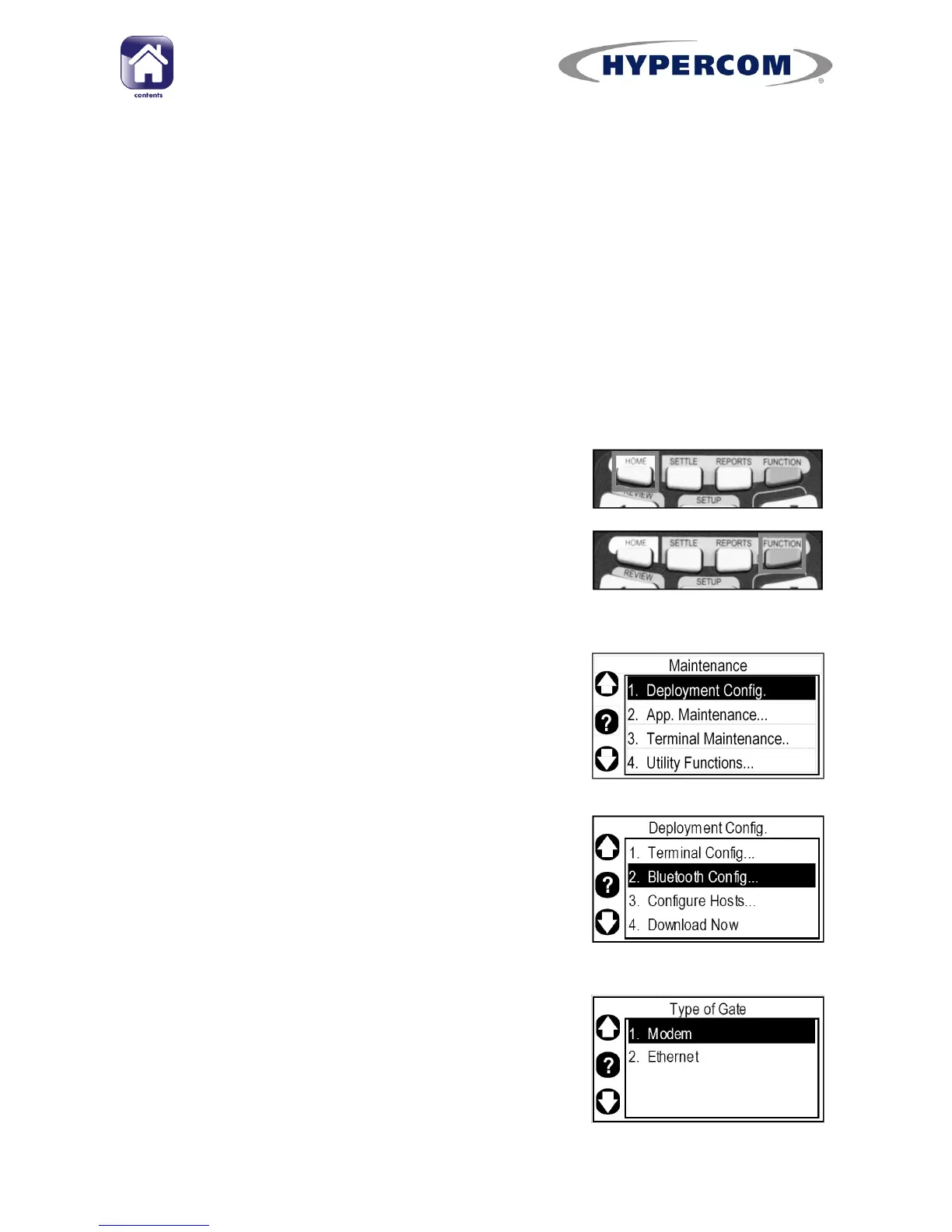
If your terminal is showing the idle screen, press
the white HOME button on the keypad to return
to the Desktop.
When the terminal is showing the Desktop, press
the blue FUNCTION button on the keypad to run
the Application Manager.
Step 4
Ensure “Deployment Config.” Is highlighted and
press Enter on the keypad.
Step 5
Highlight “Bluetooth Config.” and press Enter on
the keypad.
Most procedures will now proceed at Step 8,
However, you may have to perform Steps 6 and
7 if they are presented.
Step 6
Applicable to some terminal configurations using
AP100 and AP110 only
AP100: Select “Modem” , then Enter
AP110: Select “Ethernet”, then Enter
continued…



 To Next Page