Appendices © Hypercom EMEA Ltd. 2011 83
Step 7
Applicable to some terminal configurations
using AP100 and AP110 only.
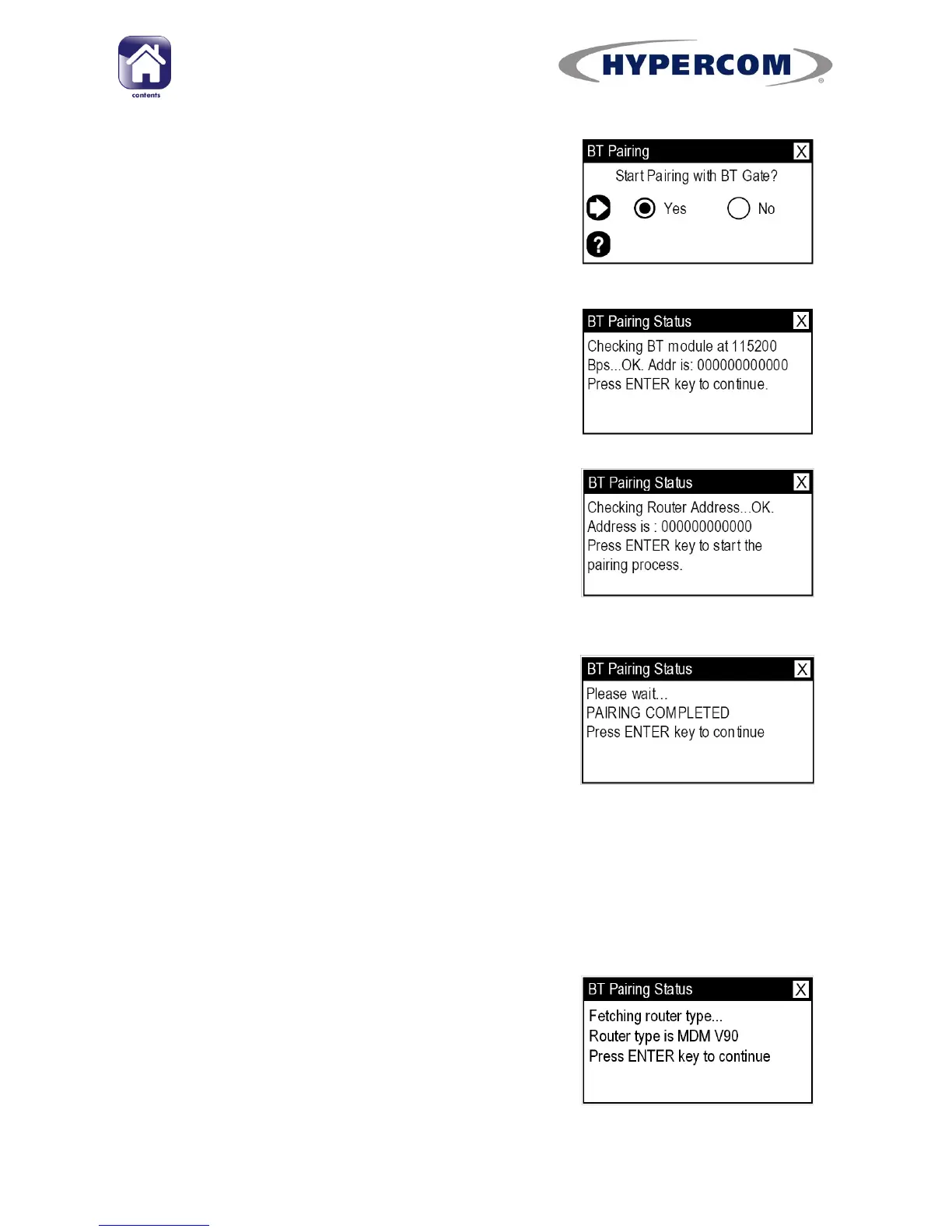
Ensure “Yes” Is highlighted and press Enter on
the keypad.
Step 8
When the display shows “OK” and the module
address, press Enter on the keypad.
The address shown is the Bluetooth address of the terminal
and will correspond with the number on a label on the
underside of the Terminal.
Step 9
When the display shows “OK” and the router
address, press Enter on the keypad to start the
pairing process.
The address shown is the Bluetooth address of the Access
Point and will correspond with the number on a label on the
underside of the Access Point.
PLEASE NOTE: If this step fails, see note below
Step 10
When the display shows “PAIRING
COMPLETED”, press Enter on the keypad.
PLEASE NOTE: If the display shows “Router Module Detect Failed” or
“PAIRING FAILED”, press Enter. Power off the Access Point and power it
back on again. Ensure the terminal is connected to the Access Point with
the provided serial cable using the SERIAL ports. Go back to Step 1 to re-
try the pairing process.
Step 11
This step is applicable to most procedures. If it
not shown, proceed at step 12.
hen the router type is shown, press Enter on
the keypad.
The router type will be shown as MDM V90, ETH or Dual
comm. ,depending on the access point model.



 To Next Page