EasyManua.ls Logo

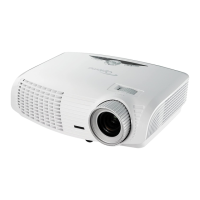
Optoma S310e - User Manual

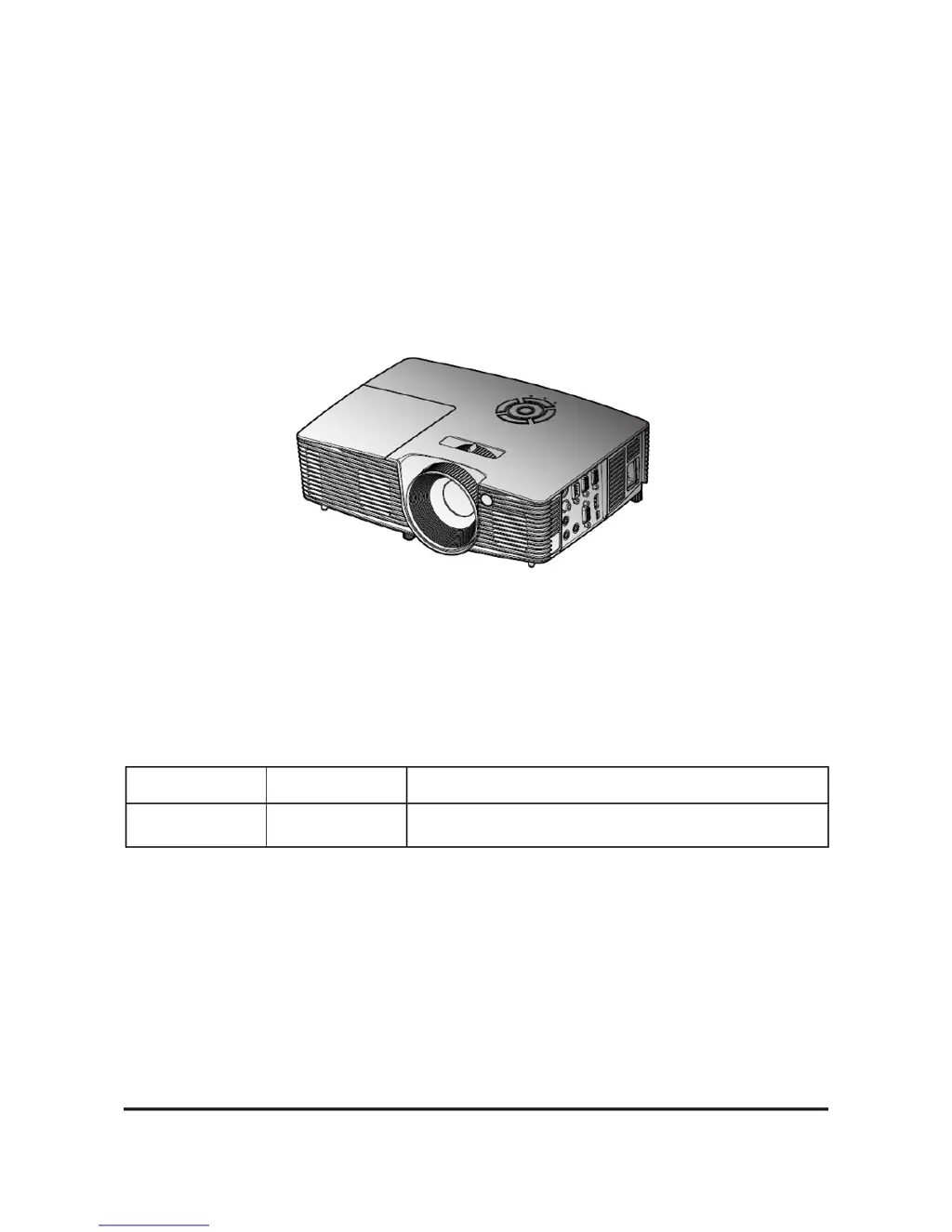
Optoma S310e
87 pages
Print Icon
To Next Page IconTo Next Page
Loading...
SERVICE MANUAL
Prepared: Mina Checked: Amy Approved: Alick
Copyright Nov.2014 All Rights Reserved
S310e/X312
Date Revise Version Description
2014/11/5 V1.0 Initial Issue

Questions and Answers

  • A
    Ashley CampbellSep 9, 2025
    What to do if my Optoma Projector displays a garbage image?
    • T
      Trevor JonesSep 9, 2025
      If your Optoma Projector is displaying a garbage image, ensure that the signal cables and source are working correctly. If the problem continues, check the Main Board.
  • D
    Dr. Jason Ayala DVMSep 12, 2025
    How to troubleshoot line bars or defects on Optoma S310e Projector?
    • S
      Samuel MartinezSep 12, 2025
      If your Optoma Projector is showing line bars or line defects, check the Main Board and DMD Chip.
  • C
    Carl McgrathSep 13, 2025
    How to fix dead pixels or dust on Optoma S310e?
    • D
      dunnrobertSep 13, 2025
      If you observe dead pixels or dust (out of specification) on your Optoma Projector, ensure the projection screen is free of dirt and the projection lens is clean. If the problem persists, clean the DMD Chip and Engine Module, and then check the DMD Chip and Engine Module.
  • J
    James AlexanderSep 15, 2025
    How to troubleshoot audio issues on Optoma Projector?
    • R
      robinsonjenniferSep 15, 2025
      If your Optoma Projector (with speakers) has abnormal audio, ensure that the signal cables and source are working correctly. Also, make sure your projector is not in 'Mute' mode. If the issue continues, check the Main Board, Daughter Board and Speaker.
  • P
    Patricia MathewsSep 17, 2025
    Why is the 3D image abnormal on my Optoma S310e Projector?
    • R
      Ronald PerezSep 17, 2025
      If your Optoma Projector is displaying a 3D image abnormally, ensure the signal source is in 3D format and that the 3D function in the projector's OSD is turned on, including 3D sync invert. If problems persist, check Main Board.

Summary

Introduction

Disassembly and Assembly Process

Disassemble Lamp Cover Module

Step-by-step instructions for removing the projector's lamp cover module.

Disassemble Lamp Module

Instructions for safely removing the projector's lamp module.

Disassemble Top Cover Module

Procedure for removing the projector's top cover module.

Disassemble Keypad Board and Zoom Ring

Guide to disassembling the keypad board and zoom ring assembly.

Disassemble Lamp Housing

Steps to remove the lamp housing assembly from the projector.

Disassemble System Fan

Procedure for disassembling and removing the system cooling fan.

Disassemble Interlock Switch

Instructions for disassembling the projector's interlock switch.

Disassemble LVPS

Steps to remove the Low Voltage Power Supply (LVPS) unit.

Disassemble Engine Module and Main Board Module

Guide to removing the engine module and main board assembly.

Disassemble IO Cover

Procedure for disassembling and removing the projector's IO cover.

Troubleshooting

Main Procedure

Provides step-by-step troubleshooting procedures for common projector issues.

Test and Inspection

Firmware Upgrade

Firmware Upgrade Procedure

Detailed steps for performing the firmware upgrade process.

MCU Firmware Upgrade Procedure

Detailed steps for upgrading the projector's MCU firmware.

EDID Upgrade

Optoma S310e Specifications

General IconGeneral
Brightness3000 ANSI Lumens
ResolutionSVGA (800 x 600)
Contrast Ratio20, 000:1
Display TechnologyDLP
Zoom TypeManual
Input PortsVGA, Composite Video, USB
Projection Size30 - 300 inches

Related product manuals