EasyManua.ls Logo

Panasonic Palmcoder PalmSight PV-L51 - Using MENU Mode Qu; Sss Nenen

Panasonic Palmcoder PalmSight PV-L51
44 pages
Print Icon
To Next Page IconTo Next Page
To Previous Page IconTo Previous Page
Loading...
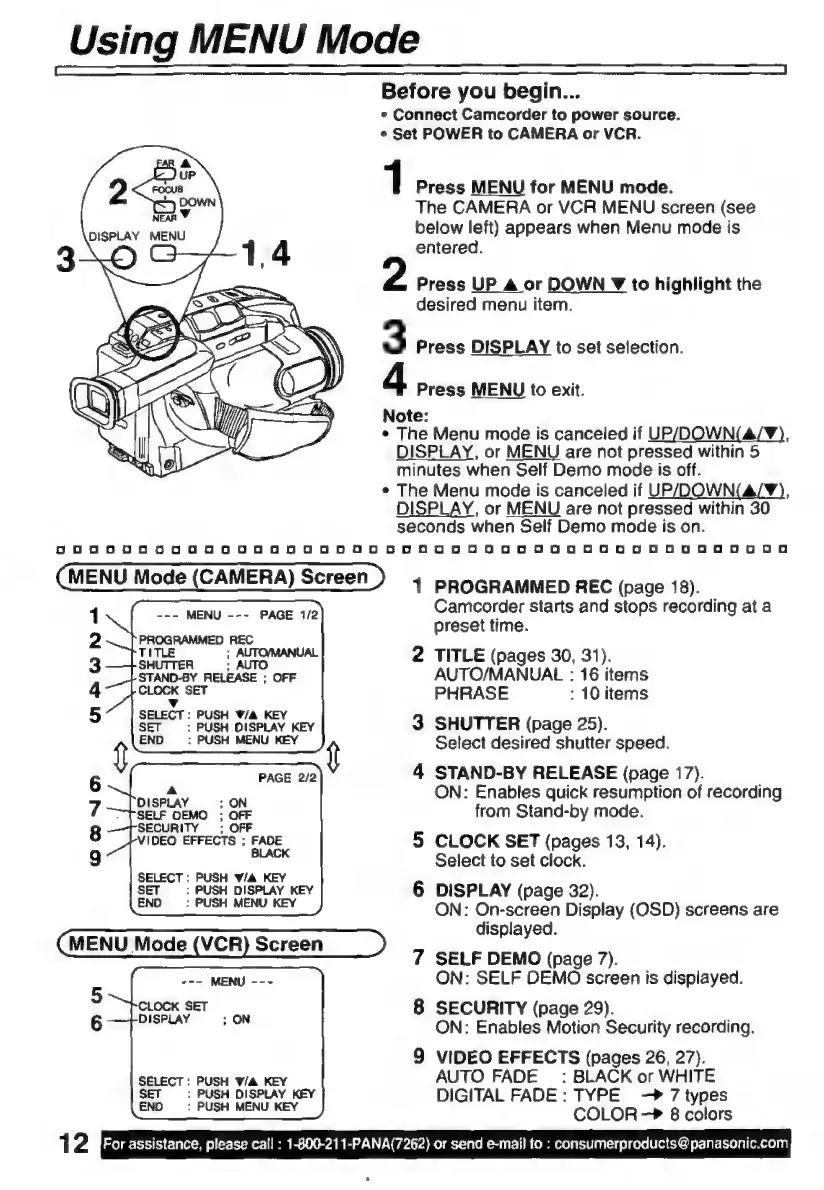
Using
MENU
Mode
Before
you
begin...
e
Connect
Camcorder
to
power
source.
+
Set
POWER
to
CAMERA
or
VCR.
1
Press
MENU
for
MENU
mode.
The
CAMERA
or
VCR
MENU
screen
(see
below
left)
appears
when
Menu
mode
is
entered.
Press
UP
A
or
DOWN
Z
to
highlight
the
desired
menu
item.
3
Press
DISPLAY
to
set
selection.
4
Press
MENU
to
exit.
Note:
+
The
Menu
mode
is
canceled
if
UP/DOWN(a/¥),
DISPLAY,
or
MENU
are
not
pressed
within
5
minutes
when
Self
Demo
mode
is
off.
s
The
Menu
mode
is
canceled
if
UP/DOWN(a/¥),
DISPLAY,
or
MENU
are
not
pressed
within
30
seconds
when
Self
Demo
mode
is
on.
0oDoOoO0o0o03005000000050005500050005500000050500000050000
MENU
Mode
(CAMERA)
Screen
4
PROGRAMMED
REC
(page
18).
1
Los
MENU
E
Camcorder
starts
and
stops
recording
at
a
i
A
preset
time.
TITLE
;
AUTO/MANUAL
2
TITLE
(pages
30,
31).
S
TOVREA
ore
AUTO/MANUAL
:
16
items
4
{CLOCK
SET
PHRASE
:
10
items
S
Ear
DISPLAY.
KEY
3
SHUTTER
(page
25).
:
PUSH
MENU
KEY
Select
desired
shutter
speed.
4
STAND-BY
RELEASE
(page
17).
ON:
Enables
quick
resumption
of
recording
from
Stand-by
mode.
5
CLOCK
SET
(pages
13,
14).
Select
to
set
clock.
6
DISPLAY
(page
32).
ON:
On-screen
Display
(OSD)
screens
are
displayed.
MENU
Mode
(VCR)
Screen
>
SELF
DEMO
(page
7).
ON:
SELF
DEMO
screen
is
displayed.
8
SECURITY
(page
29).
ON:
Enables
Motion
Security
recording.
9
VIDEO
EFFECTS
(pages
26,
27).
AUTO
FADE
:
BLACK
or
WHITE
DIGITAL
FADE:
TYPE
7
types
COLOR
8
colors
12
For
assistance,
please
call
:
1-800-211-PANA(7262)
or
send
e-mail
fo
:
consumerproducts@
panasonic.com
oan
om
SELECT:
PUSH
V/A
KEY
SET
:
PUSH
DISPLAY
KEY
END
:
PUSH
MENU
KEY
SELECT:
PUSH
V/A
KEY
SET
:
PUSH
DISPLAY
KEY
:
PUSH
MENU
KEY

Related product manuals