EasyManua.ls Logo

Panasonic Palmcoder PalmSight PV-L51 - E E

Panasonic Palmcoder PalmSight PV-L51
44 pages
Print Icon
To Next Page IconTo Next Page
To Previous Page IconTo Previous Page
Loading...
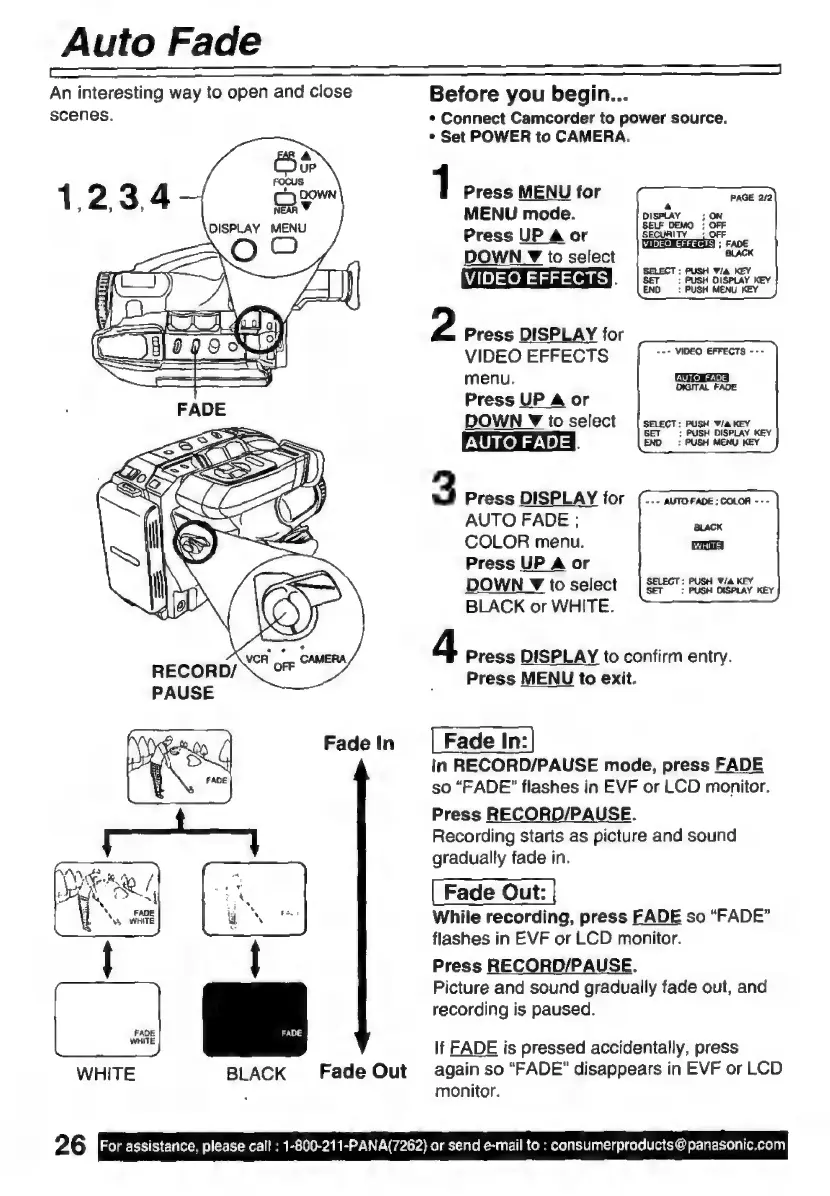
Auto
Fade
An
interesting
way
to
open
and
close
scenes.
Fade
In
FADE
WHITE
WHITE
Fade
Out
BLACK
26
For
assistance,
please
call
:
1-800-211-PANA(7262)
or
send
e-mail
to
:
consumerproducts
@panasonic.com
Before
you
begin...
s
Connect
Camcorder
to
power
source.
e
Set
POWER
to
CAMERA.
1
Press
MENU
for
MENU
mode.
Press
UP
4
or
DOWN
Y
to
select
VIDEO
EFFECTS
HA
2
Press
DISPLAY
for
VIDEO
EFFECTS
menu.
Press
UP
A
or
DOWN
Y
to
select
[
seect:
push
w/a
key
AUTO
FADE
I
END:
PUSH
MENU
KEY
---
VIDEO
EFFECTS
---
AUTO
FADE
DIGITAL
FADE
3
Press
DISPLAY
for
AUTO
FADE
:
COLOR
menu.
Press
UP
A
or
DOWN
Z
to
select
|
SELECT:
Buse
yia
KEY
BLACK
or
WHITE.
4
Press
DISPLAY
to
confirm
entry.
Press
MENU
to
exit.
in
RECORD/PAUSE
mode,
press
FADE
so
“FADE”
flashes
in
EVF
or
LCD
monitor.
Press
RECORD/PAUSE.
Recording
starts
as
picture
and
sound
gradually
fade
in.
While
recording,
press
FADE
so
“FADE”
flashes
in
EVF
or
LCD
monitor.
Press
RECORD/PAUSE.
Picture
and
sound
gradually
fade
out,
and
recording
is
paused.
If
FADE
is
pressed
accidentally,
press
again
so
“FADE”
disappears
in
EVF
or
LCD
monitor.

Related product manuals