EasyManua.ls Logo

Panasonic Palmcoder PalmSight PV-L51 - Color Digital Fade T

Panasonic Palmcoder PalmSight PV-L51
44 pages
Print Icon
To Next Page IconTo Next Page
To Previous Page IconTo Previous Page
Loading...
Color
Digital
Fade
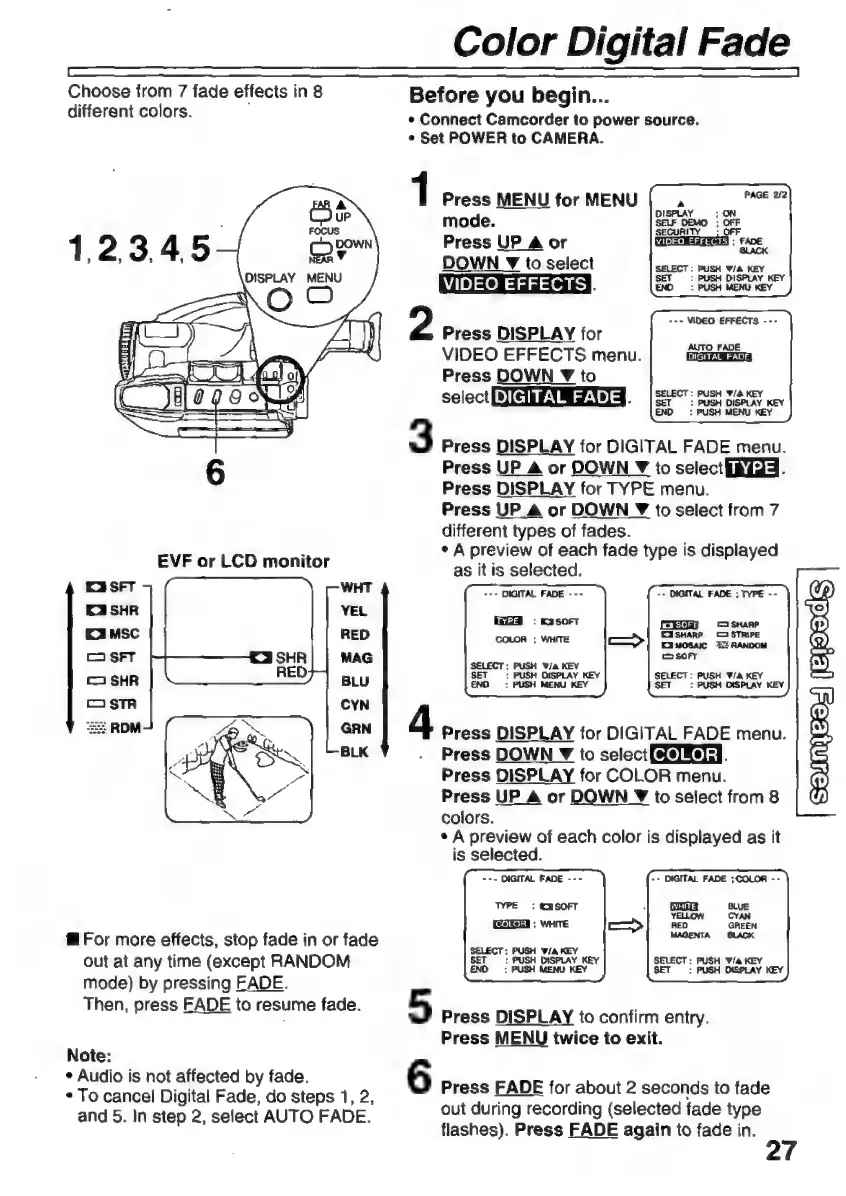
Choose
from
7
fade
effects
i
in
8
Before
you
begin...
different
colors.
*
Connect
Camcorder
to
power
source.
s
Set
POWER
to
CAMERA.
1
Press
MENU
for
MENU
mode.
Press
UP
A
or
DOWN
¥
to
select
VIDEO
EFFECTS
§
2
---
VIDEO
EFFECTS
---
Press
DISPLAY
for
VIDEO
EFFECTS
menu.
Press
DOWN
Y
to
select
[Me].
|
SELECT:
PUSH
va
KEY
y
END
:
PUSH
MENU
KEY
3
Press
DISPLAY
for
DIGITAL
FADE
menu.
Press
UP
A
or
DOWN
Y
to
select
ZA.
Press
DISPLAY
for
TYPE
menu.
Press
UP
A
or
DOWN
Z
to
select
from
7
different
types
of
fades.
e
A
preview
of
each
fade
type
is
displayed
as
it
is
selected.
-+~
DIGITAL
FADE
---
EVF
or
LCD
monitor
--
DIGITAL
FADE
;
TYPE
--
+
SOFT
COLOR
;
WHITE
E
SHARP
SHARP
C
STRIPE
Eamosac
RANDOM
SOFT
SELECT;
PUSH
W/a
KEY
SET
:
PUSH
DISPLAY
KEY
SELECT:
PUSH
Wa
KEY
END
:
PUSH
MENU
KEY
SET:
PUSH
DISPLAY
KEY
d
Press
DISPLAY
for
DIGITAL
FADE
menu.
Press
DOWN
Y
to
select
[AoE].
Press
DISPLAY
for
COLOR
menu.
Press
UP
A
or
DOWN
Y
to
select
from
8
colors.
*
A
preview
of
each
color
is
displayed
as
it
is
selected.
---
DIGITAL
FADE
---
TYPE
;
SOFT
RICA
:
WHITE
E
For
more
effects,
stop
fade
in
or
fade
out
at
any
time
(except
RANDOM
get
PUSH
Dish
DISPLAY
KEY
mode)
by
pressing
EADE.
SELECT:
PUSH
F/A
KEY
SET
:
PUSH
DISPLAY
Then,
press
EADE
to
ae
an
5
Press
DISPLAY
to
confirm
entry.
Press
MENU
twice
to
exit.
Note:
+
Audio
i
f
i
6
E
o
od
DES
er
1.2
Press
FADE
for
about
2
seconds
to
fade
and
5.
In
step
2
select
AUTO
FADE.
out
during
recording
(selected
fade
type
flashes).
Press
FADE
again
to
fade
in.

Related product manuals