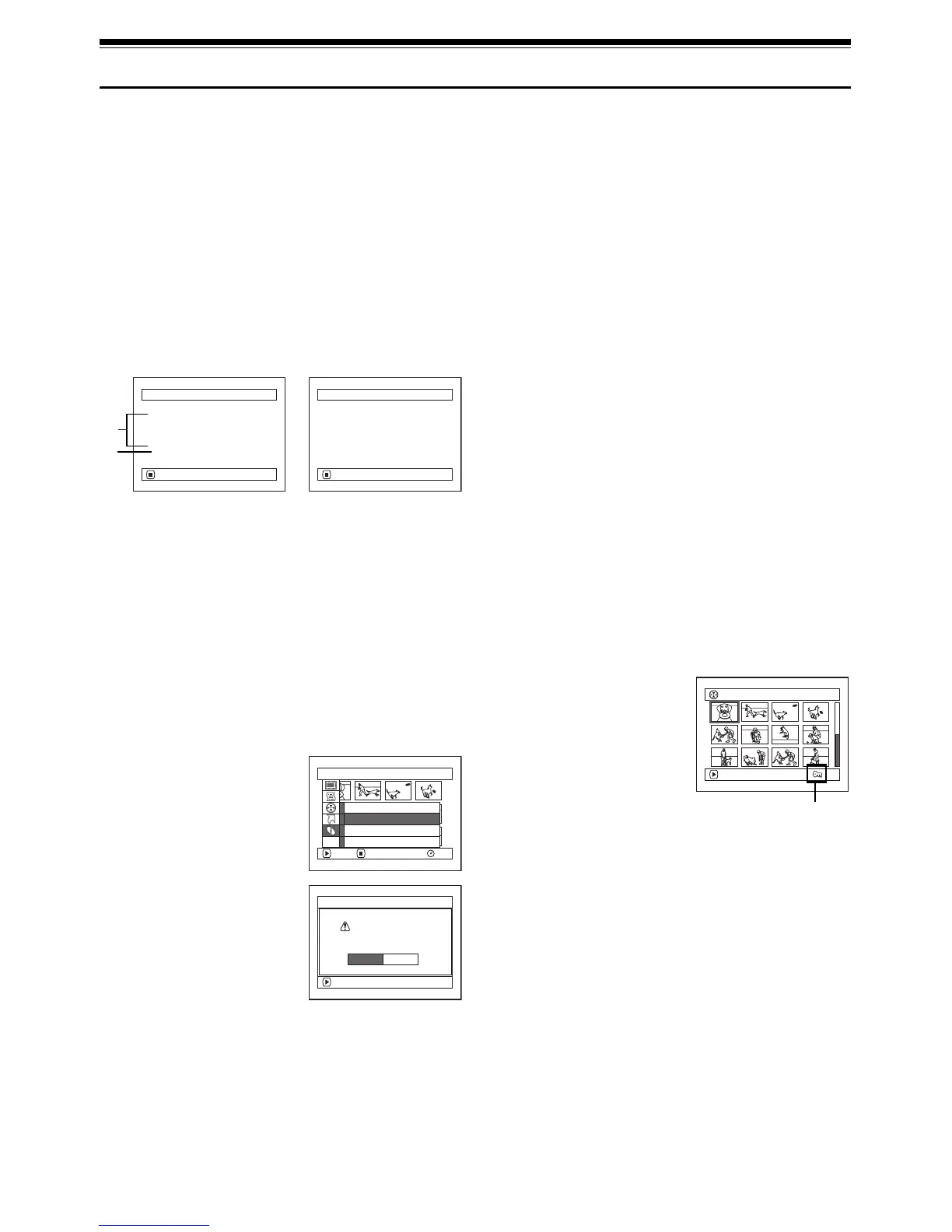
Verifying Remaining Free Space on Disc or Card (Capacity)
You can find out how long you will be able to record on one side of disc or on card.
1 Press the DISC NAVIGATION button.
2 Press the MENU button.
3 Choose “Capacity” on the “Disc” or “Card” menu
screen, and then press the A button.
*1
With DVD-R disc: The quality mode first used for
recording with disc will appear.
*2
With DVD-R disc: This will not be displayed.
4 Press the g button to quit.
The Disc Navigation screen will be restored.
Note:
With a write-protected (see “Terminology” on page 148)
disc or locked card, the remaining space will always be
displayed as “0”.
1
Protecting Disc from Writing (Protect Disc)
You can protect a DVD-RAM disc in order to prevent recorded images from being erased or edited by mistake. Further
recording will not be possible on protected disc until the protection is released.
1 Press the DISC NAVIGATION button.
2 Press the MENU button.
3 Choose “Protect Disc” on
the “Disc” menu screen, and
then press the A button.
4 The screen for verifying
protection will appear:
Choose “YES”, and then
press the A button.
Choose “NO” to cancel
protection.
After “YES” or “NO”
setting, the Disc
Navigation screen will be
restored.
Note:
To release disc protection,
perform the same procedure as above: The screen for
verifying the release of protection will appear.
Choose “YES” to release the protection.
Capac i t y
Capac i t y : 90%
Approx.
VIDEO(XTRA): 17
m
in
V I DEO( F I N E ) : 26
m
in
V I DEO( ST D) : 54
m
in
PHOTO :996
RETURN
Capac i t y
Capac i t y :96%
Approx.
PHOTO(FINE) :462
PHOTO( NORM) : 9 2 4
PHOTO(ECO) :1148
RETURN
(When using disc)
*1
*2
(When using card)
Disc
RAM
ENTER RETURN
Capac i t y
Protect Disc
Format Disc
Update Cont rol Info.
ETC
ENTER
Protect Disc
YES NO
Write protect disc?
001/ 019All Progra
m
s
PLAY
RAM
Disc protect icon




 To Next Page