Connecting the SN200 to a laptop PC 32
SmartNode 200 User Manual 5 • Initial Configuration
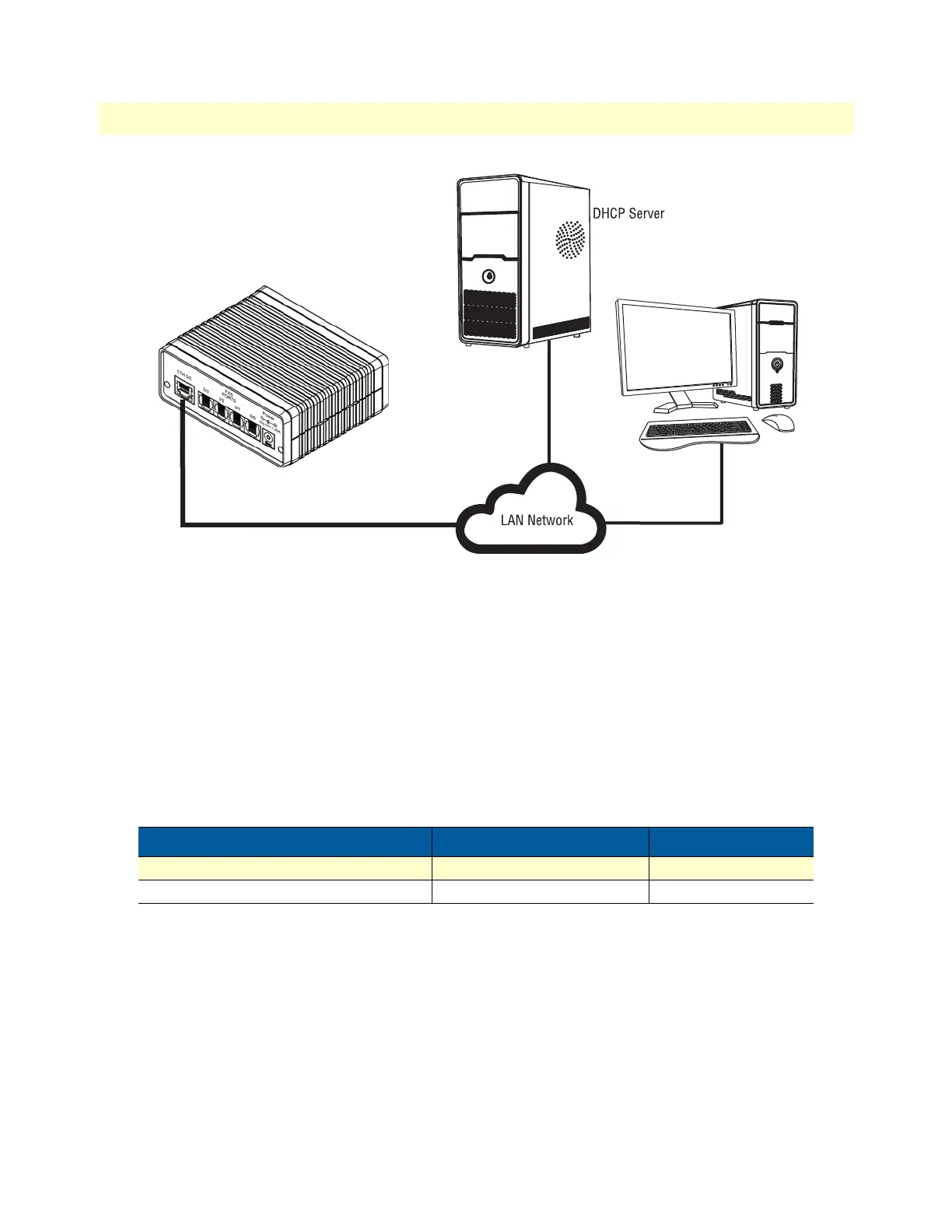
Figure 10. Connecting SmartNode device and PC to a LAN with DHCP server.
You can check the connection to the SmartNode by executing the ping command from the PC command win-
dow as follows:
ping 192.168.200.10
Configure the Desired IP Address
Factory-default IP Settings
The factory default configuration for the Ethernet interface is listed in table 5. The interface bound to ETH 0/0
(WAN) has a DHCP client running and a fixed IP address.
If these addresses match with those of your network, go to section “Loading the Configuration (optional)” on
page 33. Otherwise, refer to the following sections to change the addresses and network masks.
Login
To access the SmartNode, start the Telnet application. Type either the default IP address into the address field
of the Telnet application:
192.168.200.10
Or use the SN Discovery Tool to find out the IP address previously assigned by the DHCP server.
Table 5. Factory Default IP Address and Network Mask Configuration
WAN Interface Ethernet 0 (ETH 0/0) IP Address Network Mask
Fixed IP 192.168.200.10 255.255.255.0
DHCP client DHCP DHCP


 To Next Page