iXH Camera Systems Installation Guide
Page 40
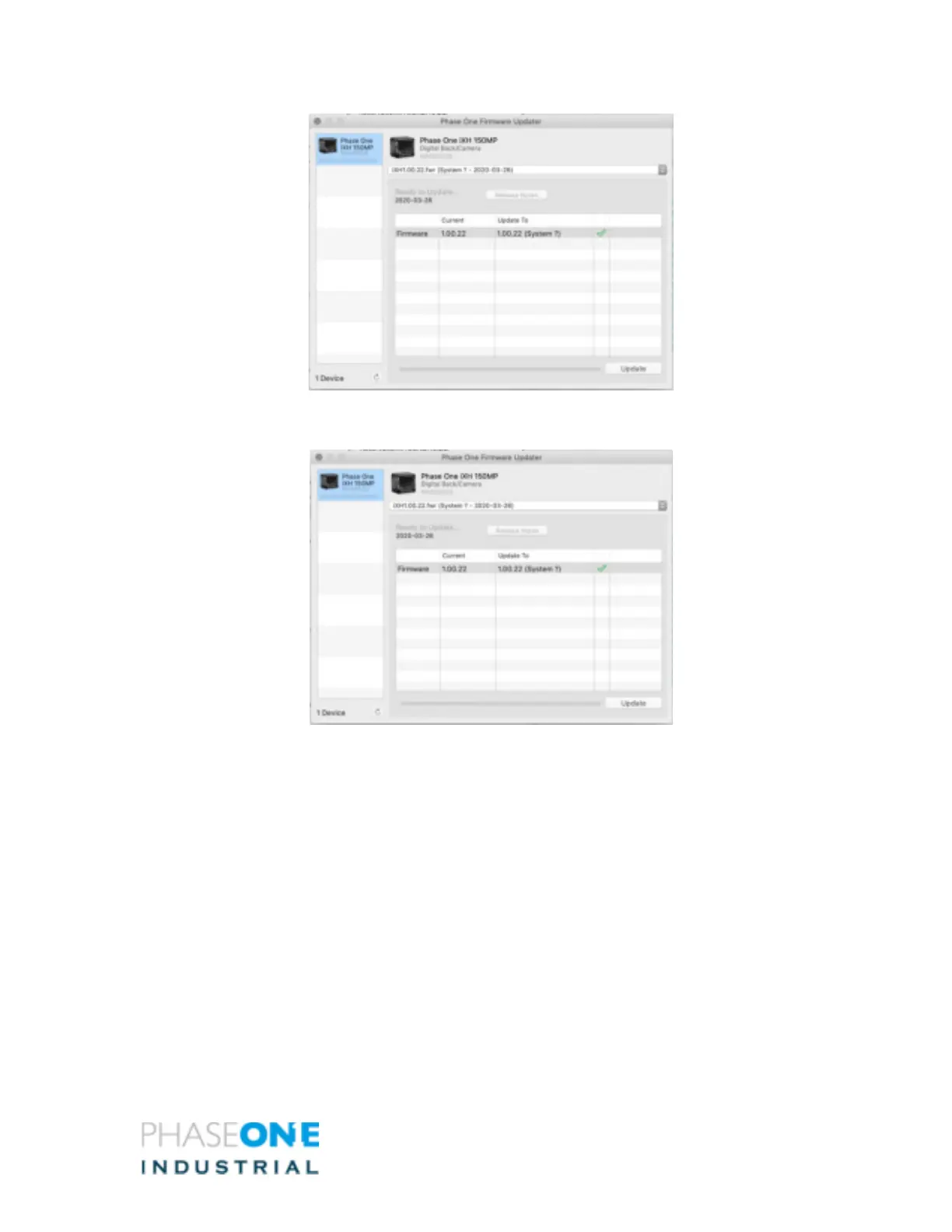
4. After downloading the new firmware, the download button becomes a Release
Notes button.
5. Click the Release Notes button to download the release notes for the newest
firmware.
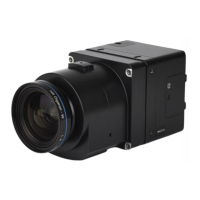
6. To update the camera to the latest firmware, click Update. The firmware is
written to the camera and a cog icon is displayed next to the MAIN component
and a progress bar displays the progress of the update.
7. Upon a successful completion of the update, the MAIN component is marked with
a green check mark icon.
8. If the update fails, disconnect both the USB and the cables and reconnect them
again, then repeat the procedure described above.
9. Select Update Firmware from the Firmware menu and the back automatically
detects and implements the update from the card.
A progress bar appears on screen during installation.


 To Next Page