13
Go to cover page
170B6 LCD
Color Adjustment
Note: after alignment, please reset OSD to user s mode for normal
operation. Otherwise, the monitor won t entering power saving mode
and showing full white picture all the time as no video signal supplied.
To leave factory mode by restart the monitor.
5. Adjust OSD menu to lower position of screen (i.g. adjust V-position to
value " 0 " at submenu of OSD Setting.
6. Setting Brightness and Contrast
- Adjust Brightness to value " 100".
- Adjust Contrast to value " 50" .
7. Switch light probe to Viewing position.
8. Move the Lens barrel forward or backward to get clear image
9. Switch light probe to Measuring position. It should be able to indicate
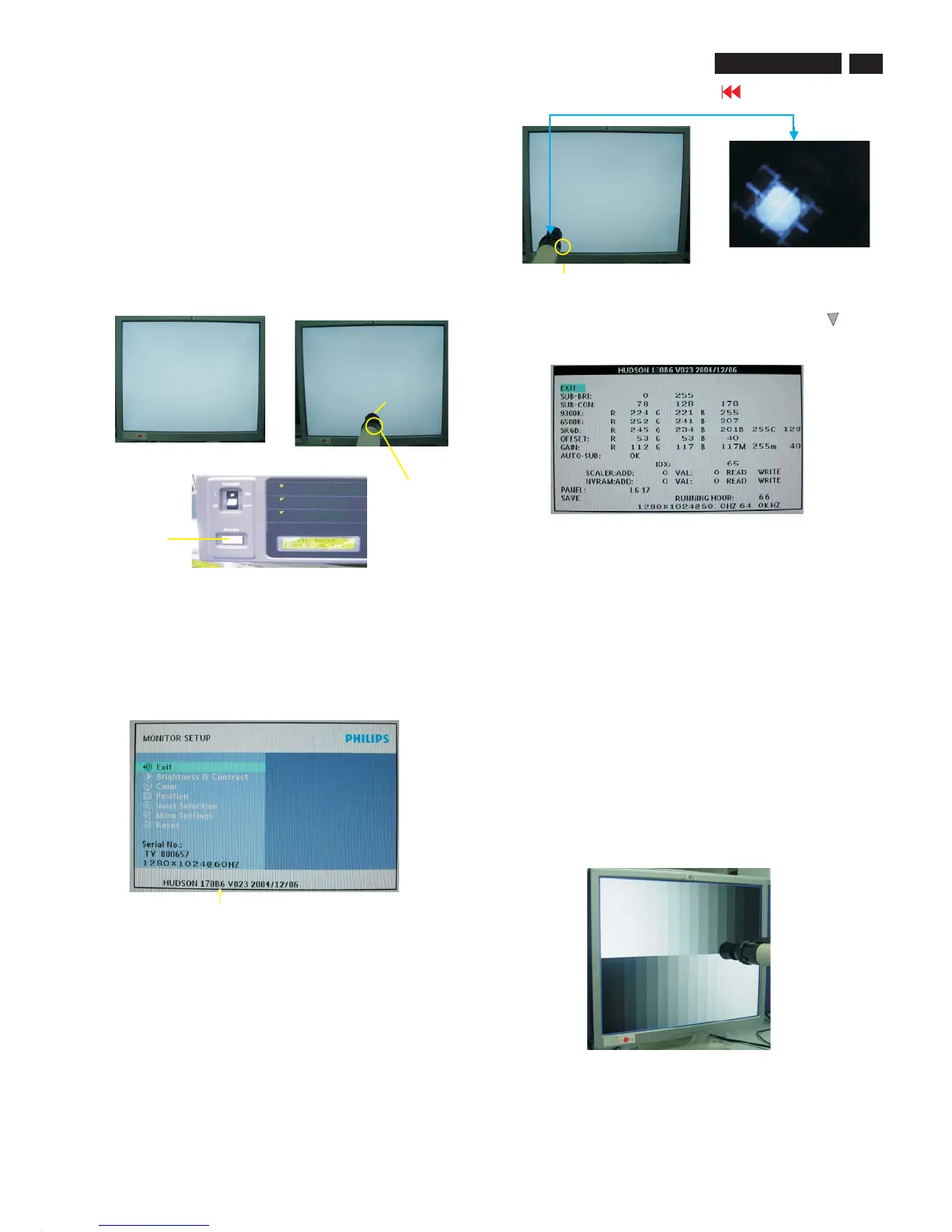
Fig. 1
Fig. 2
0-CAL
Fig. 3
Fig. 5
Clear image
Measurement/viewing selector
See Fig. 5
Fig. 7
9300° K
13.
Press MENU buttons to selectRGB.Increase/decrease value
by press or buttons until the X, Y co-ordinates as below:
X= 0.283+/- 0.020
Y= 0.297 +/-0.020
Luminance> 200 Nits
6500 °K
14. Setting X, Y value listed as below:
X= 0.313 +/-0.020
Y= 0.329+/-0.020
Luminance> 200 Nits
Alignment hits: 1. R for x value, G for y value, B for Y value on the
colour analyzer.
2. If the colour analyzer has been calibrated and preset
colour temperature in it. Please switch to correct
setting in accordance with colour settings.
15. Gray scale checking
- Switch Timing/pattern generator to
Pattern: 16 gray scale
Timing: 640 X 480 60Hz 64KHz
- Setting both Brightness 100% and Contrast to 50% (Value).
- Check black and white scale are visible clearly across the screen.
Note: The bright scale will be saturated, if Y is too large. The dark scale
will be invisible, if Y is too small. Re-alignment or review
Cover(black)
White Balance Adjustment
Alignment procedure
1. Turn on 170B6 LCD monitor.
2. Turn on the Timing/Pattern generator. See Fig. 1
Setting generator to provide CROSS-Hatch pattern at
Resolution :1280*1024
Timing : H= 64kHz V= 60 Hz
3. Preset LCD colour Analyzer CA-110
- Remove the lens protective cover of probe CA-A30.
- Set Measuring/viewing selector to Measuring position for reset
analyzer. (Zero calibration) as Fig. 2
- Turn on the colour analyzer (CA-110).
- Press 0-CAL button to starting reset analyzer. See Fig. 3
procedure again to correct this.
Measurement viewing selectorMeasurement viewing selector
Fig. 4
Factory Mode
Indicator
4. Entering factory adjustment mode of LCD Monitor.
1). Turn off monitor.
2).
3).Press "OK" button, wait until the OSD menu with Characters
"HUDSON 170B6 V023 2004/12/06" (below OSD menu) come
on the Screen of the monitor(as Fig.4).
[Push "AUTO" & "OK" buttons at the same time and hold them]
+[Press "power" button untill comes out "Windows screen" ]
=> then release all buttons
10. Setting pattern to full white picture
11. Press button, then select factory mode indicator by"OK" " "
button
12. Press"OK" button to bring up submenu windows as below:
7
Fig. 6



 To Next Page