16
Go to cover page
170B6 LCD
Troubleshooting
Common Problems
Having this problem
Check these items
No Picture
(Power LED not lit)
1.Make sure the power cord is plugged into the power outlet and into the back of the
monitor.
2.First, ensure that the power button on the front of the monitor is in the OFF position,
then press it to the ON position.
No Picture
(Power LED is amber or yellow)
1.Make sure the computer is turned on.
2. Make sure the signal cable is properly connected to your computer.
3.Check to see if the monitor cable has bent pins.
4.The Energy Saving feature may be activated
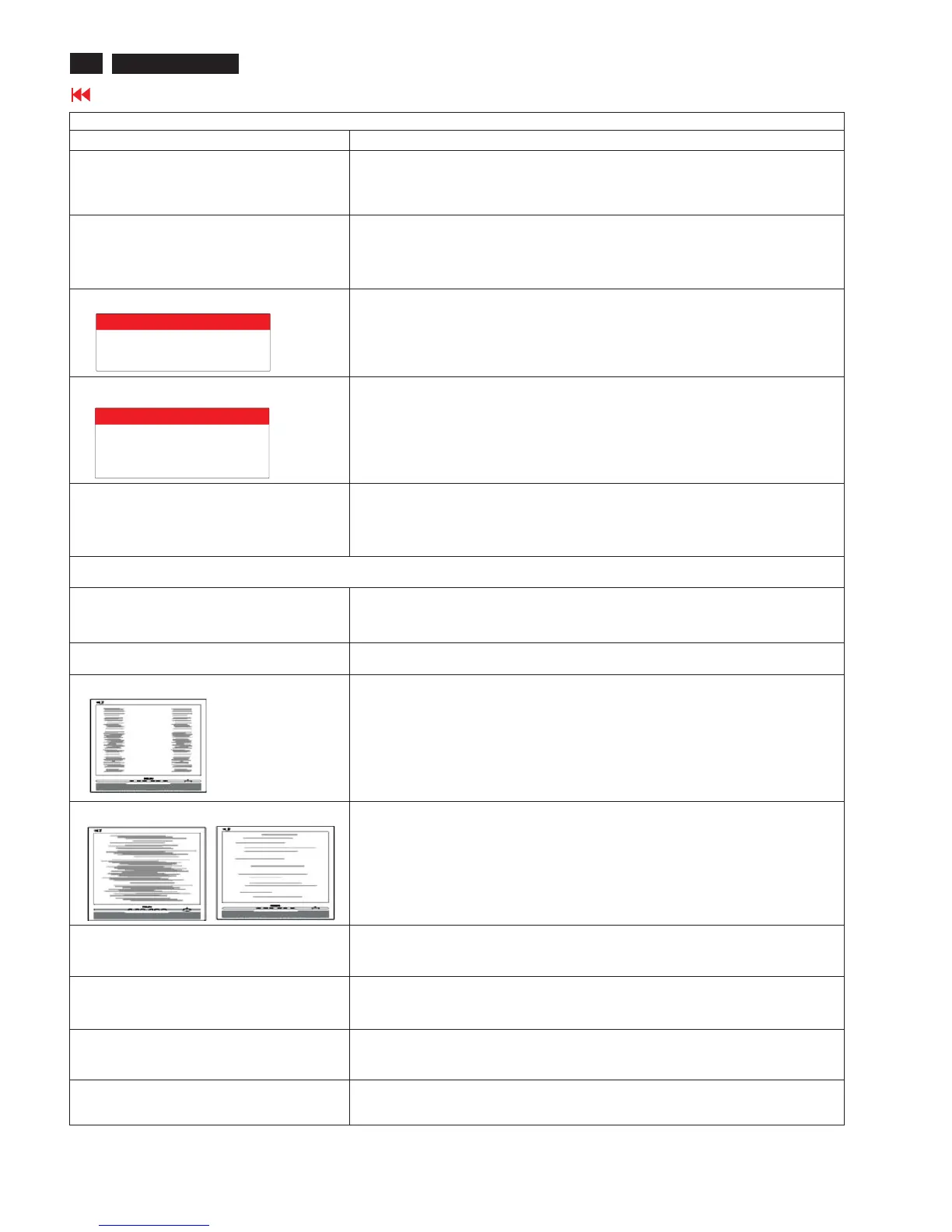
Screen says
1. Make sure the monitor cable is properly connected to your computer. (Also refer
to the Quick Set-Up Guide).
2.Check to see if the monitor cable has bent pins.
3. Make sure the computer is turned on.
Screen says
1. Make sure the vertical sync of input signal is within the range of 56 ~ 75 Hz.
2.Change the refresh rate to 56~75Hz within 10 minutes.
3. Re-power on monitor to start over again if you failed to change the refresh rate
within 10 minutes.
AUTO button not working properly
1.The Auto Function is designed for use on standard Macintosh or IBM-compatible
PCs running Microsoft Windows.
2. It may not work properly if using nonstandard PC or video card.
3.The AUTO adjustment does not function when digital input is used for display.
Imaging Problems
Display position is incorrect
1.Press the Auto button.
2. Adjust the image position using the Horizontal Position and/or Vertical
Position in OSD Main Controls.
Image vibrates on the screen
Check that the signal cable is properly connected to the graphics board or PC.
Vertical flicker appears
1. Press the Auto button.
2. Eliminate the vertical bars using the Clock Adjustment of VIDEO NOISE in
OSD Main Controls.
Horizontal flicker appears
1. Press the Auto button.
2. Eliminate the vertical bars using the Clock Adjustment of VIDEO NOISE in
OSD Main Controls.
The screen is too bright or too dark
Adjust the contrast and brightness on OSD Main Controls. (The backlight of the
LCD monitor has a fixed life span. When the screen becomes dark or begins to
flicker, please contact your dealer).
An after-image appears
If an image remains on the screen for an extended period of time, it may be
imprinted in the screen and leave an afterimage. This usually disappears after a
few hours.
An after-image remains after the power
has been turned off.
This is characteristic of liquid crystal and is not caused by a malfunction or
deterioration of the liquid crystal. The after-image will disappear after a peroid
of time.
Green, red, blue, dark, and white dots
Remains
The remaining dots are normal characteristic of the liquid crystal used in
today's technology.
ATTENTION
NO VIDEO INPUT
ATTENTION
THIS IS 85HZ OVERDRIVE,
CHANGE COMPUTER DISPLAY
INPUT TO 1280X1024@60HZ



 To Next Page