Subtitle Language 63
• With some DVDs, you may select a
subtitle language in the Disc menu.
• If the desired language is not shown
after pressing the
o
/
p
buttons sev-
eral times, the Disc does not have
subtitles in that language.
• The subtitles may be delayed for a
few seconds.
• Your subtitle selection will be can-
celled if you open the Disc tray or
turn off the power. The default set-
ting of the DVD will be selected
again.
Helpful Hints
The DVD/VCR allows you to select a language for subtitles from
those available on the disc.
1
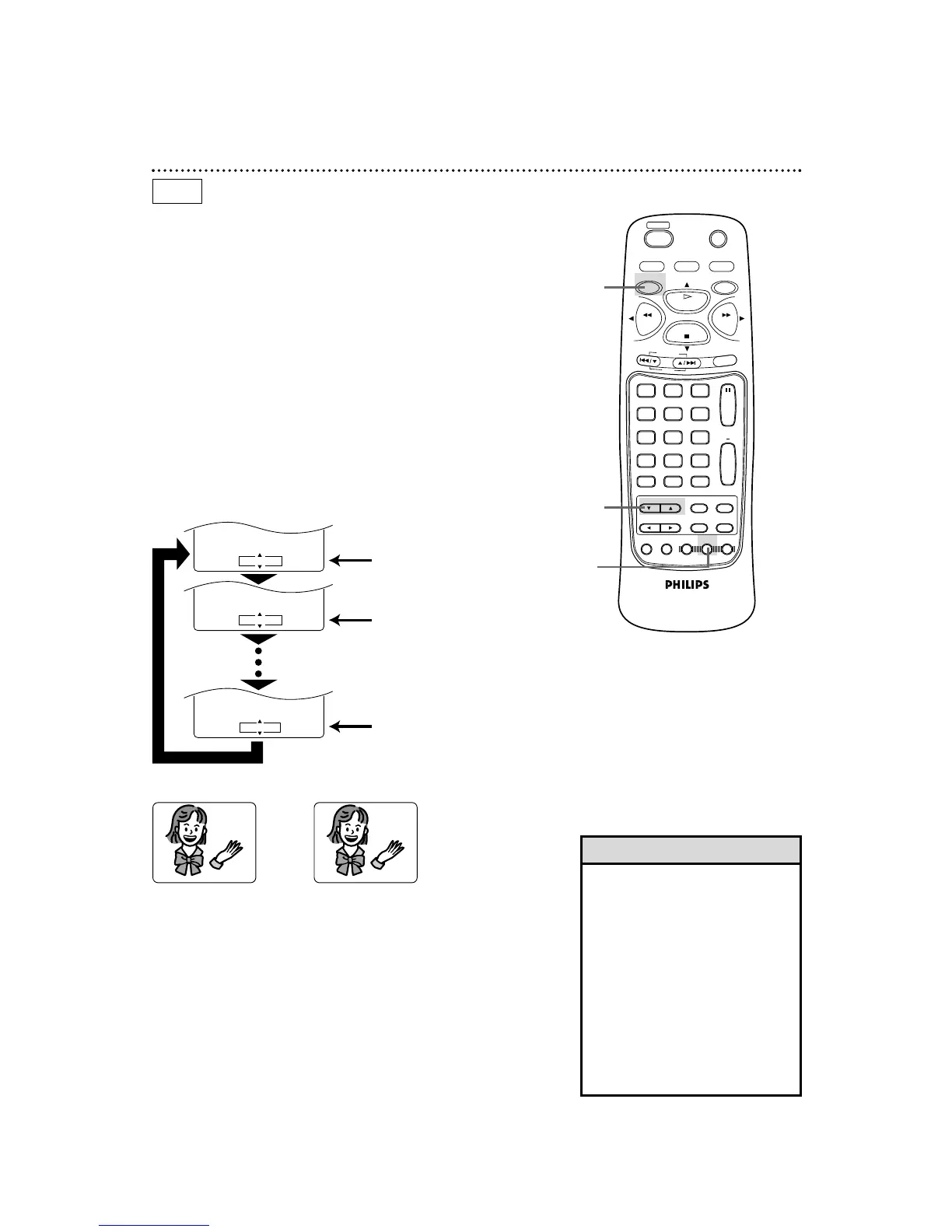
Press the DVD button, then press the SUBTITLE button
during playback. The subtitle menu will appear on the TV
screen.
2
Within 15 seconds, press the o/p buttons to select a sub-
title language. Select a language from those available on the
DVD.
3
The subtitle menu will disappear after about 15 seconds.
➜
•••
SUBTITLE 1 SUBTITLE 2
DVD
1
2
● Before you begin, place the DVD/VCR in DVD mode.
Press the DVD/VCR OUTPUT button so that the red DVD light
appears on the front of the DVD/VCR.
Press the o /p buttons.
SUBTITLE 1
:
E
N
G
/
8
SUBTITLE 0
:
O F F
/
8
SUBTITLE 2
:
F R E
/
8
Press the o /p buttons to
select another language.
Subtitle 2
To turn off subtitles, press
the o /p buttons repeatedly
until OFF appears in the
subtitle menu.
No subtitles



 To Next Page