Video Settings 73
1
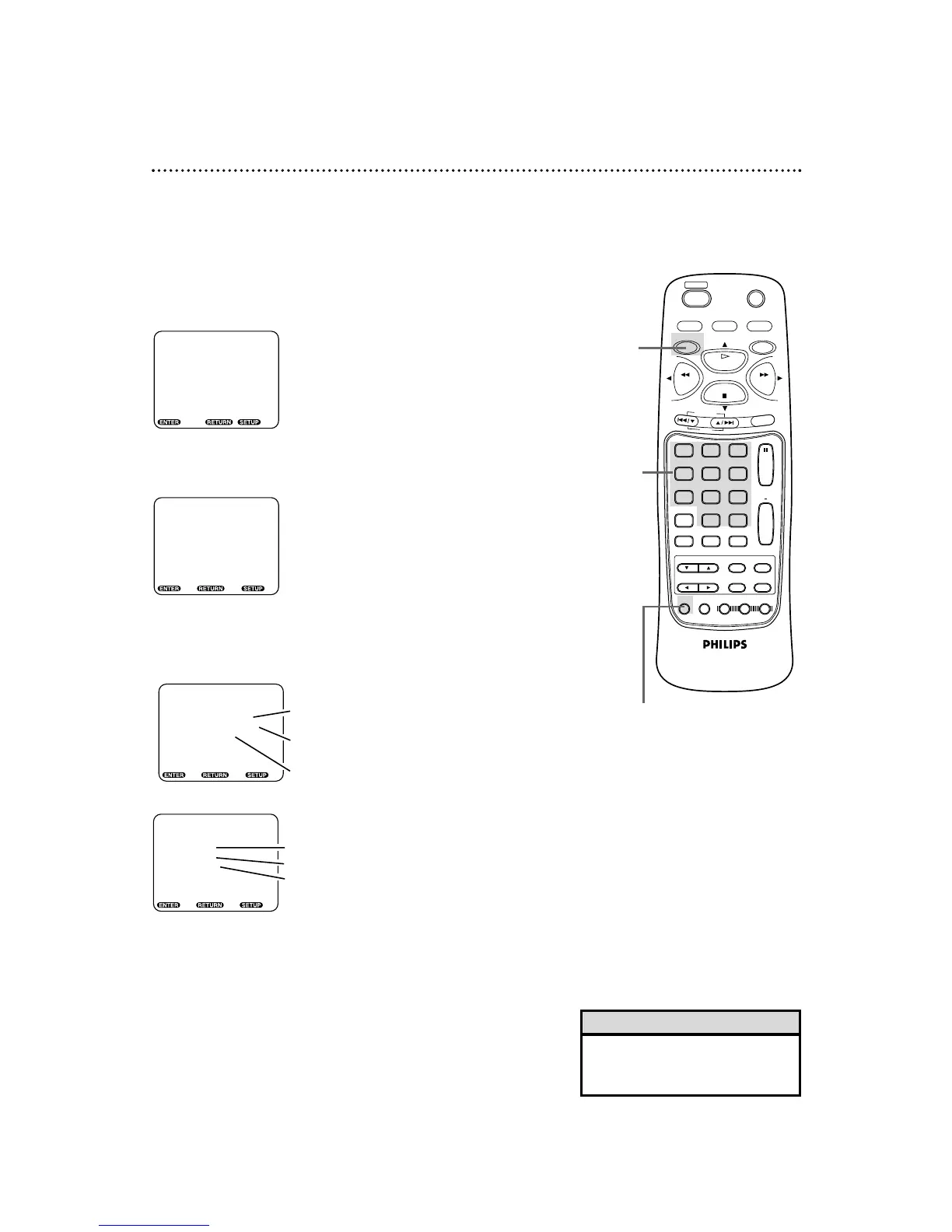
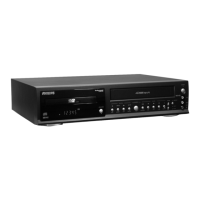
When playback is stopped, press the DVD button, then
press the SETUP button. The setup screen will appear.
2
Press the Number 2 button to select VIDEO.
3
Press the corresponding Number button to select an
item: TV MODE or STILL MODE.
1,5
2-4
4
Press the corresponding Number button to select a set-
ting.
5
Press the SETUP button to remove the menu.
• You may select a different TV
MODE setting only if it is available
on the Disc.
Helpful Hint
● Before you begin, place the DVD/VCR in DVD mode.
Press the DVD/VCR OUTPUT button so that the red DVD light
appears on the front of the DVD/VCR.
SETUP/VIDEO
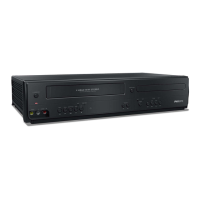
TV MODE
1. 4:3 PAN&SCAN
2. 4:3 LETTER BOX
3. 16:9 WIDE
•
Full-height pictures are shown, with one
or both sides trimmed
.
• Wide screen (full-width) pictures are
shown, with black bars at top and bottom.
• Select if a wide screen TV
is connected to the DVD Player.
Enter, Back Exit
SETUP/VIDEO
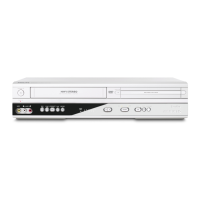
STILL MODE
1. AUTO
2. FIELD
3. FRAME
• AUTO is normally selected.
• Select if pictures are blurred in auto mode.
• Select to show Still pictures in high resolution.
Enter, Back Exit



 To Next Page