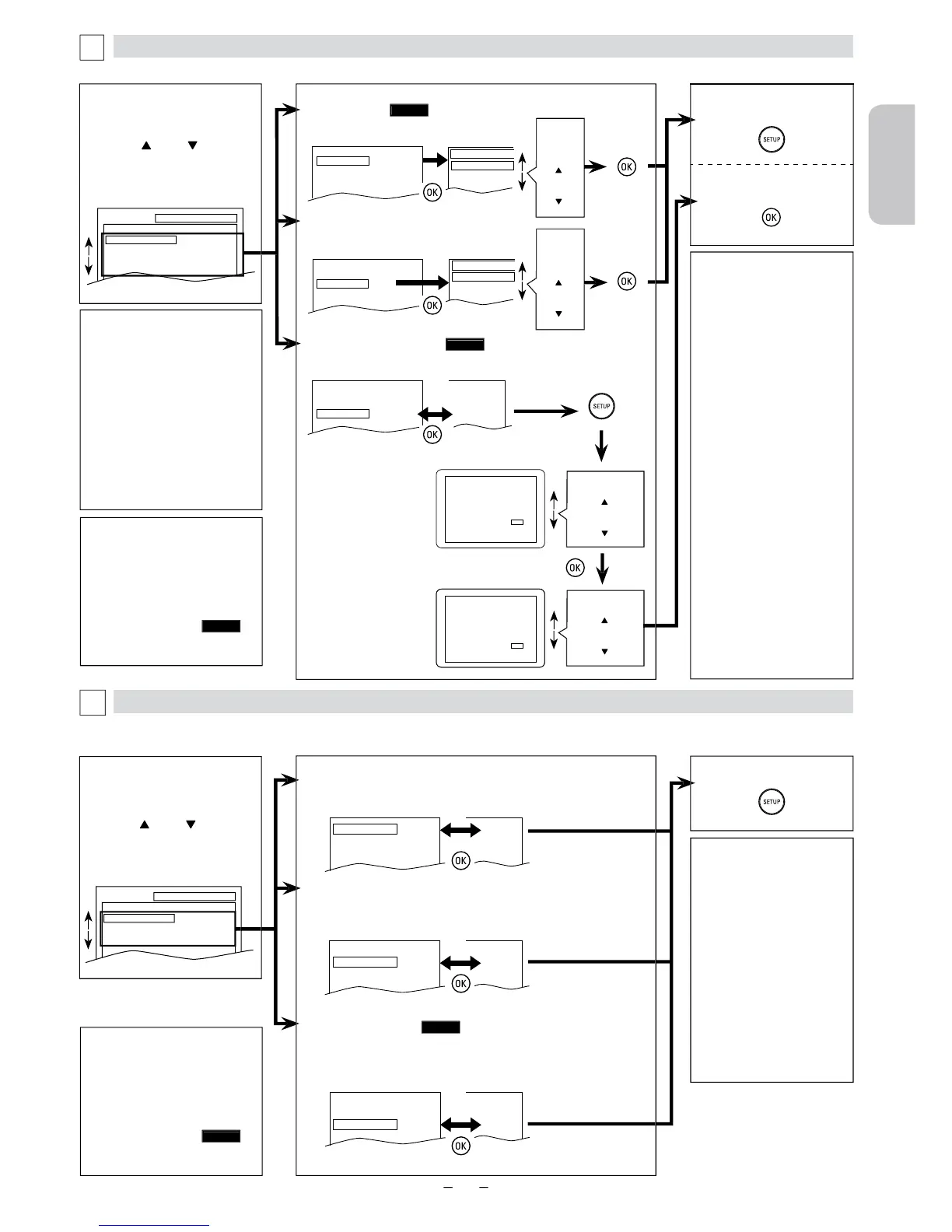
DISPLAY Setting
You can change the display functions. Follow steps 1 to 3 in the “CUSTOM Menu” section on page 24.
hoose the appropriate audio setting for your device. It is only affected during the playback of DVD discs. Follow steps 1 to 3 in the
“CUSTOM Menu” section on page 24.
SETUP AUDIO
DRC
DOWN SAMPLING
DOLBY DIGITAL
ON
ON
BITSTREAM
• Select “4:3 LETTER BOX”
ars may appear on
the top and bottom of the TV
screen.
• Select “4:3 PAN & SCAN”
or a full height picture with
.
• Select “16:9 WIDE” if a
wi
• Select “AUTO” usually.
• If you select “AUTO”, it
esolution setting (“FRAME”
or “FIELD”) based on the
data characteristics of the
pictures. (default)
• If you select “FIELD”, the
picture in t
.
• If you select “FRAME”, the
picture in t
n individual picture on the
TV screen is called a “frame”
which consists of two
separate images called “field”.
• Some pictures may be blurred
if you select “AUTO” in the
sti
Select the desired item.
DISPLAY menu
Default: 4:3 LETTER BOX)
See note on the right.
TV ASPECT
4:3
LETTER BOX
4:3
PAN & SCAN
16:9
WIDE
TV ASPECT
4:3 LETTER BOX
STILL MODE
AUTO
PROG. SCAN OFF
Default: AUTO)
See note on the right.
TV ASPECT
4:3 LETTER BOX
STILL MODE
AUTO
PROG. SCAN OFF
STILL MODE
AUTO
FIELD
FRAME
DRC (Dynamic Range Control)
(Default: ON)
Set to “ON” to compress the range between soft and loud sounds.
DOLBY DIGITAL
Default: BITSTREAM)
Set to “BITSTREAM” when the Unit is connected to a Dolby Digital decoder.
• BITSTREAM: outputs Dolby Digital signals.
• PCM: converts the Dolby Digital into PCM (2 channel).
DRC ON
DOWN SAMPLING
ON
DOLBY DIGITAL BITSTREAM
OFF
ON
BITSTREAM
Default: ON)
Set to “ON” when outputting in 48kHz
Set to “OFF” when outputting the original sound.
DRC ON
DOWN SAMPLING
ON
DOLBY DIGITAL
BITSTREAM
ON
ON
PCM
DRC ON
DOWN SAMPLING
ON
DOLBY DIGITAL
BITSTREAM
ON
OFF
BITSTREAM
• This function is available
on
• When playing back a 96kHz
own sampled at 48kHz even
if the “DOWN SAMPLING” is
set to “OFF”.
•
available when the disc
digital output was recorded
at 96kHz
SETUP DISPLAY
TV ASPECT
STILL MODE
PROG. SCAN
4:3 LETTER BOX
AUTO
OFF
• You can set “PROG. SCAN” to
“OFF” in “DISPLAY” menu or
press an
or more than 5 seconds during
playback until the P-SCAN
indicator on this Unit turns off.
• When “PROG. SCAN” is “ON”
ideo signals from the Unit’s
IDEO OUT and S-VIDEO OUT
jac
.
TV ASPECT
4:3 LETTER BOX
STILL MODE
AUTO
PROG. SCAN
OFF
4:3 LETTER BOX
AUTO
ON
Before proceeding…
1. Make sure your TV has progressive scan.
2. Connect with component video cable
NOTE: If there is no picture or picture is
distorted after selecting ‘YES’,
wait about 15 seconds for auto recovery.
Activate Progressive?
SELECT: K / L SET:OK
NO
YES
NO
YES
NO
YES
Confirm again to use progressive scan.
If Picture is good, Select ‘YES’.
SELECT: K / L
SET:OK
elect “Yes”.
If there is no picture
or you
“PROG.
SCAN” will switch to
“OFF” and it will exit
“SETUP” menu.
o
Default: OFF)
See note on the left.
To exit “TV ASPECT” or
“STILL MODE” menu
UICK” menu, “OSD
LANGUAGE”
“PROG. SCAN” or “DOLBY
DIGITAL” are available. “
UICK”
menu consists of the setting
menu frequently used and they
settings in
“CUSTOM” menu.
UICK” menu, “OSD
LANGUAGE”
“PROG. SCAN” or “DOLBY
DIGITAL” are available. “
UICK”
menu consists of the setting
menu frequently used and they
settings in
“CUSTOM” menu.
Continued on next page



 To Next Page