If this Unit does not perform properly when operated as instructed in this manual. Refer to the following:
INFORMATIO
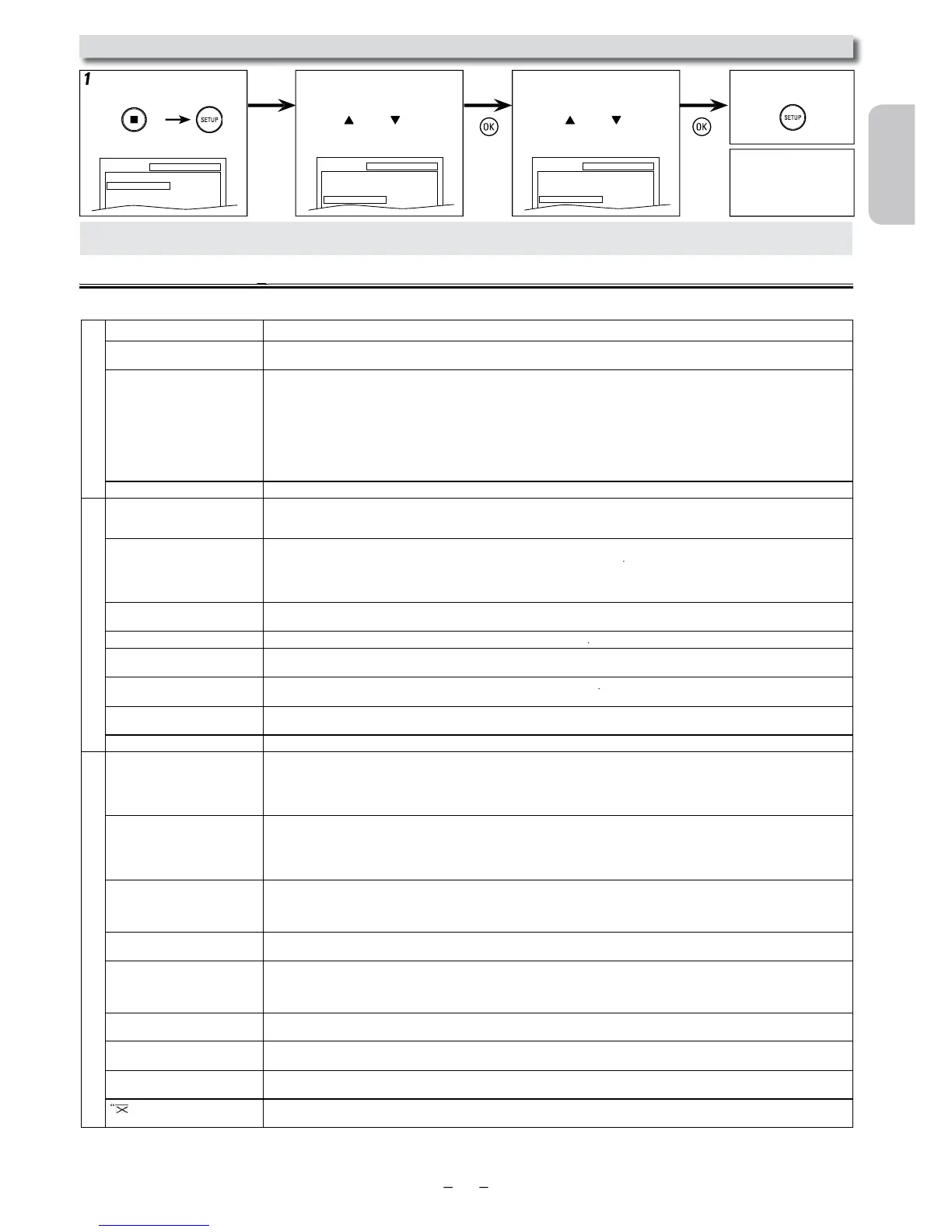
eset to the Default Setting (Except for PARENTAL Setting)
SETUP
QUICK
CUSTOM
INITIALIZE
SETUP INITIALIZE
Initialize?
NO
YES
SETUP
QUICK
CUSTOM
INITIALIZE
o power. • Make sure the power plug is connected to an AC outlet.
•
e
Remote Control.
• Check if the power plug is connected to an AC outlet.
• Check the batteries in the Remote Control
im the Remote Control directly at the infrared sensor window. If necessary, remove all the obstacles between the sensor and the Remote Control.
• You have to be within 23 feet (7m) of this Unit
• Check if a cassette tape is in this Unit.
• Tune your radio to an empty AM station so that you hear a lot of static. Turn up the volume, then if you hear some signal sound from
he radio in response to your pressing buttons on the Remote Control, the Remote Control is working.
• Press and hold any button on the Remote Control toward a Digital or Cell Phone Camera. The Remote Control is working when a
blinking infrared light is on the Display. Note some Cell Phone Cameras have an IR filter.
oor picture or noise. • Interference signal may be received. Change the position and direction of the Unit
annot record a TV program. •
casting.
• You must connect this Unit to a TV through a Cable/Satellite Set-top Box or similar DTV to analog TV converter devices to record TV
programs. Refer to “Recording & One-touch Timer Recording (OTR)” on page 16 and “Satellite Link” on page 18.
ing. • Make sure the timer program is set correctly. Refer to page 16
IMER REC indicator on this Unit lights up. If not, press
• Make sure the VCR clock is set correctly. Refer to page 12
• Make sure the Cable/Satellite Set-top Box or DTV to Analog TV Converter is turned On and is sending a signal to “L1” or “L2” input
jacks at the time the Timer recording is active. Refer to page 16.
annot go into record mode. • Make sure the cassette tape has a Record tab. If needed, cover the hole with adhesive tape
• Activate this Unit in VCR mode. Pres
on the Remote Control so that the VCR S
URCE light will illuminate.
djust tracking control for a better picture by pressing
annot view a picture but the
udio is OK.
• Head cleaning may be necessary. Refer to page 5
• Make sure the VCR is not in the VCR Menu mode
picture.
• Adjust tracking control for a better picture by pressing
• Connect the video cable firmly
Video or color fades in and out when
making a copy of a cassette tape.
•
annot remove the cassette tape.
• Check if this Unit is in the VCR mode. If not, press
on the Remote Control to switch the mode.
o picture. • Connect the video cable firmly
on the Remote Control. Check if the DVD SOURCE light will illuminate. Then try other DVD features.
• Set “PROG. SCAN” correctly in “DISPLAY” menu. Turn it on only if your TV has progressive scan and you are using the component
ideo connections between the Unit and the TV. Disable progressive scan for all other connections. Refer to page 10.
• Cancel the parental lock or change the control levels
• Handle a disc with special care so that it does not have fingerprints, scratches or dusts on its surface.
. • Connect the audio cables firmly
• Turn on the power of the audio component
• Correct the audio output settings
• Correct the input settings on the audio component
No DTS audio is output. • This Unit does not support DTS audio
-This is not a malfunction
picture. • Connect this Unit directly to the TV
• There are some cases where pictures may be slightly distorted and those are not a sign of a malfunction
• Although pictures may stop for a moment, this is not a malfunction. Refer to page 19
• Check if the progressive mode is set correctly according to your TV. Refer to pages 24-25
udio or subtitle language does
not matc
e setting.
• The selected language is not available for audio or subtitles on the DVD.
-This is not a malfunction
.
• The DVD does not contain sequences recorded from different camera angles.
-This is not a malfunction
udio or subtitle Language
cannot
-This is not a malfunction
appears on the TV screen,
pro
-This is not a malfunction
• Some functions are not available in specific modes, but this is not a malfunction. Read the description in this manual for details on correct operations.
• Playback from a desired track and random playback are not available during programmed playback.
• Some functions are prohibited on some discs.



 To Next Page