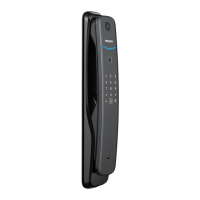
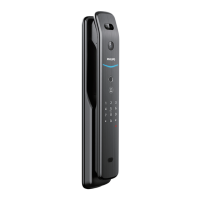
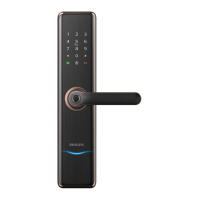
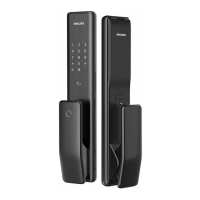
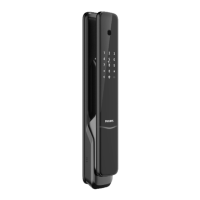
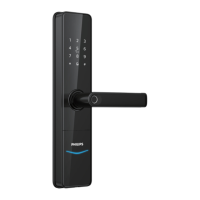
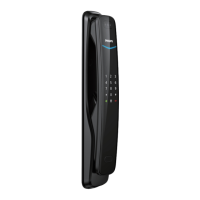
This document is a user manual for the Philips EasyKey 7000 series Push-pull Smart Door Lock, model DDL702E. It provides comprehensive instructions for installation, setup, usage, and troubleshooting, along with details on various features and maintenance.
The Philips EasyKey DDL702E is a smart door lock designed for residential use, offering multiple unlocking methods and enhanced security features. It is a push-pull type lock, which means the handle can be pushed or pulled to open the door once unlocked. The lock supports both General mode and Dual verification mode. In General mode, the door can be unlocked with any registered identity information (PIN code, key tag, or fingerprint). In Dual verification mode, two different verifications (e.g., PIN code and fingerprint) are required to unlock the door, providing an extra layer of security.
Function Description:
The primary function of the Philips EasyKey DDL702E is to secure a door while offering convenient and flexible access control. It integrates several unlocking methods:
- PIN code: Users can set up 6 to 12-digit PIN codes for access. There are options for master PIN codes, user PIN codes, and one-time PIN codes.
- Fingerprint: The lock features a fingerprint sensor, allowing users to register their fingerprints for quick and secure access.
- Key tag: Users can register key tags (RFID cards) to unlock the door by placing them against the card reader.
- Mechanical key: In case of emergencies or system failure, the lock can be opened using a traditional mechanical key.
- Indoor unlocking: From the inside, the door can be unlocked by rotating a rotary knob, pressing a functional button, or using an infrared sensor on the handle.
Usage Features:
-
Installation: The manual provides detailed steps for installation, including determining door swing direction, changing latch bolt orientation, and mounting the escutcheons and mortise. It highlights the importance of choosing the correct installation kit for door thickness and ensuring the latch bolt stays inside the door during installation.
-
Setup:
- Master Mode: The lock operates in a master mode for configuration. To enter master mode, users light up the keypad, enter [#], then the master PIN code, and confirm with [#].
- Modify Master PIN Code: The master PIN code can be changed by entering master mode, selecting option [1], and then entering and confirming the new PIN code.
- User Management:
- Add User Records: New user PIN codes, fingerprints, and key tags can be added. The system automatically assigns a number to each new user record. For PIN codes, users enter [2] then [1] in master mode, input a 6-12 digit PIN, and confirm. For fingerprints, users enter [2] then [3], and follow prompts to place their finger on the sensor multiple times until registration is successful. For key tags, users enter [2] then [4], and place the key tag against the card reader.
- Delete User Records: Individual user PIN codes, one-time PIN codes, fingerprints, or key tags can be deleted by entering master mode, selecting [3] for user record deletion, and then choosing the specific deletion option (e.g., [1] for PIN code deletion, [3] for fingerprint deletion, [4] for key tag deletion). There are options to delete a single record by entering its 2-digit code or to delete all records of a specific type.
-
System Settings:
- Volume Settings: The volume of voice prompts can be adjusted (high, low, or mute) by entering master mode, selecting [4] for system settings, then [2] for volume settings, and choosing [1], [2], or [3].
- Language Settings: The system language can be changed (Chinese, English, Spanish, Russian, Arabic) by entering master mode, selecting [4] for system settings, then [1] for language settings, and choosing the desired language option. The default language is English.
- Dual Verification Mode: Users can switch between single verification mode and dual verification mode for unlocking by entering master mode, selecting [4] for system settings, then [3] for dual verification mode, and choosing [1] or [2].
- Locking Mode Settings: The lock can be set to auto mode or manual mode. In auto mode, the latch bolt pops up automatically when the door is closed. In manual mode, the user needs to manually engage the lock. This setting is accessed via master mode, [4] for system settings, then [4] for locking mode settings, and choosing [1] or [2].
-
Extended Functions:
- Wi-Fi Connectivity: For Wi-Fi enabled products, the lock can be connected to a Wi-Fi network. This involves entering master mode, selecting [5] for extended functions, then [1] to join a network, and using the Philips EasyKey APP on a mobile phone for binding. The lock supports 2.4Ghz Wi-Fi routers.
-
System Query:
- Security Code Query: Users can check the product series number by entering master mode, selecting [6] for system query, then [1]. Alternatively, directly entering 400# will initiate the query.
- Software Version Query: The software version can be checked by entering master mode, selecting [6] for system query, then [2]. Alternatively, directly entering 114# will initiate the query.
-
Lock Pairing (App Binding):
- Bluetooth Smart Door Lock: For Bluetooth models, users install batteries, sign into the Philips EasyKey App, select "Add a device," choose "Bluetooth Smart Door Lock," and follow the in-app pairing instructions.
- Wi-Fi/Facial Recognition/Video Smart Door Lock: For these models, users install batteries, enter master mode ([#] -> master PIN -> [#]), press [5], then [1] to enter Networking Distribution Mode. Then, in the App, they select "Add a device," choose the appropriate lock type (Wi-Fi lock/Facial recognition lock/Video lock), and follow the in-app pairing instructions.
-
Locking and Unlocking:
- Unlock from Outside:
- PIN code: Touch the keypad, enter the registered PIN code, and confirm with [#]. Push or pull the handle to unlock.
- Fingerprint: Place a registered finger on the sensor. Push or pull the handle to unlock.
- Key tag: Place a registered key tag against the card reader. Push or pull the handle to unlock.
- Lock from Outside or Inside: The latch bolt automatically pops up when the door is closed, accompanied by a "Door Close" voice prompt.
- Inside Deadlock: When the door is locked, long-pressing the [CLOSE] button on the inside escutcheon enables inside deadlock. In this mode, the outside escutcheon is locked, and all its operations are disabled. Access from outside requires master PIN code verification or a mechanical key.
- Unlock with Mechanical Key: This involves cutting open a mechanical box, retrieving the key, inserting it into the keyhole, turning the key shell 90 degrees, then twisting it 180 degrees clockwise, and finally rotating the key cover horizontally to unlock.
-
Other Functions:
- Safe Handle Function: This feature is not explicitly detailed but is listed as a function.
- Outside Forced Lock: After the door is successfully locked, long-pressing the "Outside forced lock" button for 2 seconds enables this mode. Unlocking from inside will trigger an alert.
- One Key to Mute Mode: When the system is awake, long-pressing the [Mute] button for 2 seconds mutes the lock's voice guide (glows green). Long-pressing again unmutes it (glows white).
Maintenance Features:
-
Battery Replacement: The lock is powered by 1.5V alkaline batteries (eight batteries). When a low battery alert is triggered, all batteries should be replaced immediately. The battery compartment is located in the lower part of the inside escutcheon. To replace, press the button near the bottom, remove the battery cover, push the battery cover buckle upwards, and pull out the compartment. Ensure correct polarity (+/-) when installing new batteries.
-
Emergency Power Supply: If the battery voltage is too low and the door cannot be opened from outside, a 5V power bank can be plugged into the micro USB interface to power up the lock temporarily. If a system crash occurs, the same method can be used to reboot the system.
-
System Initialization/Restore to Default Settings: To empty all user information and restore the EasyKey to default settings, remove the battery cover and double-press the [RES] hole with a sharp object. A voice prompt of "Restoring to default settings" confirms the action.
-
Cleaning: The product should be cleaned with a soft cloth. Avoid scraping the fingerprint sensor with sharp objects or exposing the product to water leakage, splashing, or corrosive substances.
Safety and Caution:
The manual emphasizes several safety precautions:
- Read and understand all instructions to avoid damage not covered by warranty.
- Use only manufacturer-specified accessories and alkaline batteries of the same specification.
- Do not forcibly disassemble the product.
- Do not scrape the fingerprint sensor with sharp objects.
- Avoid exposing the product to water or corrosive substances.
- Do not hang objects on the handle.
- Ensure professional installation and do not disassemble the lock yourself.
- Modify the default master PIN code immediately after installation and keep password information and mechanical keys secure.
- Replace batteries immediately upon low battery alarm and ensure correct polarity.
- Do not place batteries near fire sources.
- Do not use emergency power supplies that do not meet safety requirements.
- Avoid short-circuiting battery poles with metals.
- Ensure any component replacement is executed by Philips authorized personnel.
- Do not use accessories or parts not recommended by Philips.
Alert Types and Methods:
The lock provides various alerts to inform users of specific conditions:
- Alert to unlock from inside under outside forced lock mode: Triggered when unlocking from inside while outside forced lock mode is enabled. Alerts repeat until identity verification is successful.
- Low battery alert: Triggered when the system wakes up and detects low battery voltage. A voice prompt "Low battery voltage, please replace all batteries" is given when unlocking. Alerts automatically turn off after battery replacement.
- Anti-dismantling alert:
- Triggered if the door is pried apart and the latch bolt pops up.
- Triggered if the outside escutcheon is pried open, creating a gap.
- Alerts repeat and turn off automatically upon successful identity verification or normal indoor unlocking.
- Anomalous deadbolt alert: Triggered if the deadbolt works abnormally or fails to lock/unlock. Alerts repeat and turn off automatically.
- System freezing indicator: If there are 5 consecutive incorrect inputs of fingerprint, PIN code, or key tag within 5 minutes, the system locks up for 3 minutes. The keypad will flash (three times for 3 minutes, twice for 2 minutes, once for 1 minute) to indicate the remaining lockout time.
The Philips EasyKey DDL702E is designed to be a user-friendly and secure smart door lock, offering a range of features for modern access control and peace of mind.


 To Next Page
 General