12 Philips · HDP15x0 & HDP15x0TV
Initial Installation
1 Push the POWER B button for 5 seconds till the
power indicator turns to red to turn the device on.
2 Turn the device towards a suitable projection sur-
face or wall. Note that the distance to the projection
surface must be a minimum of 0.1 meter and a max
-
imum of 0.5 meter (see Setting up the Device,
page 4). Make sure the projector is in a secure posi-
tion.
3 Use the focus wheel on the font of the device to
adjust the image sharpness.
4 The first time you turn on the device, you should set
the following settings.
5 Use the keys / to select the language and con-
firm with OK.
6 Use the keys //À/Á to select the symbol +
or - to set the date (day, month and year) and con
-
firm with .
7 Use the keys / to select the date format and
confirm with .
8 Use the keys / to select the time zone and
confirm with .
9 Use the keys //À/Á to select the symbol +
or - to set the date (hour and minute) and confirm
with .
10 Use the keys / to select the time format (12h
or 24h) and confirm with .
11 Use the keys / to select the location (Home
or Shop) and confirm with .
Home: for normal use.
Shop: when you choose this option, the projector
starts in demonstration mode. In this mode, the pro
-
jector automatically displays the pictures or videos
stored in the internal memory in loop.
12 A message is displayed to give the address web site
where the user manual can be downloaded. Press
to continue.
Turning off the projector
Press the B button on the panel control of the device
or on the remote control more than 5 seconds.
ECO mode
Press shortly the B button on the panel control or on
the remote control to put the device in ECO mode.
To wake up the device, press shortly again on the
B
button.
Setting up the Language
The device has already been installed. In order to
change the menu language, proceed as follows:
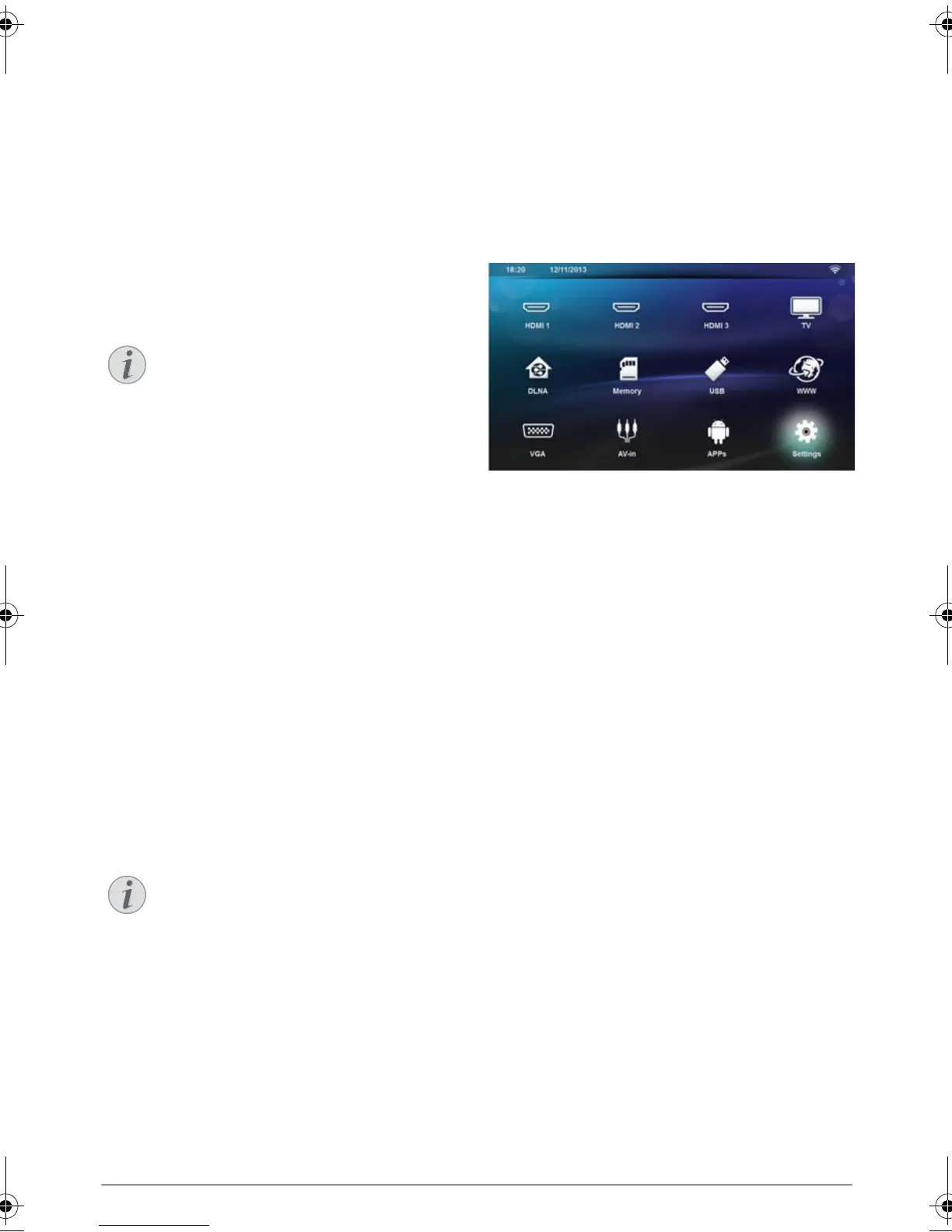
1 Use the navigation keys to select Settings.
2 Confirm with .
3 Select Language/ Language with /.
4 Confirm with .
5 Select Menu Language with /.
6 Confirm with .
7 Select you desired language with /.
8 Confirm with .
9 Exit with u.
During the first installation, use OK key to
validate your choice and continue to the next
step, and the ¿ key to return on the previ
-
ous step.
The demonstration mode can be activated or
deactivated on the menu Setting/Mainte
-
nance/Demo mode.
LU UST.book Page 12 Jeudi, 26. décembre 2013 9:48 09




 To Next Page