Network 19
Using WPS with Push Button
Configuration (PBC)
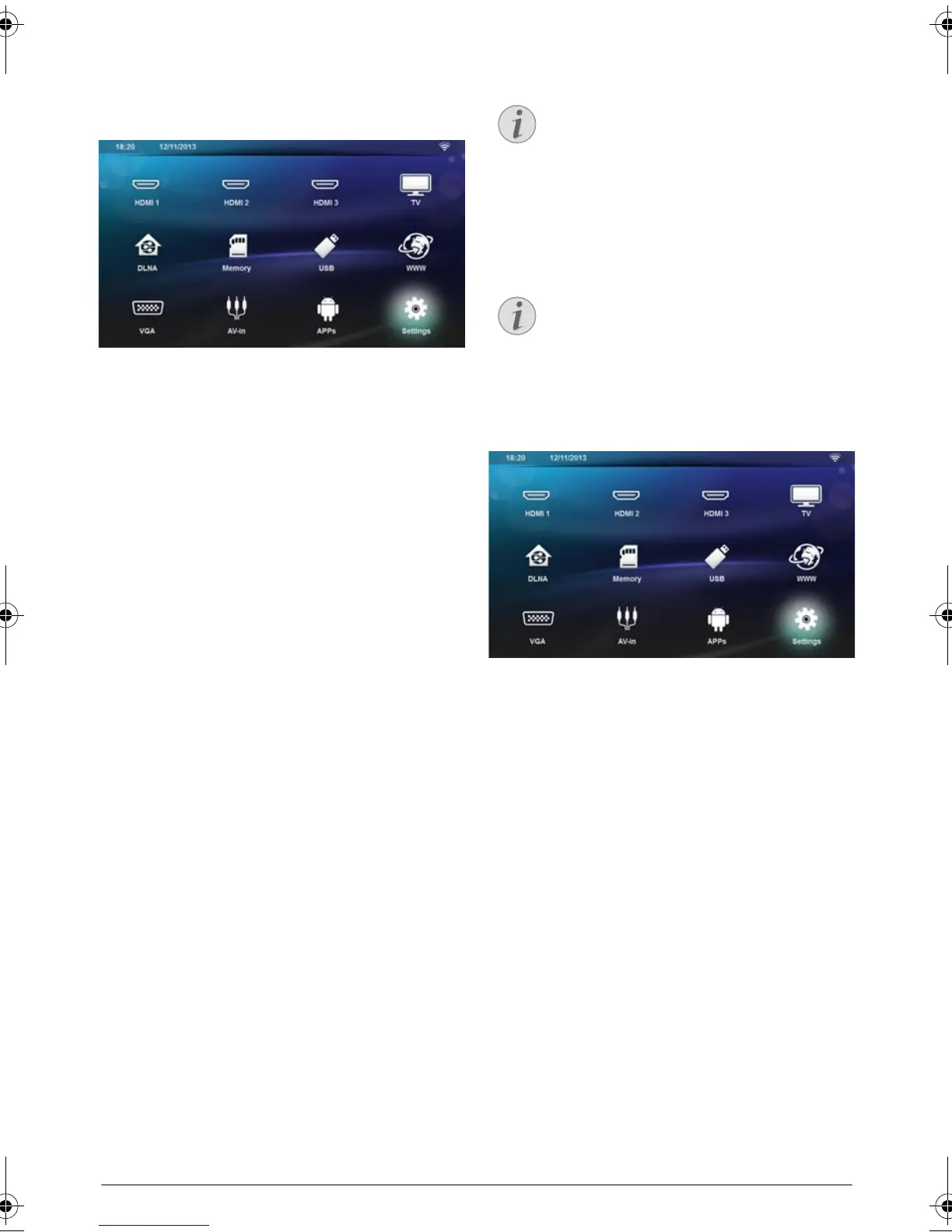
1 Switch the device on using the on/off key.
2 After the initial screen the main menu appears.
3 Use the navigation keys to select Settings.
4 Confirm with .
5 Using / select Wireless and Networks.
6 Confirm with .
7 Using / select WIFI Selection.
8 Confirm with .
9 Use / to select the desired wireless network..
10 Confirm with .
11 Activate Push Button Configuration on the WLAN
access point. The WLAN access point and device
connect automatically and create a WPA protected
connection.
Wifi Hotspot
Use the portable Wi-Fi hotspot to share the device’s
network connection with computers or other devices
through the Wi-Fi network.
Activating WiFi hotspot
1 Switch the device on using the on/off key.
2 After the initial screen, the main menu appears.
3 Use the navigation keys to select Settings.
4 Confirm with .
5 Using / select Wireless and Networks.
6 Confirm with .
7 Using / select WiFi Hotspot.
8 Confirm with .
9 Using / select Portable WiFi Hotspot.
10 Confirm with .
11 Using / select On.
12 Confirm with .
The projector is now visible by other Wifi devices.
Important!
The projector can work as an access point, if
only a wired lan network is installed in the
location of use.
Connection!
When the WiFi hotspot mode is activated, it
takes priority over the other connections.
LU UST.book Page 19 Jeudi, 26. décembre 2013 9:48 09




 To Next Page