English
EN
67
The The mobile phone screen can be projected onto this product via a WLAN. First,
download the HappyCast software from the “App Store” on the main screen, click
“Mobile Phone Projection” on the main screen to enter the projection screen, and
then select “Apple” or “Android” on the left.
5.7.1 Screen Projection for Andrid Mobile Phone
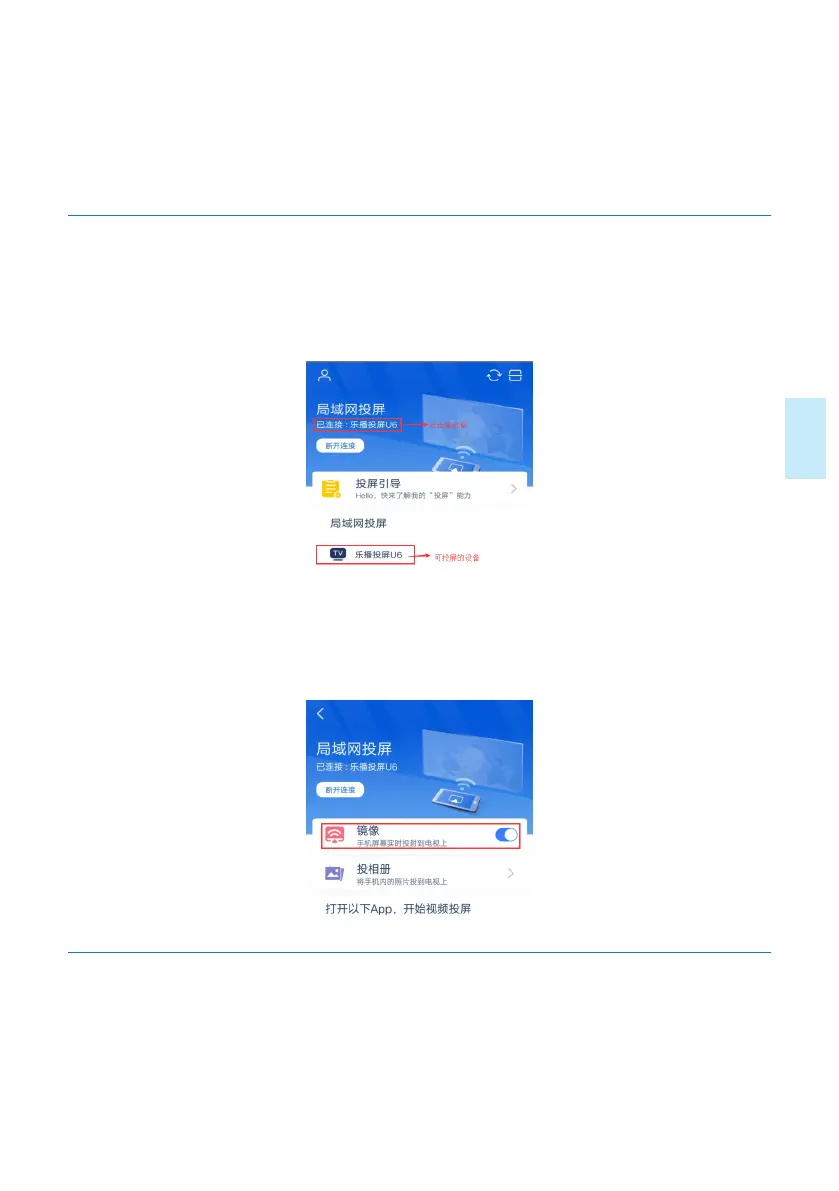
1)Connect this product and the mobile phone to the same WLAN. Open the set-up
HappyCast app, and then select the device to be projected, as indicated in the figure
below:
2)Select the equipment to be projected, and then enter the LAN screen projection
page; turn on the mirror image switch so as to complete the screen projection for
mobile phone, as indicated in the figure below:
5.7.2 Screen Projection for Apple Mobile Phone
1) Connect this product and the mobile phone to the same WLAN.
2) After they are successfully connected, slide upwards from bottom of screen so as
to exit the control center, click “mirror image” button (as indicated by the mark in the
left figure below), and then select the name of your equipment so as to initiate the




 To Next Page