English
EN
53
5.2 Videoconference
The videoconference function adopts the high-definition camera, echo cancellation and
noise reduction. You can carry out video conversation anywhere anytime.
5.2.1 Click the icon “Videoconference” to enter the videoconference screen.
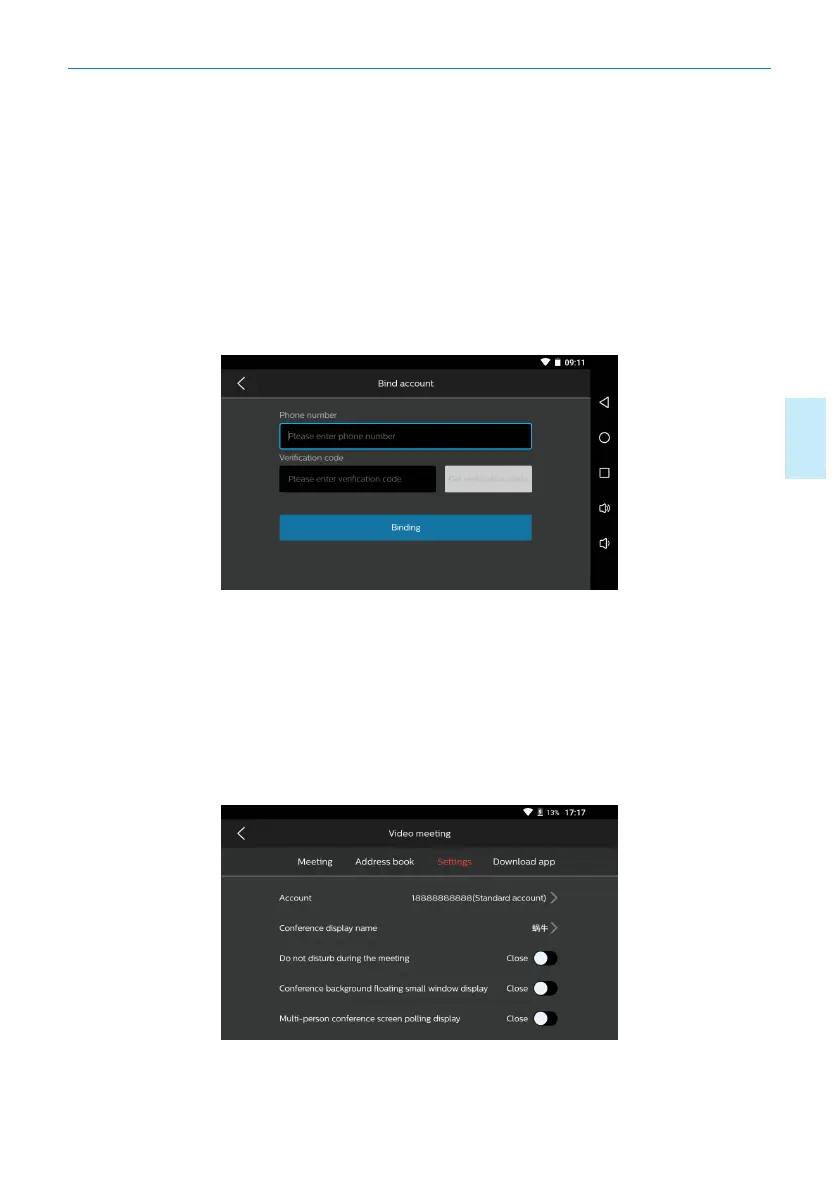
5.2.2 Adding a contact: If your current account has not been bound with Smart Meet-
ing Recorder, please bind your account first: Click the “Contact” button and then the
“Adding a Contact” button and the prompt box for account binding will appear on the
screen. Click “Enter”, and then enter the mobile phone number and the verification
code for binding.As indicated in the figure below:
After account binding, return to the previous screen, click the button “Adding a Con-
tact”, and enter the account of the friend in the “Adding a Friend” dialogue box. (A
user of Smart Meeting Recorder can be added directly, and a mobile phone user has to
download the videoconference app and register an account.) Then select the account
number to attend the videoconference, and click the button “Start”.
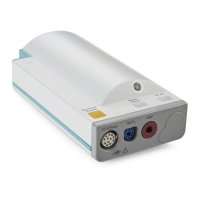
5.2.3 Conference setup: Click “Conference Setup” to enter the conference setup
screen.As indicated in the figure below:
1)Distraction free: When “Key” is set on, any new invitation will be rejected
automatically during the videoconference, and “Key” is off by default.





 To Next Page