54
EN
2) Display in background small suspension window: When “Key” is set on, a small
video suspension window will be displayed when you return to the desktop by
clicking on the Main Menu key during the videoconference, and “Key” is off by
default.
3) Cyclic display of multi-person conference screen: When “Key” is set on, the right
small participant window is displayed cyclically automatically when there are more
than 4 participants during the videoconference, and “Key” is off by default.
4)Automatic camera switching by voice control: When “Key” is set on, the camera
will switch to the end closer to the user during the videoconference; after “Key”
is turned on, the automatic front / rear camera switching button disappears, and
the front/rear cameras can be switched manually only if “Key” is o; “Key” is on by
default.
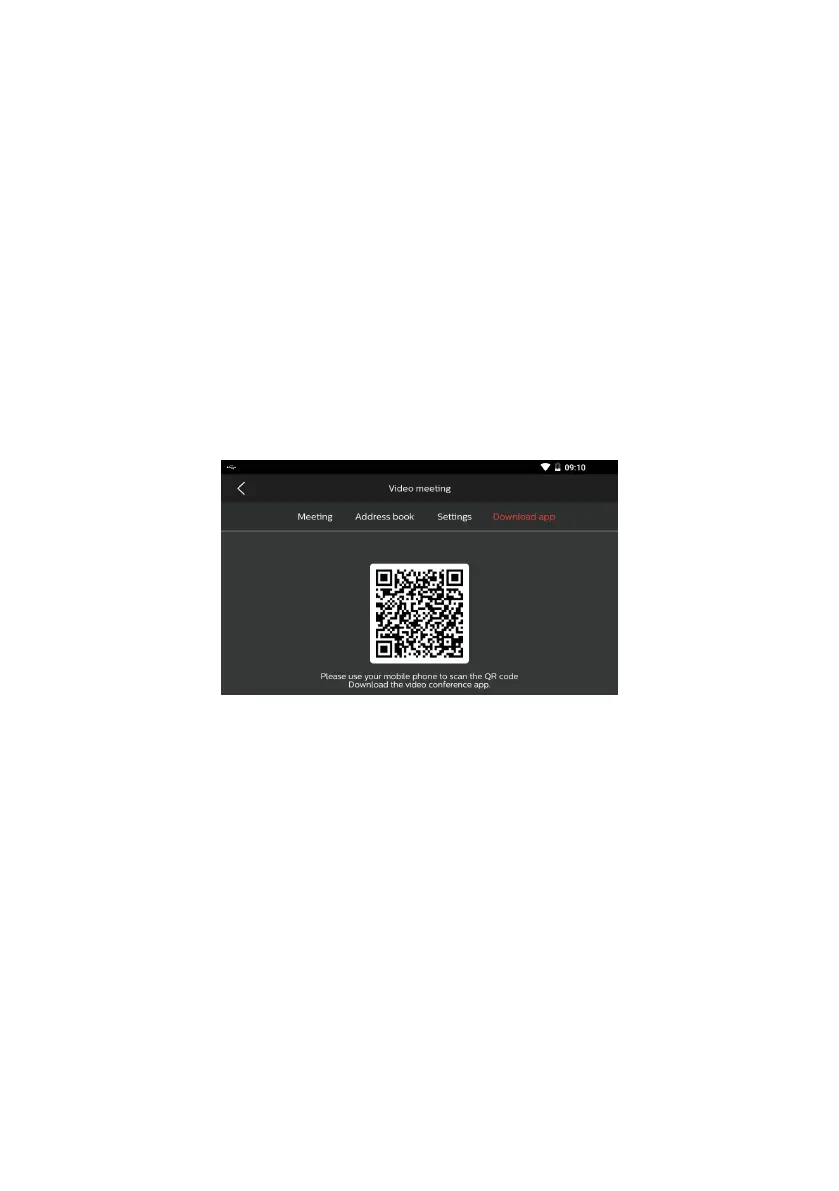
5.2.4 Mobile app download: Please scan the QR code to download the Smart Meeting
Recorder videoconference app, as indicated in the figure below:
5.2.5 The videoconference function supports two-person and multi-person modes:
1) Two-party mode: Select the contact person on contact person page, select “√”
and then click the button “Start the conference” to start the conference. As a
result, you will enter the two-person video conversation. Please initiate the video
conversation when the contact person is online, as indicated in the figure below:





 To Next Page