35P/N 2018 - 10 B Rev A 6 – Release
QuickSee Companion App
Updating Firmware
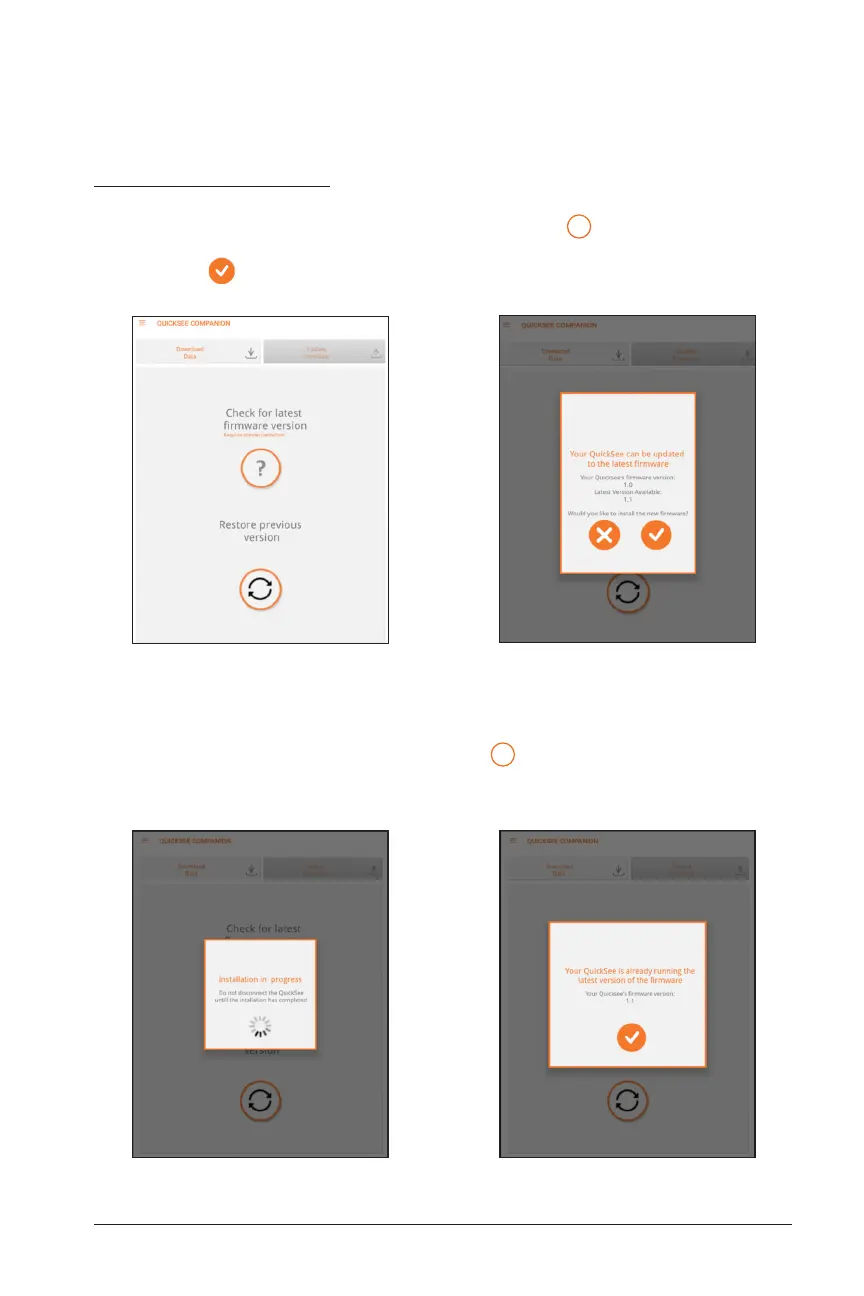
On the main menu screen, you can perform software updates or software restores to
the QuickSee by pressing the Update Firmware tab. Press
to check if a software
update is available. If a new version is available, the Update Confirmation Screen will
appear. Press to confirm.
Update or Restore Firmware Update Confirmation Screen
If you choose to update the software, the Installation Progress Screen will appear. Af-
ter installation, press the check firmware button
again – if the QuickSee is already
running the latest firmware, the Latest Firmware Screen will appear and if an update
to new firmware is successful, the Installation Success Screen will appear.
Installation Progress Screen Latest Firmware Screen


 To Next Page