! Plexxi Switch 3eq Installation Guide (Switch-Control 3.0.0-3.2.x)! 15!
6. The switch is shipped with AC or DC power supplies installed as ordered. For AC power supplies,
plug the power cables into separate circuits on the rack. For DC power supplies, hard-wire each
power cable to a separate site DC power source.
Note: For redundancy, connect the two power supplies to separate power sources.
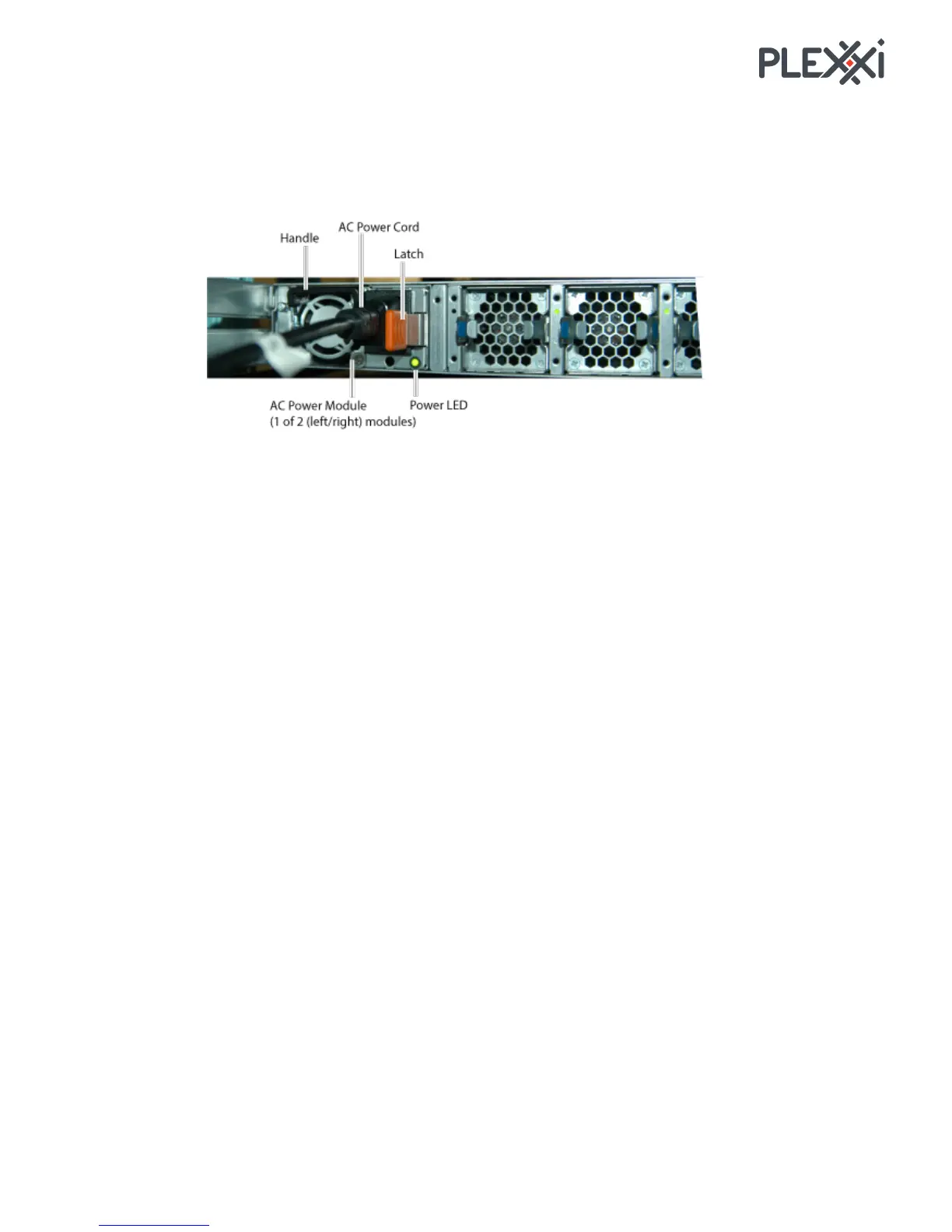
7. For each AC or DC power supply, plug a power cord into the power supply port. The following
image shows the left AC power cord installed.
Powering!Up!Plexxi!Switch!3eq!
When you connect one or both power supplies and provide site power to the switch, it automatically
powers up. There is no power switch.
Performing!the!Initial!Switch!Configuration!
Perform the initial switch configuration as described in the appropriate release of the document, Plexxi
Switch Administrator Guide using Linux and Plexxi CLI.
Connecting!LightRails!
Install transceivers and cables to connect the LightRails as described in the following chapters in this
document:
• 4: Creating the Plexxi Fabric Network
• 5: Creating a Plexxi PSI LightRail Network
• 6: Creating a Direct Connect Network
• 8: Installing Transceivers and Cables
Configuring!the!LightRails!
Connect to the switch and configure the LightRails using the Plexxi CLI as described in the document,
Plexxi Switch Administrator Guide using Linux and Plexxi CLI.
Powering!Down!Plexxi!Switch!3eq!
Disconnect power to both power supplies to power the switch Off. Note that there are two power supplies
which should be connected to separate site power sources for redundancy.



 To Next Page