6
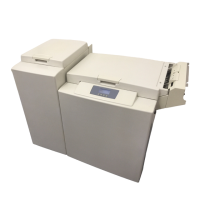
The booklet making system is controlled from a single control panel on the Booklet Maker.
The control panel has only four buttons which will allow you to easely set up, adjust and
operate the complete system.
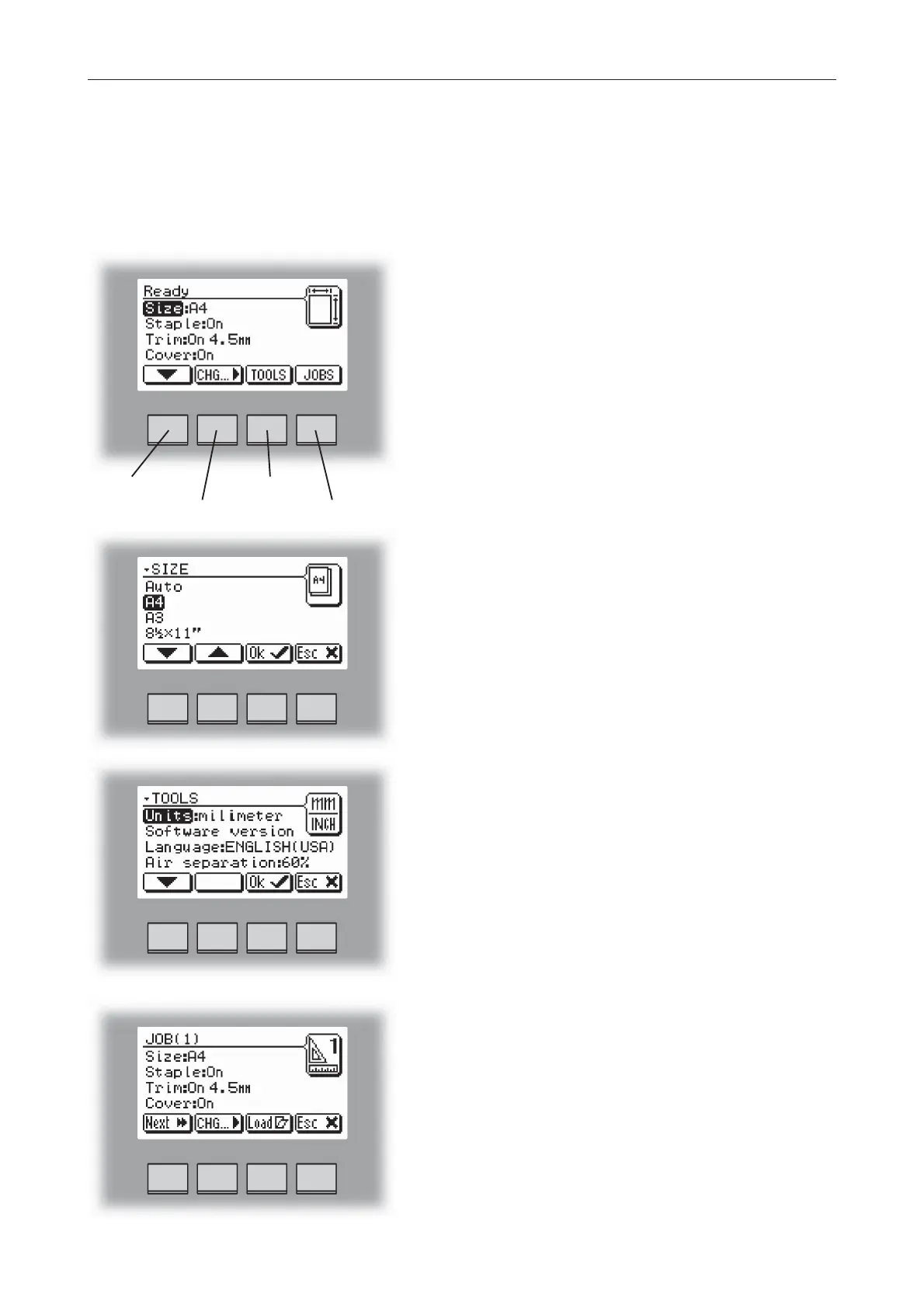
The Ready screen.
When the system power is switched on the Ready
screen will be shown. Here you will find information
showing the actual set up. From this screen you can
also access other screens, that will help you operate
the complete booklet making system.
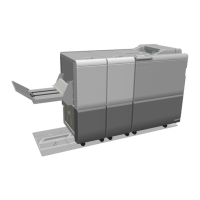
Changing settings.
To change or adjust settings; Select an item in the
Ready screen with the [arrow] button and press the
[Change] button. For example you can change the
paper size, fine adjust the trimming or turn off the
cover feeder. Explore all settings more thoroughly in
section 2. Making Booklets.
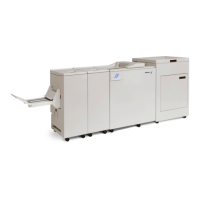
The Tools screen.
Pressing the [Tools] button in the Ready screen takes
you to the tools screen. Here you will find all the
necessary tools for a troublefree operation. From
here you can change the display language, set units
from millimeters to inches and more. See section 3.
Tools. for how to get around in the Tools screen.
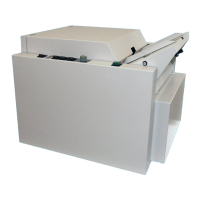
The Jobs screen.
Pressing the [Jobs] button in the Ready screen opens
the Jobs screen. From here you can load, customize
and save job settings. These procedures are
described in section 4. Jobs.
arrow button
change button
tools button
jobs button


 To Next Page